Voice Notes
The Voice Notes app turns the Cyber Fidget into a pocket voice recorder. Press a button, talk, press again -- your memo is saved straight to the memory card. Everything happens on the device itself, with no internet connection and no account.
What is this?
Think of it like a tiny cassette recorder:
- Record -- tap or hold the action button to capture a voice memo through the built-in microphone.
- Browse -- your notes are listed newest-first, right on the device.
- Replay -- play any note back through the on-board speaker.
- Manage -- play notes on the device, or rename, download, delete and tidy them from your phone using the Web Portal.
The app is record-first: it opens straight onto the recorder screen, so capturing a thought is the very first thing you can do -- no menus in the way. You'll find it in the menu under Media -> Voice Notes.
Works completely offline
Recording, listening back, and deleting all work with the radios switched off. You only need WiFi if you want to manage notes from your phone, and even then the audio stays on your own devices -- see Your voice data.
Button reference
| Button | Recorder (home) | Notes list | Playback | Delete? |
|---|---|---|---|---|
| Enter | Start / stop recording | Play selected note | Pause / resume (replay at end) | Confirm delete |
| Select | Exit the app | Back to recorder | Stop, back to list | Cancel |
| Up | Switch quality | Move up | -- | -- |
| Down | Open notes list | Move down | -- | -- |
| Right | -- | Delete selected | -- | -- |
| Slider | -- | -- | Volume | -- |
| --- |
Recording a note
There are two ways to record, and both save -- the app doesn't throw a recording away when you stop:
| Gesture | What happens |
|---|---|
| Tap the action button | Starts recording and latches on. Tap again to stop. |
| Press and hold (about 0.4 s) | Records only while you hold. Let go to stop. |
Tap is best for longer thoughts (start it and forget it); hold is best for a quick one-liner (like a walkie-talkie). The first fraction of a second is trimmed automatically so the button click at the start never lands in your recording, and a tap-to-stop also shaves the closing click off the tail.
While a recording is running:
- The front-bottom light glows a faint red so you can see at a glance that it's listening.
- The device won't fall asleep mid-recording, no matter how long you talk.
- The reels on screen spin, and a timer counts up.
The tape-deck screen
The recorder home screen is a 1-bit wireframe cassette. Here's the tour:
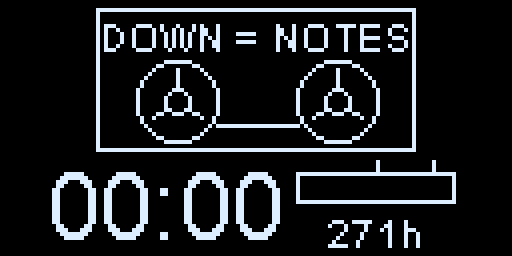
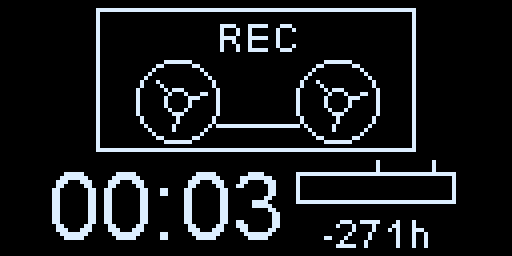
- Status -- cycles through
ENTER = REC,DOWN = NOTES, andREADYwhen idle, so the controls are always on screen. It showsRECwith a blinking dot while recording, andSTOPfor the moment a note is being saved. - Tape reels -- turn while recording or playing back, and sit still when idle. If
there's no card, they're crossed out with an
X. HQbadge -- appears in the corner only when High Quality is selected (see Recording quality).- Timer -- large digits counting the length of the current recording.
- Level meter -- the bar on the right shows how loud the microphone is hearing you, with two small ticks marking the good-level band.
- Time left -- when idle, this shows roughly how much recording time fits in the
card's free space (for example
84mor27h). While recording it counts down the remaining time.
Getting a good level
The microphone is naturally quiet, so the firmware boosts it before recording. The level meter (a VU meter) shows the boosted level, which is what actually gets saved.
Aim to keep the peaks of your voice inside the two ticks -- the "good-level band":
- Below the lower tick: a bit quiet, but still perfectly usable.
- Inside the band: ideal -- clear and full without distortion.
- Slamming past the upper tick constantly: you're very close to the microphone or somewhere very loud; back off a little.
In practice, holding the device a hand's width away and talking normally lands you right in the band. You don't have to be precise -- the band is guidance, not a hard limit, and recordings outside it still play back fine.
Recording quality
Tap Up on the home screen to switch between two quality settings. Your choice is remembered across power-offs.
| Setting | On-screen | Roughly | Best for |
|---|---|---|---|
| Standard | (no badge) | ~2 MB per minute | Voice memos, lots of them |
| High | HQ badge |
~6 MB per minute | Music, detail, archival clips |
Standard is plenty for spoken notes and keeps files small. This also means it's faster to download and process them later. High captures a wider range of sound for the times it matters or you want to include the audio in other media. You can mix and match -- the setting only affects new recordings, and every note remembers its own quality for playback.
Where your recordings live
Recordings are saved to a /recordings/ folder on the memory card, numbered in the
order you make them:
/recordings/
|-- REC_0001.wav
|-- REC_0002.wav
|-- REC_0003.wav
'-- index.csv        <- the device's list of your notes (name, date, length)
Each note is a standard WAV audio file -- uncompressed sound that plays on any phone or
computer with no special software. That's a deliberate choice: you can pop the card into
a laptop, or grab notes over WiFi from the Web Portal, and they just
play. They're also much simpler to process. The small index.csv file is how the device remembers each note's date and length;
the app keeps it in step automatically whenever you record, rename, or delete.
The numbers keep climbing
The counter only ever goes up, even after you delete notes, so two recordings never share a name. It's stored in the device's settings memory and survives reboots.
Listening back on the device
From the recorder screen, press Down to open your list of notes:
![The RECORDINGS list on a Cyber Fidget: 1/2 in the header, REC_0002 (0:07) highlighted above REC_0001 (0:03), and the footer showing no date and [>]del](../../assets/media/device-voice-notes-list.png)
- Notes are listed newest first, each showing its name and length.
- Up / Down move the highlight; the footer shows the selected note's date (or
no dateif the clock wasn't set when it was recorded -- see Timestamps). - Press Enter to play the selected note. The playback screen shows spinning reels, and the slider sets the volume just like the music player. Enter pauses and resumes; at the end it replays from the top. Select stops and goes back to the list.
- Press Select from the list to return to the recorder.
Big collections
The on-device list shows your most recent 64 notes (the counter in the header still shows the true total). Older notes are safe on the card and fully accessible from the Web Portal on your phone.
Deleting a note
With a note highlighted in the list, press Right to delete it. A confirmation screen appears:
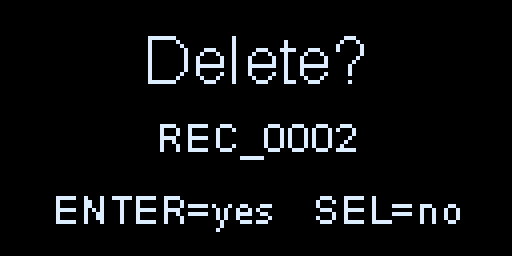
Press Enter to confirm or Select to cancel. Deleting removes the recording, its entry in the list, and any transcript saved alongside it. There's no undo, so the confirmation step is there on purpose.
Timestamps and the clock
The Cyber Fidget has no battery-backed clock, so on a fresh power-up it doesn't know the
date. Until the clock is set, new notes are stamped No date.
The easiest way to set it is to open the Web Portal from your phone -- the portal quietly tells the device your current local time the moment the page loads. After that, every note you record gets a real date and time. The clock keeps running through normal sleep, and only resets when the device is fully powered off via the battery switch or if the battery is removed.
Set the clock first
If timestamps matter to you, open the portal once at the start of a session. Notes
you record afterwards will be dated; ones recorded before stay No date (their audio
is unaffected).
No memory card
If there's no card in the slot, the recorder shows a NO TAPE screen with the reels
crossed out, and offers two choices:
- Enter -- re-check the slot after you've inserted a card.
- Down -- try Demo mode.
Demo mode
Demo mode lets you try recording and playback without a card. It captures a short
clip into temporary memory -- about 30 seconds in Standard quality, or 10 seconds in
High -- so you can hear how the app feels. Nothing is saved: the clip is gone as soon as
the device sleeps or powers off, and the screen says so (not saved - add card). Insert
a card to start keeping your recordings for real.
Managing notes from your phone
For anything beyond record-and-replay -- renaming notes, downloading them, or clearing out
several at once -- connect your phone to the device's WiFi and open the Voice notes tab
in the Web Portal. It lists every recording on the card, plays them in the
browser, and downloads them (one at a time, or several bundled into a single .zip). The
audio streams straight from the card to your phone over the device's own network.
Your voice data
Your recordings belong to you, and the Cyber Fidget is built so they stay that way:
- Everything is saved on your memory card -- not to Cyber Fidget's servers, or anyone else's. The device has no cloud and no account of its own.
- Managing notes from your phone sends the audio directly from the card to your phone over the device's own WiFi. It doesn't pass through any company server.
- Turning speech into text happens right on your phone. The phone companion's live captions and transcripts in Notes are produced by your phone itself (after a one-time download), and transcripts are written back to the card next to each note -- your words stay in one place you own.
- Daily-note summaries use an account you provide with a service you choose -- and only after you say yes to that specific service, each time, with the exact text shown first. See the Privacy policy and your provider's terms for how requests are handled.
- Error reports sent back to us don't include anything about a recording -- not the sound, not a transcript, not even the file name.
In short: your voice stays on devices you control.
How it works
For the curious, here's what's happening under the hood:
- The microphone is an ICS-43434 MEMS microphone connected over an I2S audio bus. The app reads a steady stream of audio samples from it while you record.
- Samples flow through a buffer in fast PSRAM and are written to the card as a WAV file -- 16-bit mono PCM audio at 16 kHz (Standard) or 48 kHz (High). Those formats were chosen because every browser and operating system can play them with no conversion.
- Playback runs the same pipeline in reverse, decoding the WAV file to the I2S amplifier that drives the speaker.
The microphone and speaker are shared hardware, so the app borrows them while it's open and hands them back when you leave -- the same lifecycle every app follows. For the framework-level view of the microphone and speaker, see Sound & Music.