Web Portal
The Web Portal turns the CyberFidget into a WiFi access point with a captive portal, giving you a browser-based interface to manage music files, create playlists, and preview tracks — all from your phone. It can also join your home WiFi network for easy access at cyberfidget.local.
What is this?
Connect your phone to your Fidget's own WiFi network (named CyberFidget- plus 4 characters, shown on its screen) and a web portal opens automatically (captive portal). No app installs, no IP addresses to remember. From there you can:
- Upload MP3 files via drag-and-drop
- Browse your music library with real ID3 metadata (title, artist, album)
- Play tracks through your phone's speaker (web audio)
- Manage files — move, delete, create folders
- Build playlists in M3U format that persist on the SD card
- Connect to WiFi -- save up to three networks (home, school, a phone hotspot) for check-ins, updates, and
cyberfidget.localaccess
The portal's WiFi password
Each Fidget's network has its own name: CyberFidget- followed by 4 characters, for example CyberFidget-0b50. The Fidget's screen shows it after Join (for example Join CyberFidget-0b50). The 4 characters are the same ones the website shows for that Fidget (in Your Fidgets, for example), so with several Fidgets in one room each phone joins the right one.
The network has a password, so nobody nearby can join it without seeing your Fidget. The Fidget's screen shows it under the Join line, after Password:
- It is 8 digits with no space (for example
12345678). Type them exactly as shown. - It is new every time the portal starts. A phone that joined last time will not reconnect by itself; type the new digits shown now.
- It stays on the screen while the portal runs. A live caption session takes over the screen while it is connected; the password comes back when the session ends.
- The Fidget does not save it anywhere. It is gone when you exit the portal.
How it works
Phone → Connects to "CyberFidget-xxxx" WiFi AP (xxxx = 4 characters on the screen)
     → Captive portal auto-opens browser at 192.168.4.1
     → SPA loads (HTML/CSS/JS served from ESP32 flash)
     → API calls read/write files on the SD card
     → Audio served directly from SD over HTTP
Or, if connected to your home WiFi:
Phone → Same WiFi network as CyberFidget
     → Browse to http://cyberfidget.local
     → Same portal, no WiFi switching needed
The portal is a standalone app launched from the main menu under Tools > CyberFidget Portal. Settings > Setup WiFi opens the same portal straight on its WiFi page (see Setting up WiFi). It stops Bluetooth (shared radio) and starts WiFi, so you can't play music through a BT speaker while the portal is running.
To leave the portal, press the Back button. The device asks "Exit portal?" -- Enter confirms, Back cancels -- and then restarts. The restart is quick: the boot animation is skipped for this one restart, so you're back at the menu in a moment.
Why restart? The portal borrows resources to give the web features room to run -- including the memory normally reserved for the Bluetooth radio. Restarting is the clean way to hand everything back, so Bluetooth audio and every other feature start fresh. This also means Bluetooth audio (Music Player) is unavailable from the moment you open the portal until that exit restart completes.
WiFi and Bluetooth share the ESP32 radio
The ESP32 can't run WiFi AP and BT A2DP simultaneously with enough bandwidth for audio streaming. The portal calls btStop() on entry and releases the BT controller's memory to make room for the WiFi stack and web server. That memory can only be reclaimed cleanly by a restart, which is why exiting the portal restarts the device. After the restart, BT reconnects as usual when you open the Music Player.
Architecture
App lifecycle
Menu → "CyberFidget Portal" → AppManager::switchToApp(APP_WEB_PORTAL)
  1. MusicPlayerApp::end()        — saves state, stops playback
  2. WebPortalApp::begin()        — btStop() + BT memory release, WiFi AP+STA, mDNS, DNSServer, AsyncWebServer
     ... user manages files via captive portal or cyberfidget.local ...
  3. Back button                  — "Exit portal?" confirmation (Enter confirms, Back cancels)
  4. WebPortalApp::end()          — server stop, mDNS stop, WiFi.mode(WIFI_OFF)
  5. Restart                      — hands the BT memory back cleanly; boot animation skipped for this restart
WiFi modes
The portal runs in AP+STA dual mode (WIFI_AP_STA):
- Access Point -- the Fidget's own network,
CyberFidget-plus the 4 characters shown on its screen, is always available. Any device can connect directly and access the portal at192.168.4.1. - Station — If you have saved a WiFi network, the CyberFidget also joins it. This makes the portal accessible at
cyberfidget.localor the device's LAN IP from any device on your network. The portal joins the first saved network straight away, without scanning, so its own network stays responsive while it starts.
Saved networks (up to three) are stored in NVS (non-volatile storage), the device's small settings area in flash, and survive restarts. See Saved WiFi networks for how they are ordered and managed.
mDNS: cyberfidget.local
When connected to your WiFi, the device registers cyberfidget.local via mDNS. This works on iOS, macOS, Linux, and Android 10+. If mDNS doesn't resolve on your device, the IP address is always shown on the OLED and in the portal status bar.
Captive portal
A captive portal is a WiFi network that sends every new visitor to its own page first, like a hotel or cafe sign-in page. When a phone or computer joins a network, its operating system asks for a known test address to check whether the network has internet. If the answer is not what it expects, it opens a "sign in to network" page by itself. The Fidget uses that to open the portal without anyone typing an address.
Two parts make it work:
- Name lookups (DNS). The Domain Name System (DNS) turns names like
www.msftconnecttest.cominto network addresses. On its own network, the Fidget answers every name lookup for an IPv4 address with its own address,192.168.4.1. It answers the same way when the lookup carries the Extension Mechanisms for DNS (EDNS), which Android, Apple devices and many browsers add. Lookups for other record types (for example IPv6 addresses) get an empty answer, so a device never receives an IPv4 address where it asked for something else. The responder (lib/WebPortalApp/CaptiveDns.h) listens only on the Fidget's own network and stops completely when the portal closes. - Network checks. The operating system's test requests reach the Fidget's web server, and each gets a redirect to the portal page instead of the answer that would mean "you are online": Windows
/connecttest.txtand/redirect, Apple/hotspot-detect.html, Android/generate_204. TheonNotFound()handler redirects any other unknown address to/as well.
Why the Fidget answers name lookups itself
Earlier firmware used the Arduino framework's DNSServer. It answered "no such name" to any lookup that carried EDNS, and answered IPv6 and similar lookups with an IPv4 record, so some phones and browsers never opened the sign-in page. The Fidget now uses its own small responder.
A computer that also has a wired connection
While a Windows computer is joined to the Fidget's network, Windows sends all its name lookups to the Fidget, which answers every one with its own address. On a computer that also has a wired (Ethernet) connection, other internet traffic may misbehave until the computer leaves the Fidget's network, and Windows may open its sign-in window over the wired connection instead (see Common issues). Leave the Fidget's network when you are done.
Android captive portal browser limitations
Android's "Sign in" mini-browser doesn't support file picker inputs. A banner detects this and prompts users to open 192.168.4.1 in their full browser (Chrome, etc.) where file upload works normally.
OLED display
While the portal is running, the 128x64 OLED shows how to join, with one status line at the bottom. The title is CyberFidget Web for the portal from the Tools menu, and Setup WiFi when it was opened from Settings > Setup WiFi:
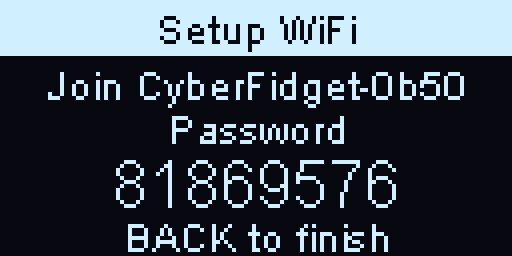
The 4 characters after CyberFidget- are different on each Fidget (this one is 0b50). The 8 digits are the portal's WiFi password (a new one each time the portal starts, so the one in this picture will never work). The bottom line says what is happening:
| Bottom line | When |
|---|---|
| Pick network on phone | Setup WiFi, before you have chosen your home network |
| Connecting... | Setup WiFi, while the Fidget joins the network you picked |
| BACK to finish | Setup WiFi, once the Fidget has joined. Back leaves the portal |
| cyberfidget.local (or the Fidget's home-network address) | Tools portal, when the Fidget is also on your home WiFi. The name only shows while the name service (mDNS) is running; otherwise the address shows, so the screen never shows a name that won't resolve |
| 192.168.4.1 | Tools portal, when the Fidget is not on a home network |
| No memory card | Tools portal without an SD card (Setup WiFi does not need one) |
| Uploading NN% | While a file uploads |
| Open 192.168.4.1 | A phone or computer joined the Fidget's network but opened no portal page within about 10 seconds. It takes turns with the usual line (3 seconds each), so the way out stays on screen |
When you see Open 192.168.4.1, type that address into a browser on the device that joined. As soon as the portal page is opened, the bottom line goes back to the usual line and stays there.
SD card layout
Media files live under /media/ with arbitrary nesting:
/media/
├── track.mp3                     ← flat files
├── Artist Name/
│   ├── track.mp3                 ← artist folders
│   └── Album Name/
│       └── track.mp3             ← artist/album nesting
├── playlists/
│   ├── Chill.m3u                 ← M3U playlist files
│   └── Workout.m3u
└── My Folder/
    └── track.mp3                 ← user-defined folders
The Music Player's AudioSourceIdxSD and ID3Scanner both scan /media/ recursively — any .mp3 file at any depth is discovered.
The /web/ folder is separate. It holds the companion's compressed
speech-recognition payload (engine.worker.js.gz and vendor/) for captions
and note transcription. It may also hold a companion page override, but live
listening uses the page built into the firmware unless the card's copy is newer.
Organize however you want
The scanner doesn't care about folder structure. Flat files, nested by artist/album, or any combination — it all works. Folders are just for your own organization.
API reference
All API routes are under the ESPAsyncWebServer running on port 80.
| Route | Method | Purpose |
|---|---|---|
/ |
GET | Portal page (SPA from PROGMEM) |
/media/* |
GET | Static file serving from SD (for audio playback) |
/recordings/* |
GET | Static voice-note serving from SD (playback + download) |
/web/* |
GET | Phone companion; serves the newer of the page built into firmware and an optional card copy, plus the card's speech-recognition payload when present |
/ws/live |
WS | Live caption link: mic audio out as binary PCM frames, JSON time/caption frames back; single client; contract pinned in LiveLinkProtocol.h |
/api/files |
GET | Recursive JSON folder tree (music view, MP3-filtered) |
/api/tracks |
GET | Flat JSON array with ID3 metadata per track |
/api/recordings |
GET | Voice notes merged with index.csv metadata |
/api/browse?path=/... |
GET | Single-level listing of any folder (name, type, size, modified date) for the Files browser |
/api/download?path=/... |
GET | Download any file off the card as an attachment |
/api/upload?dir=/... |
POST | Multipart file upload into any folder |
/api/delete?path=/... |
POST | Delete a file or a folder (folders delete recursively; voice notes also drop the index.csv row) |
/api/mkdir?path=/... |
POST | Create a directory anywhere on the card |
/api/move?from=...&to=... |
POST | Move/rename a file or folder (voice notes also update the index.csv row) |
/api/time?ms=<epoch> |
POST | Set the device clock from the browser's wall-clock |
/api/status |
GET | File count, SD space, connected clients, live-link health (live.connected, sent/dropped frame counts) |
/api/playlists |
GET | List all M3U playlists |
/api/playlist?name=... |
GET | Read playlist tracks |
/api/playlist?name=... |
POST | Save playlist (JSON body) |
/api/playlist/delete?name=... |
POST | Delete playlist |
/api/wifi/scan |
GET | Scan nearby WiFi networks |
/api/wifi/connect |
POST | Save a network as the first one to try and connect to it (JSON: ssid, pass). A fourth network is refused with 409 ({"error":"full"}) |
/api/wifi/status |
GET | WiFi connection status, IP, mDNS, the saved network names in the order they are tried (saved, never passwords), and whether the portal was opened from Setup WiFi (landing) |
/api/wifi/forget |
POST | Forget one saved network (JSON: ssid) |
/api/wifi/first |
POST | Move a saved network to the front of the list, "Use this first" (JSON: ssid) |
Example: /api/tracks response
[
  {
    "path": "/media/Rock/song.mp3",
    "title": "Song Title",
    "artist": "Artist Name",
    "album": "Album Name",
    "size": 4521984
  }
]
ID3 tags are read on-the-fly from each MP3 file (ID3v2 first, ID3v1 fallback). Title falls back to filename if no tags are present.
Example: /api/recordings response
{
  "sd": true,
  "items": [
    {
      "name": "REC_0042.wav",
      "timestamp": "2026-06-09T14:23:11",
      "duration": 123,
      "bytes": 3936000
    }
  ]
}
The list is built from /recordings/index.csv (written by the Voice Notes app, parsed with the shared RecNaming::parseIndexRow) and filtered to rows whose .wav still exists on the card. timestamp is empty when the recording was made before the clock was set; duration is whole seconds; bytes is the audio data length. When no card is mounted the response is {"sd": false} so the UI can tell "no card" apart from "no notes yet".
Example: /api/browse response
{
  "sd": true,
  "path": "/media",
  "entries": [
    { "name": "Rock", "type": "dir", "size": 0, "mtime": 1717000000 },
    { "name": "intro.mp3", "type": "file", "size": 4096, "mtime": 1717000000 }
  ]
}
/api/browse lists the direct children of one folder (defaults to the card root, /), with no type filter, so the Files browser can show every file and folder. type is "dir" or "file"; size is bytes (0 for folders); mtime is the file's modified time as a Unix timestamp. mtime is only meaningful once the device clock has been set -- files written before then come back as 0, which the browser shows as "No date". As with /api/recordings, a missing card returns {"sd": false}.
Example: /api/playlist save body
{
  "tracks": [
    "/media/Rock/song.mp3",
    "/media/Pop/track.mp3"
  ]
}
Web UI features
Track table
The default view shows all tracks in a sortable, searchable table with columns for title, artist, album, and size. Data comes from /api/tracks with real ID3 metadata.
Each track has action buttons (visible on hover/tap): - Play — streams audio through the phone's browser - +PL — add to a playlist via dropdown - Del — delete with confirmation
Web audio player
Tracks are served directly from the SD card via serveStatic("/media/", SD, "/media/"). The browser's native <audio> element handles decoding — zero CPU cost on the ESP32.
The player bar shows: - Now-playing title and artist - Play/pause, previous, next controls - Visual progress bar (interactive scrubbing planned for future) - Elapsed and remaining time
Playing any track auto-builds a queue from all loaded tracks, so next/prev cycles through your library.
Voice notes
The Voice notes tab lists every recording made by the Voice Notes app, newest first, reading metadata straight from /recordings/index.csv. Each note shows its date, length, and size, with:
- Play — a native
<audio>element streams the WAV straight from the SD card (serveStatic("/recordings/", SD, "/recordings/")), with scrubbing for free. WAV was chosen in part so every browser can play it with zero transcoding. - Download — saves the original
.wavto your phone or computer. - Rename — renames the file and rewrites the matching
index.csvrow (and any transcript sidecar) in lockstep, so a note never loses its metadata. Reuses/api/move, constrained to flat.wavnames within/recordings/. - Delete — removes the
.wav, itsindex.csvrow, and any transcript sidecar together. Reuses/api/delete.
Everything stays on the card and in your own browser — no recording audio, filename, or transcript ever touches a project server. The tab shows "Insert a memory card..." when no card is mounted and "No voice notes yet..." when the card has none.
Device clock and timestamps
The Cyber Fidget has no battery-backed real-time clock, so on a cold boot it doesn't know the date. When the portal page loads it POSTs the browser's wall-clock to /api/time (settimeofday), so any recording made afterwards lands a real timestamp in index.csv. The browser sends a timezone-adjusted epoch so the device — which keeps time as UTC — records your local wall-clock time. Recordings made before the first portal visit of a session stay stamped "No date". In "Deep Sleep" on mainboard v1.2, the clock may drift up to ~2 seconds per day / 1 minute per month (ESP32 internal real-time clock is rated +/- 20 parts per million drift at 32kHz).
Files
The Files tab is a raw browser for the whole memory card -- the power-user view alongside the curated Media and Voice notes tabs. Where Media is shaped for music and Voice notes for recordings, Files shows everything: every file and folder of any type, the way Windows Explorer or macOS Finder does.
- Navigate one folder at a time -- click a folder to go in, use the breadcrumb at the top to jump back out. You always see the direct contents of the current folder, not a flattened dump of the whole card, so it stays clear what lives inside what.
- See each item's name, size, and modified date. (Dates only appear once the clock has been set this session -- see the note above; older files show "No date".)
- Download any single file, or tick several and download them as one
.zipbundle (the same one-at-a-time, keep-this-page-open transfer the Voice notes tab uses, so the device only ever serves one file at a time). - Upload by dropping files onto the current folder (or tapping to choose them).
- New folder, Rename, and Delete -- delete works on a single file, several selected items at once, or a whole folder (deleting a folder removes everything inside it).
Everything stays on the card and in your own browser -- nothing is uploaded to a project server.
The Files tab can delete anything on the card
Unlike the Media and Voice notes tabs, the Files browser can rename and delete any file or folder, including ones other features rely on (the music index, a recording's index.csv, configuration files). Deleting a folder removes everything inside it, and there is no recycle bin -- removed files are gone. Use it the way you would use Explorer or Finder.
Live listening
The Live listening entry in the sidebar opens the phone companion
(served from the copy built into the firmware unless the card has a newer one):
live audio streaming from the device's microphone, captions on the device's
OLED, voice-note transcription, and daily-note summaries. Live listening needs
no card files; captions and transcription use a compressed speech-recognition
payload under /web/ on the card.
Playlists
M3U files stored in /media/playlists/. The web UI supports:
- Create/delete playlists
- Add tracks from the file browser
- Play entire playlists (sequential playback)
- Per-track play buttons within expanded playlists
- Missing file detection (dimmed with warning if referenced file no longer exists)
Now-playing highlight
The currently playing track is highlighted with a cyan accent bar: - In the track table when playing from the table or folder view - In the playlist when playing from a playlist
The highlight follows next/prev navigation and persists across sort/search/re-render.
Settings page
Settings are split across the two browser surfaces. The portal's Settings page provides the Network controls:
- WiFi Connection -- the current connection state, network name, address, and, when it is running,
cyberfidget.local - Saved networks -- the networks the Fidget remembers, by name only (passwords are never shown). The first is marked Tried first; every other one has Use this first. Each has Forget, which asks
Forget <name>?before removing it - Available Networks -- nearby networks with signal-strength bars and a Locked label for ones that need a password. Scan again refreshes the list. Pick one, enter its password (leave it empty for an open network), and select Connect. The network is saved as the first one to try, and the Fidget connects to it
- Its own network -- the always-available
CyberFidget-network (plus the 4 characters shown on the Fidget's screen) and its address,192.168.4.1
The companion's Settings page contains Transcription controls and Your data, including the companion version currently served by the device. When the device declines an older card copy, On your card shows that copy's claimed version too.
Saved WiFi networks
A Cyber Fidget remembers up to three WiFi networks. It needs one for its check-ins with cyberfidget.com: linking, updates, and Dev mode.
- Order. When it checks in, the Fidget first tries the network that worked last time. If that one is not there, it scans once and joins the strongest saved network it can see, and remembers that one for next time. The portal itself only tries the first saved network when it starts.
- Adding. A network you connect to becomes the first one to try. Connecting to a network that is already saved updates its password and moves it to the front.
- Full list. With three networks saved, connecting to a fourth is refused with 3 networks are saved. Forget one first. Nothing is dropped without you choosing which.
- Use this first moves a saved network to the front, for example before taking the Fidget somewhere you know that network will be.
- Forget removes one network. It changes nothing else: the Fidget stays linked, and update settings are untouched. To erase every saved network along with the other settings, see Update or reset your Fidget.
- Earlier firmware. Firmware before saved-network lists kept a single network. After updating, that network becomes the first saved network; there is nothing to enter again. The first network is also kept where earlier firmware looks for it, so going back to an earlier version still finds one.
Setting up WiFi
Settings > Setup WiFi on the Fidget opens the portal straight on its WiFi page. It works without a memory card.
- On the Fidget, open Settings > Setup WiFi. The screen says Join CyberFidget- plus 4 characters (for example Join CyberFidget-0b50) and shows the portal's 8-digit Password with Pick network on phone at the bottom.
- On your phone or laptop, join the WiFi network with the name shown on the Fidget's screen and type the 8 digits shown on the Fidget's screen (see The portal's WiFi password). A "sign in to network" page opens by itself and shows the portal on its WiFi settings, with a note to pick your network and enter its password, and the nearby networks already listed. If nothing opens within about 10 seconds, the bottom line of the Fidget's screen starts showing Open 192.168.4.1 (in turns with the usual line): browse to
http://192.168.4.1on the phone or laptop. - Pick your home network, enter its password (not the Fidget's digits), and select Connect. The bottom line of the Fidget's screen says Connecting..., then BACK to finish once it has joined.
- Press Back on the Fidget and confirm Exit portal?. It restarts, as the portal always does, and is ready to check in.
Saved WiFi on the device
Settings > Saved WiFi lists the saved networks by name, in the order they are tried; when more than one is saved, the first shows (first). With nothing saved it shows Nothing saved yet. Press Enter on a network for Use this first, Forget, or Cancel (the first network has no Use this first). There is no way to type a password on the Fidget, so the last row, Setup WiFi, opens the portal to add a network. Back returns to the menu.
Build impact
| Before (Phase 2.75) | After (Phase 3.1) | Delta | |
|---|---|---|---|
| RAM | 16.3% (53 KB) | 22.7% (74 KB) | +21 KB |
| Flash | 52.3% (1.6 MB) | 74.6% (2.3 MB) | +700 KB |
The flash increase is primarily ESPAsyncWebServer + WiFi libraries + ESPmDNS + the portal HTML/CSS/JS. RAM increase is the WiFi AP+STA stack (freed when portal exits).
Files
| File | Lines | Purpose |
|---|---|---|
lib/WebPortalApp/WebPortalApp.h |
~80 | Class declaration (AP+STA, mDNS) |
lib/WebPortalApp/WebPortalApp.cpp |
~1000 | App lifecycle, WiFi STA, API routes, ID3 reader, OLED render |
lib/WebPortalApp/portal_page.h |
~950 | PROGMEM SPA (HTML + CSS + JS + Settings page) |
lib/WebPortalApp/CaptiveDns.h |
Name-lookup (DNS) responder for the Fidget's own network | |
lib/WebPortalApp/OpenAddressHint.h |
When the screen shows Open 192.168.4.1 | |
scripts/add_network_lib.py |
~35 | PlatformIO pre-build script for Network library |
Network library linkage
pioarduino's ESP32 Arduino 3.x core split the WiFi library into WiFi + Network. PlatformIO's library dependency finder discovers WiFi (via ESPAsyncWebServer) but misses Network. The add_network_lib.py script compiles and links the framework's Network library using env.BuildLibrary().
Common issues
| Symptom | Cause | Fix |
|---|---|---|
| My phone will not join the Fidget's network | The portal's password is new every time the portal starts, so a saved or earlier password no longer works | Type the 8 digits shown on the Fidget's screen now. If your phone saved the network, forget it on the phone and join again |
| Several Fidgets nearby | Each Fidget's network has its own name, CyberFidget- plus 4 characters |
Join the name shown on your own Fidget's screen. If two nearby Fidgets ever show the same name, exit the portal on one of them |
| "Sign in to WiFi" browser can't upload files | Android captive portal WebView has restricted file input | Open 192.168.4.1 in Chrome/Firefox instead |
| Portal page doesn't open by itself | The device did not show its "sign in to network" page | Browse to http://192.168.4.1. The Fidget's screen shows Open 192.168.4.1 when a device has joined but no portal page was opened within about 10 seconds |
| Windows opens msn.com (or another site) instead of the portal | The computer also has a wired connection, and Windows opened its sign-in window over that connection | Browse to http://192.168.4.1, or unplug the wired connection while you use the portal |
| Other websites stop working on a computer while it is on the Fidget's network | Windows sends all name lookups to the Fidget while joined to its network | Expected; leave the Fidget's network (or exit the portal) when you are done |
| Upload fails with 507 | SD card full | Delete files to free space |
| BT speaker won't reconnect after portal | Portal exit was interrupted before the automatic restart | Exit the portal (confirm the prompt) and let the restart finish, then open the Music Player |
idx.txt showing in file list |
Music index cache file | Filtered out in /api/files and /api/tracks |
| Track shows "-" for artist/album | No ID3 tags in the MP3 file | Re-tag the file with a tool like Mp3tag |
cyberfidget.local doesn't resolve |
mDNS not supported on device (older Android) | Use the IP address shown on the OLED or portal status bar |
| WiFi connection times out | Wrong password or network out of range | Pick the network again in Settings and re-enter its password (this replaces the saved one), or move closer to the router |
| Can't reach portal from home WiFi | Not connected to any WiFi network | Open Settings > Setup WiFi on the Fidget and connect to your WiFi first |
| "3 networks are saved. Forget one first." | Three networks are already saved | Forget one under Saved networks (or in Settings > Saved WiFi on the Fidget), then connect again |
| The Fidget uses the wrong saved network | The network that worked last is tried first | Choose Use this first on the network you want, in the portal or in Settings > Saved WiFi |