Drawing to the Screen
The Cyber Fidget has a 128×64 pixel monochrome OLED display. You draw to it by clearing a buffer, drawing primitives (text, shapes, bitmaps), and then pushing the buffer to the screen. There's no layering or persistence — each frame you redraw everything.
What is this?
The display works like an Etch A Sketch: you clear it, draw everything fresh, then show it. There's no "add to the previous frame" — the buffer is overwritten each time. Your update() loop is responsible for drawing the full picture every frame.
Like an Etch A Sketch
Clear it, draw everything fresh, then show it. Each frame is a complete redraw. The display doesn't remember what you drew last time.
Display basics
- Resolution: 128×64 pixels
- Type: Monochrome OLED (black and white)
- Coordinate system: (0, 0) is top-left. X increases right, Y increases down.
You access the display through DisplayProxy, which wraps the underlying SSD1306Wire driver. Get it from the HAL:
DisplayProxy& display = HAL::displayProxy();
Keep important pixels out of the corners
The case has a 45-degree corner cut (a chamfer) at each corner of the screen opening. Those cuts hide about 8 pixels at each corner of the 128×64 display: the hidden area is roughly a right triangle with 8-pixel sides, so a pixel drawn at (0, 0) is not visible on the device, and anything within about 8 pixels of a corner along both edges may be clipped.
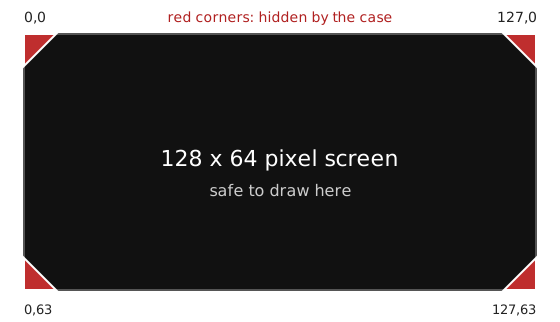
The four marked triangles are hidden by the case. The Studio emulator draws the real case, so it hides them the same way.
- Keep text, score counters and key sprites out of the four 8×8 pixel corner areas.
- Backgrounds, borders and anything that is fine to lose can run into the corners.
The figure comes from the case's corner cuts: about 6% of the screen width (7.7 px of 128) and 12% of the screen height (7.9 px of 64), rounded to 8. It is an estimate taken from the case drawing, not a measured tolerance, so leave a pixel or two of margin.
The clear → draw → display cycle
Every frame, follow this pattern:
- clear() — Erase the display buffer.
- draw — Add text, shapes, bitmaps.
- display() — Send the buffer to the physical screen.
Until you call display(), nothing appears on the OLED. All drawing goes to an internal buffer.
Drawing primitives
Text
display.setFont(ArialMT_Plain_10);           // Choose a font
display.setTextAlignment(TEXT_ALIGN_LEFT);   // LEFT, CENTER, RIGHT
display.drawString(0, 0, "Hello!");         // x, y, text
display.drawStringMaxWidth(0, 20, 64, "Wrapped text");  // With max width
Shapes
display.drawRect(10, 10, 50, 20);      // Outline rectangle
display.fillRect(10, 40, 50, 20);      // Filled rectangle
display.drawCircle(64, 32, 15);        // Outline circle
display.fillCircle(64, 32, 10);       // Filled circle
display.drawLine(0, 0, 128, 64);       // Line
display.drawHorizontalLine(0, 32, 128);
display.drawVerticalLine(64, 0, 64);
Bitmaps (drawXbm)
// drawXbm(x, y, width, height, data)
display.drawXbm(0, 0, 128, 64, myBitmapData);
display.drawXbm(40, 0, 48, 48, spriteData);  // Smaller image
Bitmap data is typically a const unsigned char* or const uint8_t* array in XBM format (1 bit per pixel).
Code example: text and shapes
void MyApp::update() {
    display.clear();

    // Title
    display.setFont(ArialMT_Plain_16);
    display.setTextAlignment(TEXT_ALIGN_CENTER);
    display.drawString(64, 0, "My App");

    // Score box
    display.drawRect(10, 24, 108, 20);
    display.setFont(ArialMT_Plain_10);
    display.setTextAlignment(TEXT_ALIGN_LEFT);
    display.drawString(14, 28, "Score: " + String(score));

    // Progress indicator
    display.drawCircle(64, 52, 6);
    if (ready) {
        display.fillCircle(64, 52, 4);
    }

    display.display();
}
Framework detail: DisplayProxy wrapping SSD1306Wire
The HAL creates a real SSD1306Wire instance and wraps it in a DisplayProxy:
static SSD1306Wire s_realDisplay(0x3C, SDA, SCL);
static DisplayProxy s_displayProxy(s_realDisplay);
DisplayProxy forwards drawing calls to the underlying display and adds features like:
- Overlay mode — Optional battery icons or status bars
- Brightness/contrast — Centralized control
For most apps, you use DisplayProxy via HAL::displayProxy(). The API matches SSD1306Wire, so you can refer to SSD1306 documentation for additional methods like setContrast() or flipScreenVertically().