Keeping and sharing your work
When you bring a sprite or model in from a file, Studio adds it to the project you already have open and selects it. It doesn't replace or overwrite the asset you were working on.
Studio can save either one asset or a whole project to a file on your computer. Use these files to keep a backup, move work to another computer, send work to someone else, or bring someone else's work into Studio.
The files use JavaScript Object Notation (JSON), a structured text format for storing data. Each Studio file has a more specific filename ending so Studio can identify what it contains.
Keep one sprite or model
Save one asset when you want to keep or share that sprite or model without the rest of the project.
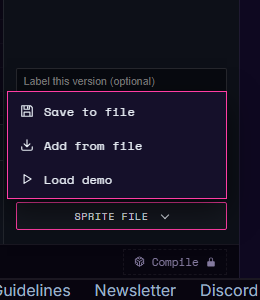
In the 2D workspace, Save to file and Add from file sit together in the Sprite file menu (with Load demo) when a sprite is open. On a desktop that menu is at the bottom of the right panel. On a phone, tap the Files chip at the top of the 2D tab and use the buttons in the Files sheet. The other route is Add art > Import from a file in the file strip above the workspace. The All files window has the same Import from a file link at its bottom, and you can drop files anywhere in Studio on a desktop. Saving names the file after the sprite and gives it the .cfsprite.json ending.
In the 3D workspace, bring a model in with Add art > Import from a file; it accepts .cfmesh.json, .obj and .stl files. Save to file is in the All files window, on the In this project tab. Saving names the file after the model and gives it the .cfmesh.json ending.
Every one of these routes does the same thing: Studio adds the sprite or model to the open project and selects it, and the asset you were working on stays in the project unchanged.
Author and licence information in the file stays exactly as it was. If the file does not contain that information, Studio leaves the fields blank for you to fill in instead of guessing.
Bring in art from Aseprite
If you draw in Aseprite, you can bring a finished animation into the 2D workspace. Aseprite saves it as a sprite sheet: one image that holds every frame of the animation side by side, plus a frame list file that says where each frame sits in that image. Tags are Aseprite's named ranges of frames, such as "walk" or "jump".
- In Aseprite, choose File > Export Sprite Sheet. On the Output tab, set Output File to save a PNG image, turn on JSON Data (either layout, Array or Hash, works - they are two ways of writing the same frame list), and under Meta turn on Tags so your named animations come along. Export. You get two files: the sprite sheet image and its frame list.
- In Studio, choose Add art > Import from a file (or Sprite file > Add from file) and select both files together (hold Ctrl, or Cmd on a Mac, while you click the second one).
Studio adds one sprite to the open project, with every frame from the sheet and one looping animation for each tag in the frame list (or a single animation called "all" that plays every frame, if there are no tags), then selects it. If you pick only one of the two files, Studio names the file that is missing and adds nothing. Studio finds the image by the name the frame list gives it, so keep the image's exported name.
The Cyber Fidget's screen shows only lit and unlit pixels, so Studio turns each pixel on or off by how bright it is: colours are not kept, and layers arrive flattened into one picture. Simple, high-contrast art comes through best.
Aseprite exports do not carry author or licence information Studio can trust, so the sprite arrives with those fields blank for you to fill in.
Keep a whole project
Save the whole project when you want a complete backup or want to continue the same app on another computer.
Open Settings, choose the APP tab, and under PROJECT FILE choose Save project to file. Studio writes one .cfapp.json file containing the project's code, sprites, models, captures, and settings.
If the project has been built, the built app travels inside the project file so it can run immediately after opening. If that built copy is unavailable, Studio saves the project without it and tells you. Open the file and build the app again.
Studio refuses to save a very large project into a file that the browser would struggle to reopen.
Open a whole project
Go to the Create launcher and choose Open a project file beside the list of projects. Opening a project file is how you start from that file. On a desktop you can also choose Add art > Import from a file inside the editor, or drop the file anywhere in Studio, and it opens as a new project.
Studio creates a new project alongside the projects you already have. It doesn't replace an existing project.
Share a link
A share link lets someone open what you made in their browser, with no download and no account. An app plays in the emulator on the page (a copy of the device that runs in your browser); a sprite plays as an animation and a model turns so it can be seen from every side. Share links are unlisted, not private: anyone holding a link can open and forward it.
A link is a snapshot: it shows your work as it was when you made the link. Changes you make afterward don't reach it. To share a newer version, make a new link and send that.
Making a link needs you to sign in with GitHub. If you are signed out, the Share box says Sign in with GitHub to share a link and offers the sign-in button. Opening a link doesn't need an account.
Sharing a link is different from submitting to The Archives. The Archives is the shared collection that everyone can browse, and submissions are reviewed first. A link is just "here's a thing I made".
Where to find Share
| What you want to share | Where |
|---|---|
| The whole project | Share in the Studio project bar, next to Send to my Fidget. On a phone, the share icon at the top of Studio, between Save and Settings. |
| The app you just built | Share this app on the Test tab, after a successful build. |
| One sprite or model | Share this sprite at the top of the 2D right-panel footer; on a phone, at the top of the Files sheet. For a model, use Share this model in its editor. |
| Something in your library | Share on its card in All files > My library. |
A project with art but no code can still be shared: the page shows the art and models instead of an app.
What the Share box asks
- Title. Starts as the project or asset name.
- Maker name (optional). The name shown on the page. It starts as your account name; a nickname is fine. No real names, schools or addresses.
- Others may copy: code, art. Both are ticked to start with. These are the same switches as SHARING on the APP tab of Settings and the Archives submission form, so changing them in one place changes them everywhere for that project. A sprite or model share shows only the art switch. If the art switch is off for an art-only share, there is nothing left to share, so Studio explains why and won't make the link.
When others may copy, the code is offered under the MIT License and the art under the Creative Commons Attribution-ShareAlike 4.0 license (CC BY-SA 4.0). Sharing confirms that you made the work or have the right to share it.
A link shows your work as it was when you shared it. Changes made after sharing aren't included: share again for a new link.
Sending the link
On a phone, choose Send the link to open your phone's share sheet and pick Messages, email, or another app. On a computer, Studio copies the link for you and says Link copied. If the browser won't allow the copy, Studio selects the link so you can copy it yourself. Copy link copies it again, and Open the page shows you what others will see.
What someone who opens the link can do
The page shows the title, your maker name, and the label Shared by its maker - not reviewed by Cyber Fidget. Below the player:
| Button | What it does |
|---|---|
| Send to my Fidget | Apps only. Sends the app to the visitor's own Cyber Fidget. It needs them to sign in and to have a linked Fidget, and asks them to confirm once, because the app hasn't been reviewed. The Fidget gets it at its next check-in. |
| Open a copy in the Studio | Shown only when you let others copy the code or the art. Makes a new project in their Studio from what you allowed. |
| Make your own / Get a Cyber Fidget | Links to the Studio and the shop. |
| Report this | Tells Cyber Fidget something is wrong with the page. |
Stop sharing
The Share box lists Links you've shared. Choose Stop sharing on a link, then Stop for good? to confirm. The link stops working for everyone straight away. A page someone already has open stops playing within about a minute. This can't be undone: share again to make a new link.
Your links belong to your account, so you can see and stop them from any computer where you are signed in. The list also shows links this browser made.
You can also stop a link from its own page. When you open a link you made, a Your link panel shows Stop sharing (and, for a whole project, Submit to the Archives). People you send the link to don't see that panel.
Stopping a link can't take back copies other people already made under the licenses above.
What survives, and what can be missing
- A sprite or model keeps the author and licence information stored in its file. Missing information remains blank.
- A whole-project file keeps the code, sprites, models, captures, and settings.
- A built app is included when its built copy is available. If it is unavailable, the rest of the project is still saved, and you must build the app again after opening it.
- A damaged sprite or model file, or one made by a newer version of Studio, is refused with a plain explanation. Nothing in the open project changes.
Files and the Cyber Fidget
A linked Cyber Fidget can send back a list of what is on it. On Your Fidgets, choose Download what is on this Fidget. The Fidget answers at its next check-in, over Wi-Fi, and the browser then saves one fidget-<last4>-installed.json file (named with the last four characters of the Fidget's identifier): the Fidget's app list as it reported it, plus the app files your account has a copy of. This is a record of the device, not a Studio project file, so it cannot be opened in Studio for editing. Built-in apps are listed but not included. To keep a project you can edit again, save the whole project from Studio.
Do not copy .cfsprite.json or .cfmesh.json files onto the device. Studio builds a project's art into the app itself, and installing the app carries its art with it.
Apps live in the device's internal storage, and the companion page is built into its firmware (the device's built-in software). The memory card holds music, voice recordings, the companion's speech-recognition download, and any optional companion page override. It does not hold apps, and apps do not load their art from it.