Studio Overview
Make apps, pixel art, animations and 3D models for your Cyber Fidget, in your browser.
Studio is where you make things for your Cyber Fidget -- apps, artwork, and 3D models. It opens at cyberfidget.com/create/.
This page is a map of the surface. Each tool has its own page, linked at the bottom.
In the clip: adding frames to a ball sprite in the 2D editor, moving the ball in each frame, and changing the preview speed.
-
Draw
Draw, brush, line and shape tools, fill and selection, for pixel art made for the 128 x 64 screen.
-
Animate
Add frames, name animations, and preview them at the speed they will play.
-
Reuse and share
Keep art in your library, start from free starters, and share links to your work.
-
Build in 3D
Make wireframe models from points and lines and try them in an app.
Starting something
On the Studio landing page, choose + Create an app. The workspace offers three ways to start:
- Make your first app puts an example description in the box. Change it or describe your own idea, then use the optional code generator to generate code you can build, test and edit.
- Modify a Demo App loads a demo you can edit by hand or change with the code generator.
- Code from Blank Template opens starter code for you to write your app by hand.
The code generator is optional. You can write code, draw art, build and test without it.
Below + Create an app, Draw a screensaver opens Quick Draw if you would rather just doodle than write an app, and Open a project file loads a project you saved to your computer earlier.
Further down, MY STUFF lists the projects you already have. Choosing one opens it. The landing page is replaced by the workspace -- you see one or the other, not both.
The workspace tabs
Once a project is open, a strip of tabs switches between the tools. On a desktop they run down the left edge: Generate, Code, 2D, 3D and Settings. On a phone they sit along the bottom, and Test is a tab there; on a desktop the emulator sits beside the workspace instead. On a phone, Settings is the gear icon in the top bar.
| Tab | What it is for |
|---|---|
| Generate | Describe a change in plain language and have it written for you. |
| Code | The full editor, with the screen, buttons, lights, and sound available. |
| 2D | Draw and animate sprites. |
| 3D | Build wireframe models. |
| Settings | Project settings, including what others may copy when you share, and saving the whole project to a file. |
| Test | Run the app in the emulator, a copy of the device that runs in your browser. |
< Studio at the top left closes the project and returns you to the landing page. Your work is saved as you go.
Quick Draw
Quick Draw is a stripped-back drawing surface for making a screensaver without touching code. It gives you a brush, an eraser, and undo -- and deliberately nothing else.
You can reach it two ways:
- From the Studio landing page: Draw a screensaver, just below the Create an app card.
- Directly, at cyberfidget.com/create/quick-draw/.
When you want more than three tools, more tools > carries the same drawing into the full 2D editor, where the rest of this section applies.
Quick Draw and the 2D panel are not the same thing
Quick Draw is intentionally tiny, so there is nothing to learn before you start drawing. The 2D tab is the full editor -- layers, frames, animations, and version history. Starting in one and moving to the other is the expected path, not a detour.
Where your work is kept
Where a project is saved depends on whether you are signed in.
- Signed in: projects are saved to your account as you work, so they follow you to any computer or browser where you sign in. A copy is also kept in the browser you are using. The top bar says saved to your account and when; if the account save fails (for example, you are offline), it says saved on this browser and your work is kept there until the next save reaches your account.
- Signed out: projects are saved only in the browser you are using. The top bar says saved on this browser. They are not visible from another computer or browser, and clearing the browser's site data removes them. To keep a copy, save the project to a file.
The first time you sign in on a browser (or sign in with a different account), Studio opens the project you last worked on with that account.
If the browser holds projects you made while signed out, Studio offers to move them when you sign in: Move N projects saved on this browser to your account? Your browser copies will stay here. Choose MOVE TO MY ACCOUNT to save them to your account, or NOT NOW to keep them in this browser only; either way you are not asked again. Projects you have not moved stay in this browser, even while you are signed in. If some cannot be moved, Studio says so and offers TRY AGAIN; your work stays saved in the browser.
An account holds up to 30 projects and 10 megabytes (MB) in total. When it is full, saving says Your saved projects are full. Your account also keeps earlier versions of each project. If you work on the same project on two devices and your save replaces a newer one made on the other device, Studio says A newer save from another device was replaced. Its version is in this project's history.
Signing out hides your account projects in that browser; they come back when you sign in again. Deleting an account project deletes it from your account and from the browser.
Signing in also lets you keep a My library, an account-level library of sprites and models you can reuse across projects. You save into it with Save to My Assets and take art out of it from the All files window -- see Your Sprite Library.
Taking something out of a library copies it into your project. Editing that copy doesn't change the original.
Where to go next
- Drawing and Version History -- saving checkpoints and restoring earlier work
- Your Sprite Library -- the All files window, Add art, My library, and Free starters
- Animation names -- giving a sprite more than one action
- 3D Models -- building and using wireframe models
The 2D workspace
On desktop and laptop, a strip of file tabs runs above the workspace. At its left are two buttons: All files (with a count of the project's files) opens a window with In this project, My library and Free starters tabs, and Add art opens a menu to draw a new sprite or bring art in. Each open file is a tab beside them. The Your Sprite Library page covers both.
On desktop and laptop, tools sit left of the canvas, options and Edit above it, view controls below it, the timeline beneath that, and Preview, Layers and file controls in the right panel. A narrower laptop can hide the current tool's name in the options bar; its settings remain available.
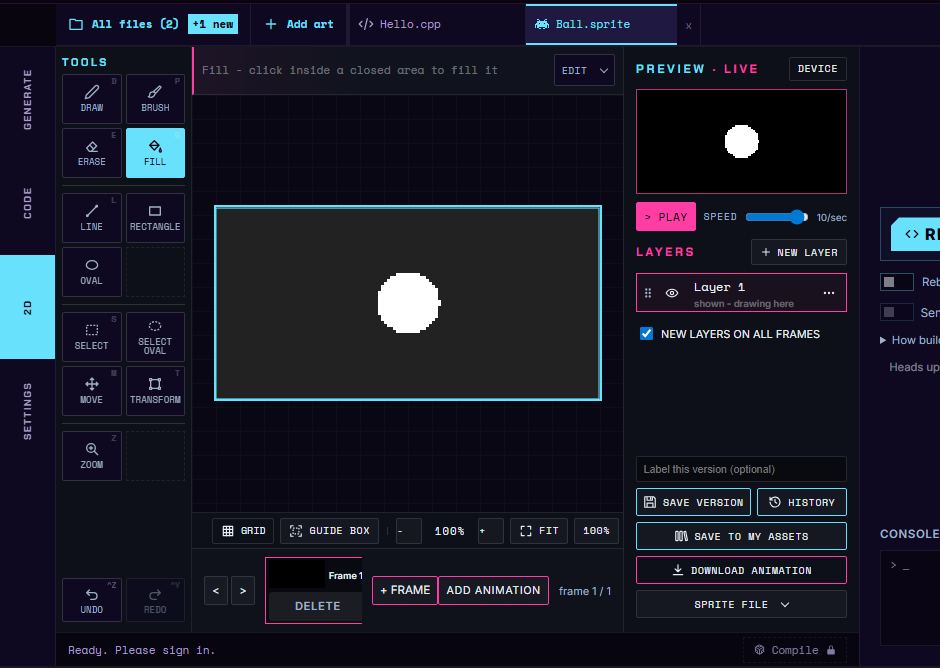
On a phone, the 2D tab is a single column. From top to bottom: a bar with the Files chip (it shows the open sprite's name) and the Grid, zoom and Fit controls; the canvas; a bar with Layers, the frame thumbnails, Frames and Play; a bar with the current tool's hint or option buttons plus Edit, Undo and Redo; and a row of tools ending in More. The chips open sheets that slide up over the canvas: Files, Layers, Frames, Edit, the tool's options, and All tools. On a short phone held sideways, the tools move to the left of the canvas.
- Tools -- drawing and selecting pixels
- Tool options -- settings for the selected tool and its hint
- Edit commands -- clipboard, resize, Undo and Redo
- View -- zoom, grid and guide box
- Layers -- visibility and drawing order
- Animations and frames -- timeline and frame menus
- Preview and Speed -- playback and timing
- Files and versions -- saves and downloads
- Sharing -- project and sprite links