Explore what it can do
After this page you will know what each part of a Cyber Fidget can do, and you will have seen a few lines of code that make each part do something. You don't need a plan or a device: every example runs in the emulator in your browser.
A small game made from the parts on this page: the slider moves the paddle, the screen shows the score, and the lights and speaker react when you catch a dot.
How to try an example
- Open the studio at cyberfidget.com/create/ and start from Code from Blank Template. Steps 1 and 2 of Build your first app show where the buttons are.
- Each example's first line says where it goes in the
.cppfile, for example "Insert inside update(), just above display.display();".update()is the part of the app that runs about 50 times a second. - Press REBUILD & RUN (the first time) or REBUILD (after that) to see it run.
Each example works on its own, in a fresh starter. Stuck? Open the Full code for this step box under an example: it shows the whole file with the new lines highlighted.
Jump to a part: screen | buttons | lights | sound | slider | motion | sprites and animation | 3D models
The screen
A 128 x 64 pixel screen (an OLED, so each pixel lights up on its own). You can draw text, lines, rectangles, circles and pictures, and redraw everything about 50 times a second, which is how things move.
// Insert inside update(), just above display.display();
// Wipe the starter's text so the screen is empty.
display.clear();
display.setFont(ArialMT_Plain_10);
display.drawString(64, 10, "Hello, Fidget!");
// millis() is the time in milliseconds since the Fidget started.
// % 128 is the remainder after dividing by 128, so x runs 0 to 127, then starts again.
int x = (millis() / 10) % 128;
// A filled circle with its middle at (x, 40) and a radius of 6 pixels.
display.fillCircle(x, 40, 6);
Full code for this step
This full code is for code name MyApp (create it with App Name "My App"); if your app has another code name, change MyApp and myApp to yours.
In the starter, nullptr means a pointer has no object. * in a declaration marks a pointer (an address), and before a pointer reads its object. & in a type refers to an existing object; before a value it gives its address. const means the code cannot change the value through that declaration.
#include "MyApp.h"
#include "globals.h"
#include "HAL.h"
#include "MenuManager.h"

MyApp myApp(HAL::buttonManager());
MyApp* MyApp::instance = nullptr;

MyApp::MyApp(ButtonManager& btnMgr) :
    buttonManager(btnMgr), display(HAL::displayProxy()) { instance = this; }

// begin() runs once when your app opens from the menu.
// Set things up here: hook up the buttons and start with the lights off.
void MyApp::begin() {
    registerButtonCallbacks();
    setColorsOff();
}

// update() runs about 50 times a second while your app is open.
// Clear the screen, draw what you want, then show it.
// The case hides about 8 pixels at each screen corner, so keep text and
// important pixels out of those corners.
void MyApp::update() {
    display.clear();
    display.setTextAlignment(TEXT_ALIGN_CENTER);
    display.setFont(ArialMT_Plain_16);
    display.drawString(64, 24, "MyApp");
    // Wipe the starter's text so the screen is empty.
    display.clear();
    display.setFont(ArialMT_Plain_10);
    display.drawString(64, 10, "Hello, Fidget!");
    // millis() is the time in milliseconds since the Fidget started.
    // % 128 is the remainder after dividing by 128, so x runs 0 to 127, then starts again.
    int x = (millis() / 10) % 128;
    // A filled circle with its middle at (x, 40) and a radius of 6 pixels.
    display.fillCircle(x, 40, 6);
    display.display();
}

// end() runs when your app closes. Let go of the buttons and turn the
// lights off (if your app plays sounds, call stopTone() here too).
void MyApp::end() {
    unregisterButtonCallbacks();
    setColorsOff();
}

// The bottom-left button closes your app and goes back to the menu.
void MyApp::onButtonBackPressed(const ButtonEvent& event) {
    if (event.eventType == ButtonEvent_Released) {
        instance->end();
        MenuManager::instance().returnToMenu();
    }
}

void MyApp::registerButtonCallbacks() {
    buttonManager.registerCallback(button_BottomLeftIndex, onButtonBackPressed);
}

void MyApp::unregisterButtonCallbacks() {
    buttonManager.unregisterCallback(button_BottomLeftIndex);
}
What you'll see: a greeting at the top and a ball that slides across the screen, again and again.
More: Drawing to the Screen.
The buttons
Six buttons: up, down, left, right, Back (bottom left) and Enter (bottom right). Your app can check whether a button is down at any moment, or ask to be told the moment it is pressed.
// Insert inside update(), just above display.display();
display.clear();
// isPressed() is true while the button is held down.
// button_EnterIndex is the bottom-right button.
if (buttonManager.isPressed(button_EnterIndex)) {
    display.drawString(64, 24, "Pressed!");
    HAL::setRgbLed(pixel_Front_Bottom, 0, 255, 0, 0);
} else {
    display.drawString(64, 24, "Hold Enter");
    HAL::setRgbLed(pixel_Front_Bottom, 0, 0, 0, 0);
}
Full code for this step
This full code is for code name MyApp (create it with App Name "My App"); if your app has another code name, change MyApp and myApp to yours.
#include "MyApp.h"
#include "globals.h"
#include "HAL.h"
#include "MenuManager.h"

MyApp myApp(HAL::buttonManager());
MyApp* MyApp::instance = nullptr;

MyApp::MyApp(ButtonManager& btnMgr) :
    buttonManager(btnMgr), display(HAL::displayProxy()) { instance = this; }

// begin() runs once when your app opens from the menu.
// Set things up here: hook up the buttons and start with the lights off.
void MyApp::begin() {
    registerButtonCallbacks();
    setColorsOff();
}

// update() runs about 50 times a second while your app is open.
// Clear the screen, draw what you want, then show it.
// The case hides about 8 pixels at each screen corner, so keep text and
// important pixels out of those corners.
void MyApp::update() {
    display.clear();
    display.setTextAlignment(TEXT_ALIGN_CENTER);
    display.setFont(ArialMT_Plain_16);
    display.drawString(64, 24, "MyApp");
    display.clear();
    // isPressed() is true while the button is held down.
    // button_EnterIndex is the bottom-right button.
    if (buttonManager.isPressed(button_EnterIndex)) {
        display.drawString(64, 24, "Pressed!");
        HAL::setRgbLed(pixel_Front_Bottom, 0, 255, 0, 0);
    } else {
        display.drawString(64, 24, "Hold Enter");
        HAL::setRgbLed(pixel_Front_Bottom, 0, 0, 0, 0);
    }
    display.display();
}

// end() runs when your app closes. Let go of the buttons and turn the
// lights off (if your app plays sounds, call stopTone() here too).
void MyApp::end() {
    unregisterButtonCallbacks();
    setColorsOff();
}

// The bottom-left button closes your app and goes back to the menu.
void MyApp::onButtonBackPressed(const ButtonEvent& event) {
    if (event.eventType == ButtonEvent_Released) {
        instance->end();
        MenuManager::instance().returnToMenu();
    }
}

void MyApp::registerButtonCallbacks() {
    buttonManager.registerCallback(button_BottomLeftIndex, onButtonBackPressed);
}

void MyApp::unregisterButtonCallbacks() {
    buttonManager.unregisterCallback(button_BottomLeftIndex);
}
What you'll see: "Hold Enter" on the screen. Hold the bottom-right button and the text changes and the bottom light turns green.
More: Buttons & Events.
The lights
Four color lights (LEDs): three on the front and one on the back. Each one mixes red, green, blue and white, from 0 (off) to 255 (full).
// Insert inside update(), just above display.display();
// A hue from 0 to 4095 walks once around the rainbow.
int hue = millis() % 4096;
// uint8_t is a whole number from 0 to 255: one color channel.
uint8_t r;
uint8_t g;
uint8_t b;
// mapToRainbow() turns the hue into red, green and blue at brightness 128,
// and writes them into r, g and b.
mapToRainbow(hue, 128, r, g, b);
setDeterminedColorsAll(r, g, b, 0);
Full code for this step
This full code is for code name MyApp (create it with App Name "My App"); if your app has another code name, change MyApp and myApp to yours.
#include "MyApp.h"
#include "globals.h"
#include "HAL.h"
#include "MenuManager.h"

MyApp myApp(HAL::buttonManager());
MyApp* MyApp::instance = nullptr;

MyApp::MyApp(ButtonManager& btnMgr) :
    buttonManager(btnMgr), display(HAL::displayProxy()) { instance = this; }

// begin() runs once when your app opens from the menu.
// Set things up here: hook up the buttons and start with the lights off.
void MyApp::begin() {
    registerButtonCallbacks();
    setColorsOff();
}

// update() runs about 50 times a second while your app is open.
// Clear the screen, draw what you want, then show it.
// The case hides about 8 pixels at each screen corner, so keep text and
// important pixels out of those corners.
void MyApp::update() {
    display.clear();
    display.setTextAlignment(TEXT_ALIGN_CENTER);
    display.setFont(ArialMT_Plain_16);
    display.drawString(64, 24, "MyApp");
    // A hue from 0 to 4095 walks once around the rainbow.
    int hue = millis() % 4096;
    // uint8_t is a whole number from 0 to 255: one color channel.
    uint8_t r;
    uint8_t g;
    uint8_t b;
    // mapToRainbow() turns the hue into red, green and blue at brightness 128,
    // and writes them into r, g and b.
    mapToRainbow(hue, 128, r, g, b);
    setDeterminedColorsAll(r, g, b, 0);
    display.display();
}

// end() runs when your app closes. Let go of the buttons and turn the
// lights off (if your app plays sounds, call stopTone() here too).
void MyApp::end() {
    unregisterButtonCallbacks();
    setColorsOff();
}

// The bottom-left button closes your app and goes back to the menu.
void MyApp::onButtonBackPressed(const ButtonEvent& event) {
    if (event.eventType == ButtonEvent_Released) {
        instance->end();
        MenuManager::instance().returnToMenu();
    }
}

void MyApp::registerButtonCallbacks() {
    buttonManager.registerCallback(button_BottomLeftIndex, onButtonBackPressed);
}

void MyApp::unregisterButtonCallbacks() {
    buttonManager.unregisterCallback(button_BottomLeftIndex);
}
What you'll see: all four lights fade slowly through the rainbow, one lap about every 4 seconds.
More: LEDs & Color.
Sound
A small speaker that plays tones, little tunes and chords. You give each tone a pitch in hertz (Hz, vibrations per second: higher is a higher note) and a length in milliseconds.
// Insert inside begin(), below setColorsOff();
// A short tune. Each step is: pitch in Hz, length in ms, pause after it in ms.
static const AudioManager::ToneStep tune[] = {
    { 523.25f, 120, 30 },  // C5
    { 659.25f, 120, 30 },  // E5
    { 783.99f, 120, 30 },  // G5
    { 1046.50f, 300, 0 },  // C6
};
HAL::audioManager().playSequence(tune, 4);

// Insert inside end(), above unregisterButtonCallbacks();
// Stop any sound when the app closes.
HAL::audioManager().stopSequence();
HAL::audioManager().stopTone();
Full code for this step
This full code is for code name MyApp (create it with App Name "My App"); if your app has another code name, change MyApp and myApp to yours.
#include "MyApp.h"
#include "globals.h"
#include "HAL.h"
#include "MenuManager.h"

MyApp myApp(HAL::buttonManager());
MyApp* MyApp::instance = nullptr;

MyApp::MyApp(ButtonManager& btnMgr) :
    buttonManager(btnMgr), display(HAL::displayProxy()) { instance = this; }

// begin() runs once when your app opens from the menu.
// Set things up here: hook up the buttons and start with the lights off.
void MyApp::begin() {
    registerButtonCallbacks();
    setColorsOff();
    // A short tune. Each step is: pitch in Hz, length in ms, pause after it in ms.
    static const AudioManager::ToneStep tune[] = {
        { 523.25f, 120, 30 },  // C5
        { 659.25f, 120, 30 },  // E5
        { 783.99f, 120, 30 },  // G5
        { 1046.50f, 300, 0 },  // C6
    };
    HAL::audioManager().playSequence(tune, 4);
}

// update() runs about 50 times a second while your app is open.
// Clear the screen, draw what you want, then show it.
// The case hides about 8 pixels at each screen corner, so keep text and
// important pixels out of those corners.
void MyApp::update() {
    display.clear();
    display.setTextAlignment(TEXT_ALIGN_CENTER);
    display.setFont(ArialMT_Plain_16);
    display.drawString(64, 24, "MyApp");
    display.display();
}

// end() runs when your app closes. Let go of the buttons and turn the
// lights off (if your app plays sounds, call stopTone() here too).
void MyApp::end() {
    // Stop any sound when the app closes.
    HAL::audioManager().stopSequence();
    HAL::audioManager().stopTone();
    unregisterButtonCallbacks();
    setColorsOff();
}

// The bottom-left button closes your app and goes back to the menu.
void MyApp::onButtonBackPressed(const ButtonEvent& event) {
    if (event.eventType == ButtonEvent_Released) {
        instance->end();
        MenuManager::instance().returnToMenu();
    }
}

void MyApp::registerButtonCallbacks() {
    buttonManager.registerCallback(button_BottomLeftIndex, onButtonBackPressed);
}

void MyApp::unregisterButtonCallbacks() {
    buttonManager.unregisterCallback(button_BottomLeftIndex);
}
What you'll see (and hear): a rising four-note jingle each time the app starts. Press << RESTART in the emulator to hear it again.
More: Sound & Music.
The slider
The slider on the side reads a position from bottom to top. Use it as a dial: for volume, brightness, speed, or to steer something.
// Insert inside update(), just above display.display();
// 0 with the slider at the bottom, 255 at the top.
int level = sliderPosition_8Bits_Inverted_Filtered;
display.clear();
// An empty box, then a bar inside it that grows as you push the slider up.
display.drawRect(10, 28, 108, 8);
display.fillRect(10, 28, level * 108 / 255, 8);
// The front top light glows white, brighter as the slider goes up.
HAL::setRgbLed(pixel_Front_Top, 0, 0, 0, level);
Full code for this step
This full code is for code name MyApp (create it with App Name "My App"); if your app has another code name, change MyApp and myApp to yours.
#include "MyApp.h"
#include "globals.h"
#include "HAL.h"
#include "MenuManager.h"

MyApp myApp(HAL::buttonManager());
MyApp* MyApp::instance = nullptr;

MyApp::MyApp(ButtonManager& btnMgr) :
    buttonManager(btnMgr), display(HAL::displayProxy()) { instance = this; }

// begin() runs once when your app opens from the menu.
// Set things up here: hook up the buttons and start with the lights off.
void MyApp::begin() {
    registerButtonCallbacks();
    setColorsOff();
}

// update() runs about 50 times a second while your app is open.
// Clear the screen, draw what you want, then show it.
// The case hides about 8 pixels at each screen corner, so keep text and
// important pixels out of those corners.
void MyApp::update() {
    display.clear();
    display.setTextAlignment(TEXT_ALIGN_CENTER);
    display.setFont(ArialMT_Plain_16);
    display.drawString(64, 24, "MyApp");
    // 0 with the slider at the bottom, 255 at the top.
    int level = sliderPosition_8Bits_Inverted_Filtered;
    display.clear();
    // An empty box, then a bar inside it that grows as you push the slider up.
    display.drawRect(10, 28, 108, 8);
    display.fillRect(10, 28, level * 108 / 255, 8);
    // The front top light glows white, brighter as the slider goes up.
    HAL::setRgbLed(pixel_Front_Top, 0, 0, 0, level);
    display.display();
}

// end() runs when your app closes. Let go of the buttons and turn the
// lights off (if your app plays sounds, call stopTone() here too).
void MyApp::end() {
    unregisterButtonCallbacks();
    setColorsOff();
}

// The bottom-left button closes your app and goes back to the menu.
void MyApp::onButtonBackPressed(const ButtonEvent& event) {
    if (event.eventType == ButtonEvent_Released) {
        instance->end();
        MenuManager::instance().returnToMenu();
    }
}

void MyApp::registerButtonCallbacks() {
    buttonManager.registerCallback(button_BottomLeftIndex, onButtonBackPressed);
}

void MyApp::unregisterButtonCallbacks() {
    buttonManager.unregisterCallback(button_BottomLeftIndex);
}
What you'll see: a bar that fills as you drag the slider up, and the top light getting brighter with it.
More: The Slider.
Motion
A motion sensor (an accelerometer) feels which way is down, so your app can react when you tilt or shake the Cyber Fidget. In the emulator, use its tilt controls.
// Insert inside update(), just above display.display();
// accelX and accelY are near 0 when the Fidget lies flat,
// and grow (up to about 1000) as you tilt it.
int dotX = 64 - (int)(accelX / 40);
int dotY = 32 + (int)(accelY / 40);
// constrain() keeps a number between a lowest and a highest value,
// so the dot stays on the screen.
dotX = constrain(dotX, 12, 116);
dotY = constrain(dotY, 12, 52);
display.clear();
display.drawCircle(64, 32, 4);
display.fillCircle(dotX, dotY, 5);
Full code for this step
This full code is for code name MyApp (create it with App Name "My App"); if your app has another code name, change MyApp and myApp to yours.
#include "MyApp.h"
#include "globals.h"
#include "HAL.h"
#include "MenuManager.h"

MyApp myApp(HAL::buttonManager());
MyApp* MyApp::instance = nullptr;

MyApp::MyApp(ButtonManager& btnMgr) :
    buttonManager(btnMgr), display(HAL::displayProxy()) { instance = this; }

// begin() runs once when your app opens from the menu.
// Set things up here: hook up the buttons and start with the lights off.
void MyApp::begin() {
    registerButtonCallbacks();
    setColorsOff();
}

// update() runs about 50 times a second while your app is open.
// Clear the screen, draw what you want, then show it.
// The case hides about 8 pixels at each screen corner, so keep text and
// important pixels out of those corners.
void MyApp::update() {
    display.clear();
    display.setTextAlignment(TEXT_ALIGN_CENTER);
    display.setFont(ArialMT_Plain_16);
    display.drawString(64, 24, "MyApp");
    // accelX and accelY are near 0 when the Fidget lies flat,
    // and grow (up to about 1000) as you tilt it.
    int dotX = 64 - (int)(accelX / 40);
    int dotY = 32 + (int)(accelY / 40);
    // constrain() keeps a number between a lowest and a highest value,
    // so the dot stays on the screen.
    dotX = constrain(dotX, 12, 116);
    dotY = constrain(dotY, 12, 52);
    display.clear();
    display.drawCircle(64, 32, 4);
    display.fillCircle(dotX, dotY, 5);
    display.display();
}

// end() runs when your app closes. Let go of the buttons and turn the
// lights off (if your app plays sounds, call stopTone() here too).
void MyApp::end() {
    unregisterButtonCallbacks();
    setColorsOff();
}

// The bottom-left button closes your app and goes back to the menu.
void MyApp::onButtonBackPressed(const ButtonEvent& event) {
    if (event.eventType == ButtonEvent_Released) {
        instance->end();
        MenuManager::instance().returnToMenu();
    }
}

void MyApp::registerButtonCallbacks() {
    buttonManager.registerCallback(button_BottomLeftIndex, onButtonBackPressed);
}

void MyApp::unregisterButtonCallbacks() {
    buttonManager.unregisterCallback(button_BottomLeftIndex);
}
What you'll see: a dot that rolls away from the small middle circle as you tilt, like the bubble in a spirit level.
More: Motion Sensing.
Sprites and animation
A sprite is a small picture for a character or object. An animation shows several sprites one after another. Draw sprites in the studio, or try the blinking face below.


Try it
// Insert at the top of the file, below the #include lines
#include "cf_gfx.h"
using namespace cf::gfx;
// Two 8 x 8 faces. Each byte is one row of pixels, top to bottom.
static const uint8_t openBits[] = {0x3c, 0x42, 0xa5, 0xa5, 0x81, 0xbd, 0x42, 0x3c};
static const uint8_t shutBits[] = {0x3c, 0x42, 0x81, 0xa5, 0x81, 0xbd, 0x42, 0x3c};
// bytes, width, height, pivot x, pivot y, bit order
static const Sprite eyesOpen = {openBits, 8, 8, 4, 8, BO_LSB_FIRST};
static const Sprite eyesShut = {shutBits, 8, 8, 4, 8, BO_LSB_FIRST};
// The frames in order, and how long each one shows in milliseconds.
static const Sprite* const blinkFrames[] = {&eyesOpen, &eyesShut};
static const uint16_t blinkTimes[] = {1500, 150};
static const Animation blink = {"blink", blinkFrames, blinkTimes, 0, 2, LOOP_LOOP};
static AnimationPlayer blinker;

// Insert inside begin(), below setColorsOff();
blinker.play(&blink, millis());

// Insert inside update(), just above display.display();
display.clear();
blinker.update(millis());
const Sprite* frame = blinker.sprite();
if (frame != nullptr) {
    drawSpritePivoted(display, *frame, 64, 40);
}
Full code for this step
This full code is for code name MyApp (create it with App Name "My App"); if your app has another code name, change MyApp and myApp to yours.
#include "MyApp.h"
#include "globals.h"
#include "HAL.h"
#include "MenuManager.h"

#include "cf_gfx.h"
using namespace cf::gfx;
// Two 8 x 8 faces. Each byte is one row of pixels, top to bottom.
static const uint8_t openBits[] = {0x3c, 0x42, 0xa5, 0xa5, 0x81, 0xbd, 0x42, 0x3c};
static const uint8_t shutBits[] = {0x3c, 0x42, 0x81, 0xa5, 0x81, 0xbd, 0x42, 0x3c};
// bytes, width, height, pivot x, pivot y, bit order
static const Sprite eyesOpen = {openBits, 8, 8, 4, 8, BO_LSB_FIRST};
static const Sprite eyesShut = {shutBits, 8, 8, 4, 8, BO_LSB_FIRST};
// The frames in order, and how long each one shows in milliseconds.
static const Sprite* const blinkFrames[] = {&eyesOpen, &eyesShut};
static const uint16_t blinkTimes[] = {1500, 150};
static const Animation blink = {"blink", blinkFrames, blinkTimes, 0, 2, LOOP_LOOP};
static AnimationPlayer blinker;
MyApp myApp(HAL::buttonManager());
MyApp* MyApp::instance = nullptr;

MyApp::MyApp(ButtonManager& btnMgr) :
    buttonManager(btnMgr), display(HAL::displayProxy()) { instance = this; }

// begin() runs once when your app opens from the menu.
// Set things up here: hook up the buttons and start with the lights off.
void MyApp::begin() {
    registerButtonCallbacks();
    setColorsOff();
    blinker.play(&blink, millis());
}

// update() runs about 50 times a second while your app is open.
// Clear the screen, draw what you want, then show it.
// The case hides about 8 pixels at each screen corner, so keep text and
// important pixels out of those corners.
void MyApp::update() {
    display.clear();
    display.setTextAlignment(TEXT_ALIGN_CENTER);
    display.setFont(ArialMT_Plain_16);
    display.drawString(64, 24, "MyApp");
    display.clear();
    blinker.update(millis());
    const Sprite* frame = blinker.sprite();
    if (frame != nullptr) {
        drawSpritePivoted(display, *frame, 64, 40);
    }
    display.display();
}

// end() runs when your app closes. Let go of the buttons and turn the
// lights off (if your app plays sounds, call stopTone() here too).
void MyApp::end() {
    unregisterButtonCallbacks();
    setColorsOff();
}

// The bottom-left button closes your app and goes back to the menu.
void MyApp::onButtonBackPressed(const ButtonEvent& event) {
    if (event.eventType == ButtonEvent_Released) {
        instance->end();
        MenuManager::instance().returnToMenu();
    }
}

void MyApp::registerButtonCallbacks() {
    buttonManager.registerCallback(button_BottomLeftIndex, onButtonBackPressed);
}

void MyApp::unregisterButtonCallbacks() {
    buttonManager.unregisterCallback(button_BottomLeftIndex);
}
The sprites page explains *, & and nullptr one at a time, and shows how to draw your own sprites in the studio instead of typing bytes.
What you'll see: a small face in the middle of the screen that blinks about every one and a half seconds.
More: Sprites & Animation, and for artists, the Studio overview.
3D models
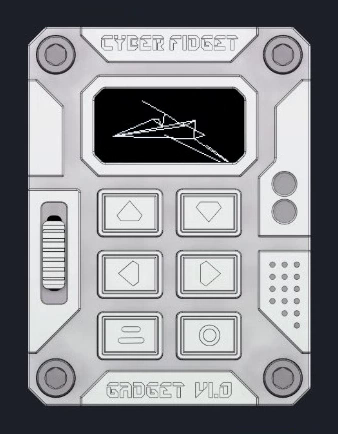
The screen can show spinning 3D wireframe models: shapes made of points joined by straight lines. Everyone can use the Studio's 3D tab to draw a model or import an OBJ or STL file. The example in Try it spins a box, described by its 8 corners and 12 edges. The picture shows a model drawn in the studio, running the same way.
Try it
// Insert at the top of the file, below the #include lines
#include "cf_gfx.h"
using namespace cf::gfx;
// The 8 corners of a box. Each corner is {x, y, z}.
static const MeshVertex boxPoints[] = {
    {-8, -8, -8}, {8, -8, -8}, {8, 8, -8}, {-8, 8, -8},
    {-8, -8, 8},  {8, -8, 8},  {8, 8, 8},  {-8, 8, 8},
};
// The 12 edges. Each edge joins two corners, by their number in boxPoints.
static const uint8_t boxLines[][2] = {
    {0, 1}, {1, 2}, {2, 3}, {3, 0},
    {4, 5}, {5, 6}, {6, 7}, {7, 4},
    {0, 4}, {1, 5}, {2, 6}, {3, 7},
};
// name, points, point count, lines, line count
static const Mesh boxMesh = {"box", boxPoints, 8, boxLines, 12};
static MeshActor boxModel;

// Insert inside begin(), below setColorsOff();
boxModel.setMesh(&boxMesh);
boxModel.setPos(64, 32);
boxModel.setRotation(0, 24, 0);

// Insert inside update(), just above display.display();
// Turn the box a little more every frame.
boxModel.spin(1, 0, 0);
display.clear();
boxModel.draw(display);
Full code for this step
This full code is for code name MyApp (create it with App Name "My App"); if your app has another code name, change MyApp and myApp to yours.
#include "MyApp.h"
#include "globals.h"
#include "HAL.h"
#include "MenuManager.h"

#include "cf_gfx.h"
using namespace cf::gfx;
// The 8 corners of a box. Each corner is {x, y, z}.
static const MeshVertex boxPoints[] = {
    {-8, -8, -8}, {8, -8, -8}, {8, 8, -8}, {-8, 8, -8},
    {-8, -8, 8},  {8, -8, 8},  {8, 8, 8},  {-8, 8, 8},
};
// The 12 edges. Each edge joins two corners, by their number in boxPoints.
static const uint8_t boxLines[][2] = {
    {0, 1}, {1, 2}, {2, 3}, {3, 0},
    {4, 5}, {5, 6}, {6, 7}, {7, 4},
    {0, 4}, {1, 5}, {2, 6}, {3, 7},
};
// name, points, point count, lines, line count
static const Mesh boxMesh = {"box", boxPoints, 8, boxLines, 12};
static MeshActor boxModel;
MyApp myApp(HAL::buttonManager());
MyApp* MyApp::instance = nullptr;

MyApp::MyApp(ButtonManager& btnMgr) :
    buttonManager(btnMgr), display(HAL::displayProxy()) { instance = this; }

// begin() runs once when your app opens from the menu.
// Set things up here: hook up the buttons and start with the lights off.
void MyApp::begin() {
    registerButtonCallbacks();
    setColorsOff();
    boxModel.setMesh(&boxMesh);
    boxModel.setPos(64, 32);
    boxModel.setRotation(0, 24, 0);
}

// update() runs about 50 times a second while your app is open.
// Clear the screen, draw what you want, then show it.
// The case hides about 8 pixels at each screen corner, so keep text and
// important pixels out of those corners.
void MyApp::update() {
    display.clear();
    display.setTextAlignment(TEXT_ALIGN_CENTER);
    display.setFont(ArialMT_Plain_16);
    display.drawString(64, 24, "MyApp");
    // Turn the box a little more every frame.
    boxModel.spin(1, 0, 0);
    display.clear();
    boxModel.draw(display);
    display.display();
}

// end() runs when your app closes. Let go of the buttons and turn the
// lights off (if your app plays sounds, call stopTone() here too).
void MyApp::end() {
    unregisterButtonCallbacks();
    setColorsOff();
}

// The bottom-left button closes your app and goes back to the menu.
void MyApp::onButtonBackPressed(const ButtonEvent& event) {
    if (event.eventType == ButtonEvent_Released) {
        instance->end();
        MenuManager::instance().returnToMenu();
    }
}

void MyApp::registerButtonCallbacks() {
    buttonManager.registerCallback(button_BottomLeftIndex, onButtonBackPressed);
}

void MyApp::unregisterButtonCallbacks() {
    buttonManager.unregisterCallback(button_BottomLeftIndex);
}
What you'll see: a wireframe box spinning in the middle of the screen.
More: 3D Models, and to build models without typing numbers, 3D Models in the studio.
Got an idea?
- Make a game: Make a game, step by step builds the game in the clip above, and helps you plan your own.
- Start small: Build your first app walks through the studio from the very first click and ends with your app on a real Cyber Fidget.
- Look something up: the function reference lists everything your app can call, on one page.