Your Fidget
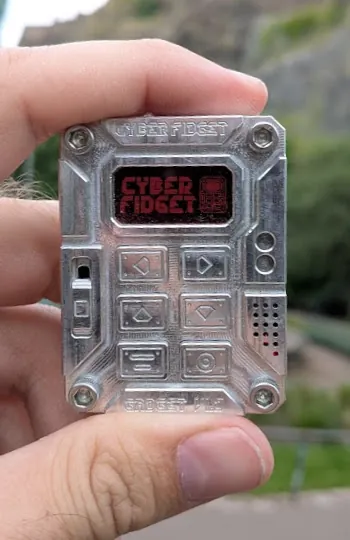
Play it, charge it, add apps and keep it up to date.
After this page you will know where to find each part of using and looking after your Cyber Fidget, and where to look when something goes wrong.
Start here
-
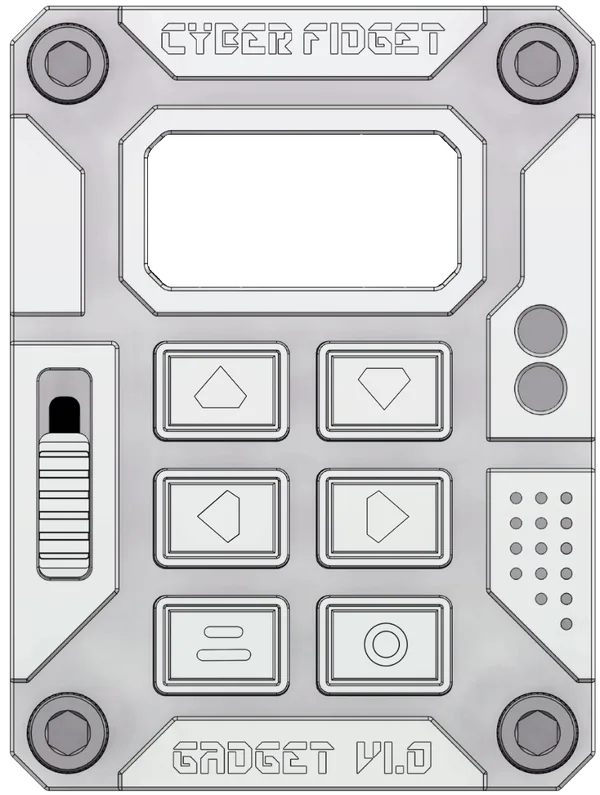
Turn it on and find your way around
Which button moves through the menu, opens an app and goes back.
-
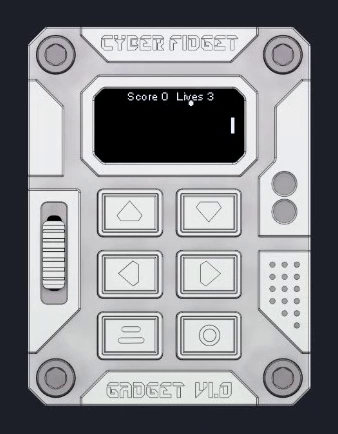
Play the built-in apps
Games, screensavers and tools that come on every Fidget, with their controls.
-
Get more apps
Browse The Archives, try an app in your browser, then send it to your Fidget.
-
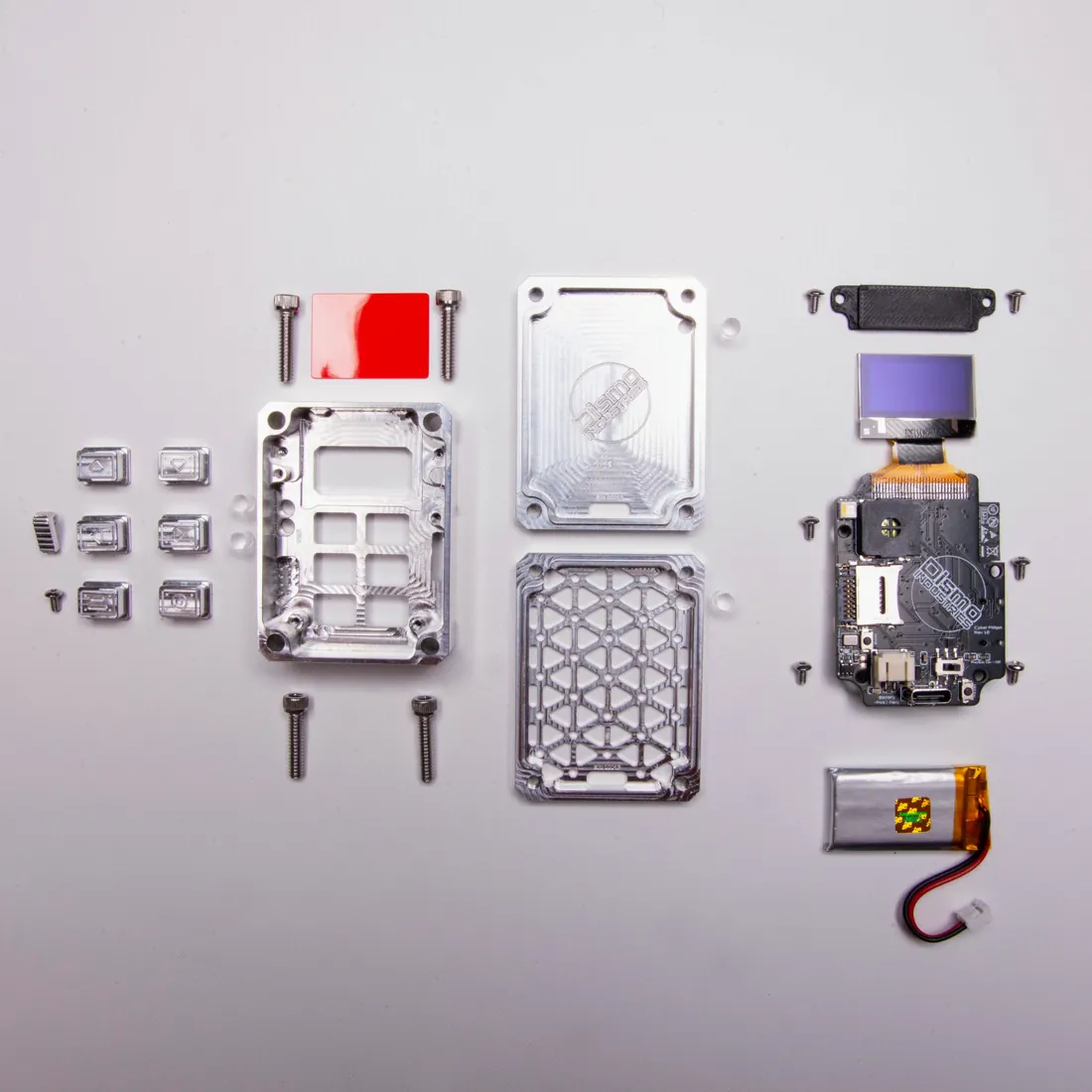
Charge it
Plug in a USB-C cable to charge. When it runs on battery, it sleeps after about a minute without use; press the bottom-right button to wake it.
Battery and storage
-
When the battery runs low
It shuts down to protect the battery. Charge it, then switch it off and on again.
-
Memory card
What the microSD card holds, which cards work, and how to swap one safely.
Built-in features
-
Voice Notes
Record voice memos to the memory card and play them back on the device.
-
Web Portal
Join your Fidget's own WiFi from your phone to manage music and save your home WiFi.
-
Phone Companion
Hear what the Fidget hears on your phone, with live captions on its screen.
-
Awake & dev mode
Keep the Fidget from sleeping while you work, or let it receive apps over WiFi.
Keep it updated
-
Updates
When your Fidget checks for app changes and firmware updates (its built-in software), and how to check manually.
-
Update or reset
Update from the website, go back to an earlier version, or start over with a clean Fidget.
Your account
-
Link your Fidget
Put your Fidget on your account so apps you send reach it over WiFi, with no cable.
-
Your Fidgets
See every Fidget on your account, rename one, and arrange its menu.
-
Battery data
Choose whether to share your Fidget's battery record. It is off until you turn it on.
-
Beta Access
Ask for the features that are in closed beta, and see where your request stands.
Share your work
-
Keep and share your work
Save sprites, models and whole projects to files, or send someone a share link.
-
Submit to The Archives
Send an app you made for review so everyone can find and install it.
If something goes wrong
| What happens | Where to look |
|---|---|
| It won't wake up after the battery ran low | How to start again |
| It doesn't start properly | Erase everything and reinstall |
| It can't join WiFi or the Web Portal won't open | Web Portal common issues |
| An update check fails | If a check does not work |
| Linking to your account doesn't finish | If linking does not finish |
| Sending an app over the cable fails | If a send does not work |
| The Phone Companion misbehaves | Phone Companion troubleshooting |
| An app from The Archives doesn't work | Report a problem |