3D Models
By the end of this page you will draw a 3D shape on the screen, spin it, turn it with the buttons, change its size with the slider, and pin a dot to one of its corners.
What is this?
A 3D model on the Cyber Fidget is a wireframe: a shape made only of points and the straight lines between them. There are no solid sides. The screen is 128 x 64 pixels and each pixel is either on or off, so lines are the clearest way to show a 3D shape. Think of the vector graphics in old arcade games.
Your app keeps the model's points in 3D. Every frame, the Fidget works out where each point lands on the flat screen for the way the model is turned, then draws the lines between them. Turn the model a little each frame and it spins.
Like a shadow puppet made of wire
Bend a paper clip into a cube and hold it up to a lamp. Its shadow on the wall is flat, but when you turn the clip, the shadow changes in a way that shows it is 3D. Your app draws that shadow.
The words on this page:
| Word | Meaning |
|---|---|
| Point | One corner of the model, with an x, y and z position. The Studio calls these nodes. |
| Line | A straight line joining two points. The Studio calls these struts. |
| Mesh | The model's data: its list of points and its list of lines. |
| Mesh actor | A model on the screen: a mesh plus where it is, how it is turned and how big it is. |
| Yaw, pitch, roll | The three ways to turn a model: like shaking your head "no", nodding "yes", and tilting your head to one side. |
| Perspective | Making the far parts of a model look smaller than the near parts, as your eyes do. |
Every example on this page goes into a fresh blank template and works on its own. Insert each part where its first line says. Each example defines its own small box in code, so you can try it without making a model first.
Getting a model into your code
There are three ways.
1. Make it in the Studio's 3D tab. The 3D tab is available to everyone. It lets you place points, join them with lines, and watch the result spin in a preview that uses the same drawing as the Fidget. Draw a wireframe model in the Studio walks through it step by step; 3D Models in the Studio lists every control.
When you build the app, the Studio turns every model in the project into code and adds it to your app for you. While a model is open, the 3D tab shows a Use in code line with a Copy button. It looks like this, for a model called ship:
model.setMesh(&cf::gfx::ship::ship);
The model's name appears twice: once as the name of its group and once as the mesh itself. Copy the line rather than typing the name, so it matches exactly. The examples below show where it goes: use your model's name in place of &boxMesh. With the line using namespace cf::gfx; at the top of your file, you can leave out cf::gfx:: and write &ship::ship.
Try it in an app in the 3D tab starts a small app that shows your model spinning, if the project has no code (see step 6 below).
2. Import a model file. In the 3D tab, choose Add art > Import from a file and pick an OBJ (.obj) or STL (.stl) file from another 3D program. Studio converts its faces into lines and fits it to the model grid. Start with a simple shape: each model can have up to 96 points and 160 lines. Importing a model file explains the steps and limits. Imported models use the same Use in code line and Try it in an app button as models drawn in the Studio.
3. Write the points and lines yourself. For a simple shape this is quick, and it is what the examples on this page do. Drawing a model shows how.
Short names for the 3D functions
The 3D functions live in cf_gfx.h, and their full names start with cf::gfx::, as in cf::gfx::MeshActor. That is how the function reference lists them.
Studio apps already have cf_gfx.h available, so you do not need its #include line. The examples include it anyway, so they also suit apps built into the firmware by hand.
The examples write using namespace cf::gfx; once at the top of the file, which lets them use the short names (Mesh, MeshActor). Do the same when your project has no art of its own listed under All files > In this project at the top of the workspace. In that case the Studio stops any build whose code writes out a cf::gfx:: name, with the message "The generated art couldn't be used, and the app's code depends on it - so this app won't build. Try generating again."
Draw a wireframe model in the Studio
By the end of this section you will have drawn a model with the mouse in the Studio's 3D tab and watched it spin on the emulator's screen, without writing any code. It takes about five minutes.
The result: a model spinning on the emulator. Moving the slider makes it bigger or smaller.
1. Start a project without code. Open the Studio and choose Create an app. Leave the starter unselected, so step 6 can write a small app for you.
2. Make a new model. Click 3D in the tab rail. Choose Add art > Build a 3D model. A New model dialog asks for a Model name; it suggests one such as Model 1. Type a one-word name, such as Arrow, and choose Create.
What you'll see: the model opens in its own tab above the workspace. A new model is a short line: two points joined by one line. The stage in the middle shows it over a floor grid, and Preview · live on the right shows it the way the Fidget will draw it.
Rather start from a shape?
All files > Free starters has a Starter Models section with SHIP, CUBE and PYRAMID. Click one to add it to the project, then reshape it.
3. Add points. Choose Add point in the tool column, then click empty space on the stage. With Mirror: on (the switch under the tools), every point you add off the middle line gets a twin on the other side, so the model stays the same on the left and the right. Clicking on a line instead splits it, putting a new point in its middle.
A new point lands on the flat slice through the middle of the model that faces you. To place a point nearer or farther, turn the view first (step 5).
4. Join points with lines. Choose Connect, click one point, then another: a line joins them. With Mirror on, the twin points get a twin line. Clicking two points that are already joined removes their line. Press Esc to cancel after the first click.
What you'll see: the bar above the stage counts your points and lines (for example 7 points - 8 lines), and the preview shows the new shape.
5. Turn the view and reshape. Choose Move. Then:
| To | Do this |
|---|---|
| Turn the view | Drag empty space on the stage. This only changes how you look at the model, not the model. |
| Zoom the view | Scroll over the stage. |
| Move a point | Drag it. With Mirror on, its twin moves the same way. |
| Select a line | Click it. The Selection panel names it and its two end points. |
| Change one side only | Turn the Mirror switch off, so edits no longer copy to the twin. |
| Take an edit back | Undo and Redo at the bottom of the tool column, or Ctrl+Z and Ctrl+Y. |
| Remove a point or line | Select it, then Delete selection (or press Delete). |
A point moves across the view, so to push a point toward you or away, turn the view sideways first and then drag it.
6. Try it in an app. Choose Try it in an app, in the column on the right under Save to My Assets. In a project with no app code, the Studio writes a small viewer app named after your model (for a model called Arrow, the app is Arrow Viewer), switches to the Code tab and builds it.
What you'll see: after the build (a few seconds to about a minute), the emulator shows your model spinning. Drag the emulator's slider up to make it bigger, down to make it smaller. The bottom-left button returns to the menu. The clip at the top of this section shows it.
If the project already has app code, Try it in an app opens the Generate tab instead, with a request to add the model to your app already typed in.
How the model becomes code
When the app is built, the Studio turns each model in the project into code: a list of points and a list of lines, the same Mesh you would write by hand in Drawing a model. The mesh is named after the model in lower case (spaces and other symbols become _), inside a group with the same name: a model called Arrow becomes cf::gfx::arrow::arrow.
Open the viewer app's code in the Code tab to see it used. Its begin() gives the mesh to a MeshActor called model, with model.setMesh(&cf::gfx::arrow::arrow);, and places and turns it with setPos(), setPerspective() and setRotation(). Its update() turns the slider into a size with setScaleQ8(), adds a little turn with spin(), and draws the model. Every one of those calls is explained further down this page.
To use the model in an app of your own, open the model in the 3D tab and copy its Use in code line. It sits under Try it in an app (scroll the right-hand column down if you don't see it).
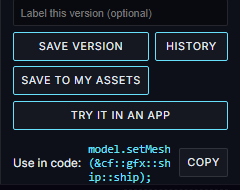
Put that line in begin() where the examples below have boxModel.setMesh(&boxMesh);, and change model in the copied line to boxModel (or your actor's name).
Drawing a model
A model needs two lists:
- Points. Each point is a
MeshVertexwith an x, y and z position. x goes right and y goes up; z is depth. Each number is a whole number from -128 to 127 (the type isint8_t, a small signed whole number). - Lines. Each line is a pair of point numbers. The first point in the list is number 0, the second is number 1, and so on.
A Mesh holds both lists and how long each one is. A MeshActor draws a mesh: give it the mesh with setMesh(), place it with setPos(), turn it with setRotation(), then call draw() every frame.
// Insert at the top of the file, below the #include lines
#include "cf_gfx.h"
using namespace cf::gfx;

// The 8 corners of a box. Each corner is {x, y, z}.
static const MeshVertex boxPoints[] = {
    {-8, -8, -8}, {8, -8, -8}, {8, 8, -8}, {-8, 8, -8},
    {-8, -8, 8},  {8, -8, 8},  {8, 8, 8},  {-8, 8, 8},
};

// The 12 lines. Each line joins two corners, by their number in boxPoints.
static const uint8_t boxLines[][2] = {
    {0, 1}, {1, 2}, {2, 3}, {3, 0},
    {4, 5}, {5, 6}, {6, 7}, {7, 4},
    {0, 4}, {1, 5}, {2, 6}, {3, 7},
};

// name, points, point count, lines, line count
static const Mesh boxMesh = {"box", boxPoints, 8, boxLines, 12};
static MeshActor boxModel;

// Insert inside begin(), below setColorsOff();
boxModel.setMesh(&boxMesh);
boxModel.setPos(64, 32);
// Turn it a little, so it doesn't face you flat.
boxModel.setRotation(32, 24, 0);

// Insert inside update(), just above display.display();
display.clear();
boxModel.draw(display);
Full code for this step
This full code is for code name MyApp (create it with App Name "My App"); if your app has another code name, change MyApp and myApp to yours.
In the starter, nullptr means a pointer has no object. * in a declaration marks a pointer (an address), and before a pointer reads its object. & in a type refers to an existing object; before a value it gives its address. const means the code cannot change the value through that declaration.
#include "MyApp.h"
#include "globals.h"
#include "HAL.h"
#include "MenuManager.h"

#include "cf_gfx.h"
using namespace cf::gfx;

// The 8 corners of a box. Each corner is {x, y, z}.
static const MeshVertex boxPoints[] = {
    {-8, -8, -8}, {8, -8, -8}, {8, 8, -8}, {-8, 8, -8},
    {-8, -8, 8},  {8, -8, 8},  {8, 8, 8},  {-8, 8, 8},
};

// The 12 lines. Each line joins two corners, by their number in boxPoints.
static const uint8_t boxLines[][2] = {
    {0, 1}, {1, 2}, {2, 3}, {3, 0},
    {4, 5}, {5, 6}, {6, 7}, {7, 4},
    {0, 4}, {1, 5}, {2, 6}, {3, 7},
};

// name, points, point count, lines, line count
static const Mesh boxMesh = {"box", boxPoints, 8, boxLines, 12};
static MeshActor boxModel;
MyApp myApp(HAL::buttonManager());
MyApp* MyApp::instance = nullptr;

MyApp::MyApp(ButtonManager& btnMgr) :
    buttonManager(btnMgr), display(HAL::displayProxy()) { instance = this; }

// begin() runs once when your app opens from the menu.
// Set things up here: hook up the buttons and start with the lights off.
void MyApp::begin() {
    registerButtonCallbacks();
    setColorsOff();
    boxModel.setMesh(&boxMesh);
    boxModel.setPos(64, 32);
    // Turn it a little, so it doesn't face you flat.
    boxModel.setRotation(32, 24, 0);
}

// update() runs about 50 times a second while your app is open.
// Clear the screen, draw what you want, then show it.
// The case hides about 8 pixels at each screen corner, so keep text and
// important pixels out of those corners.
void MyApp::update() {
    display.clear();
    display.setTextAlignment(TEXT_ALIGN_CENTER);
    display.setFont(ArialMT_Plain_16);
    display.drawString(64, 24, "MyApp");
    display.clear();
    boxModel.draw(display);
    display.display();
}

// end() runs when your app closes. Let go of the buttons and turn the
// lights off (if your app plays sounds, call stopTone() here too).
void MyApp::end() {
    unregisterButtonCallbacks();
    setColorsOff();
}

// The bottom-left button closes your app and goes back to the menu.
void MyApp::onButtonBackPressed(const ButtonEvent& event) {
    if (event.eventType == ButtonEvent_Released) {
        instance->end();
        MenuManager::instance().returnToMenu();
    }
}

void MyApp::registerButtonCallbacks() {
    buttonManager.registerCallback(button_BottomLeftIndex, onButtonBackPressed);
}

void MyApp::unregisterButtonCallbacks() {
    buttonManager.unregisterCallback(button_BottomLeftIndex);
}
Press REBUILD. You see a wireframe box in the middle of the screen, turned so you can see three of its sides.
The first four lines make the square at one end of the box (the corners with z = -8), the next four make the square at the other end (z = 8), and the last four join the two squares, corner to corner.
&boxMesh means "the address of boxMesh": where it is stored in memory. The actor keeps that address and reads the points and lines from there, so the mesh must stay around while the actor uses it. A static const list at the top of the file always does. const means the data never changes, and uint8_t is a whole number from 0 to 255.
setPos(64, 32) puts the middle of the model, the point (0, 0, 0), at that screen position. Put the model's points around (0, 0, 0) so it turns around its own middle.
How turning works
The Fidget's chip draws faster with whole numbers than with decimals, so the 3D functions use whole numbers in special units.
Angles go from 0 to 255 for one full turn, instead of 0 to 360 degrees. These are called binary angles. After 255 the count wraps back to 0, which is the same as a full turn.
| Binary angle | Degrees | Turn |
|---|---|---|
| 0 | 0 | none |
| 32 | 45 | one eighth |
| 64 | 90 | a quarter |
| 128 | 180 | a half |
| 192 | 270 | three quarters |
| 256 (wraps to 0) | 360 | a full turn |
setRotation(yaw, pitch, roll) sets all three angles. Yaw turns the model around its up-down line, like shaking your head "no". Pitch tips it forward or back, like nodding "yes". Roll tilts it to one side, like resting your head on your shoulder.
spin(yaw, pitch, roll) adds to the angles instead of setting them. Each number can be from -128 to 127; a negative number turns the other way. Call it every frame and the model keeps turning.
// Insert at the top of the file, below the #include lines
#include "cf_gfx.h"
using namespace cf::gfx;

static const MeshVertex boxPoints[] = {
    {-8, -8, -8}, {8, -8, -8}, {8, 8, -8}, {-8, 8, -8},
    {-8, -8, 8},  {8, -8, 8},  {8, 8, 8},  {-8, 8, 8},
};
static const uint8_t boxLines[][2] = {
    {0, 1}, {1, 2}, {2, 3}, {3, 0},
    {4, 5}, {5, 6}, {6, 7}, {7, 4},
    {0, 4}, {1, 5}, {2, 6}, {3, 7},
};
static const Mesh boxMesh = {"box", boxPoints, 8, boxLines, 12};
static MeshActor boxModel;

// Insert inside begin(), below setColorsOff();
boxModel.setMesh(&boxMesh);
boxModel.setPos(64, 32);
boxModel.setRotation(0, 24, 0);

// Insert inside update(), just above display.display();
// Add 1 to the yaw every frame.
boxModel.spin(1, 0, 0);
display.clear();
boxModel.draw(display);
Full code for this step
This full code is for code name MyApp (create it with App Name "My App"); if your app has another code name, change MyApp and myApp to yours.
#include "MyApp.h"
#include "globals.h"
#include "HAL.h"
#include "MenuManager.h"

#include "cf_gfx.h"
using namespace cf::gfx;

static const MeshVertex boxPoints[] = {
    {-8, -8, -8}, {8, -8, -8}, {8, 8, -8}, {-8, 8, -8},
    {-8, -8, 8},  {8, -8, 8},  {8, 8, 8},  {-8, 8, 8},
};
static const uint8_t boxLines[][2] = {
    {0, 1}, {1, 2}, {2, 3}, {3, 0},
    {4, 5}, {5, 6}, {6, 7}, {7, 4},
    {0, 4}, {1, 5}, {2, 6}, {3, 7},
};
static const Mesh boxMesh = {"box", boxPoints, 8, boxLines, 12};
static MeshActor boxModel;
MyApp myApp(HAL::buttonManager());
MyApp* MyApp::instance = nullptr;

MyApp::MyApp(ButtonManager& btnMgr) :
    buttonManager(btnMgr), display(HAL::displayProxy()) { instance = this; }

// begin() runs once when your app opens from the menu.
// Set things up here: hook up the buttons and start with the lights off.
void MyApp::begin() {
    registerButtonCallbacks();
    setColorsOff();
    boxModel.setMesh(&boxMesh);
    boxModel.setPos(64, 32);
    boxModel.setRotation(0, 24, 0);
}

// update() runs about 50 times a second while your app is open.
// Clear the screen, draw what you want, then show it.
// The case hides about 8 pixels at each screen corner, so keep text and
// important pixels out of those corners.
void MyApp::update() {
    display.clear();
    display.setTextAlignment(TEXT_ALIGN_CENTER);
    display.setFont(ArialMT_Plain_16);
    display.drawString(64, 24, "MyApp");
    // Add 1 to the yaw every frame.
    boxModel.spin(1, 0, 0);
    display.clear();
    boxModel.draw(display);
    display.display();
}

// end() runs when your app closes. Let go of the buttons and turn the
// lights off (if your app plays sounds, call stopTone() here too).
void MyApp::end() {
    unregisterButtonCallbacks();
    setColorsOff();
}

// The bottom-left button closes your app and goes back to the menu.
void MyApp::onButtonBackPressed(const ButtonEvent& event) {
    if (event.eventType == ButtonEvent_Released) {
        instance->end();
        MenuManager::instance().returnToMenu();
    }
}

void MyApp::registerButtonCallbacks() {
    buttonManager.registerCallback(button_BottomLeftIndex, onButtonBackPressed);
}

void MyApp::unregisterButtonCallbacks() {
    buttonManager.unregisterCallback(button_BottomLeftIndex);
}
Press REBUILD. The box spins around its up-down line. update() runs about 50 times a second, so 256 steps of 1 make one turn in about 5 seconds. Change spin(1, 0, 0) to spin(2, 1, 0) to spin faster and tumble at the same time.
yaw(), pitch() and roll() read the angles back.
Turning with the buttons
This example turns the box while you hold a button. The middle buttons turn it left and right (yaw). The top buttons tip it forward and back (pitch).
// Insert at the top of the file, below the #include lines
#include "cf_gfx.h"
using namespace cf::gfx;

static const MeshVertex boxPoints[] = {
    {-8, -8, -8}, {8, -8, -8}, {8, 8, -8}, {-8, 8, -8},
    {-8, -8, 8},  {8, -8, 8},  {8, 8, 8},  {-8, 8, 8},
};
static const uint8_t boxLines[][2] = {
    {0, 1}, {1, 2}, {2, 3}, {3, 0},
    {4, 5}, {5, 6}, {6, 7}, {7, 4},
    {0, 4}, {1, 5}, {2, 6}, {3, 7},
};
static const Mesh boxMesh = {"box", boxPoints, 8, boxLines, 12};
static MeshActor boxModel;

// Insert inside begin(), below setColorsOff();
boxModel.setMesh(&boxMesh);
boxModel.setPos(64, 32);
boxModel.setRotation(32, 24, 0);

// Insert inside update(), just above display.display();
if (buttonManager.isPressed(button_MiddleLeftIndex)) {
    boxModel.spin(-2, 0, 0);
}
if (buttonManager.isPressed(button_MiddleRightIndex)) {
    boxModel.spin(2, 0, 0);
}
if (buttonManager.isPressed(button_TopLeftIndex)) {
    boxModel.spin(0, -2, 0);
}
if (buttonManager.isPressed(button_TopRightIndex)) {
    boxModel.spin(0, 2, 0);
}
display.clear();
boxModel.draw(display);
Full code for this step
This full code is for code name MyApp (create it with App Name "My App"); if your app has another code name, change MyApp and myApp to yours.
#include "MyApp.h"
#include "globals.h"
#include "HAL.h"
#include "MenuManager.h"

#include "cf_gfx.h"
using namespace cf::gfx;

static const MeshVertex boxPoints[] = {
    {-8, -8, -8}, {8, -8, -8}, {8, 8, -8}, {-8, 8, -8},
    {-8, -8, 8},  {8, -8, 8},  {8, 8, 8},  {-8, 8, 8},
};
static const uint8_t boxLines[][2] = {
    {0, 1}, {1, 2}, {2, 3}, {3, 0},
    {4, 5}, {5, 6}, {6, 7}, {7, 4},
    {0, 4}, {1, 5}, {2, 6}, {3, 7},
};
static const Mesh boxMesh = {"box", boxPoints, 8, boxLines, 12};
static MeshActor boxModel;
MyApp myApp(HAL::buttonManager());
MyApp* MyApp::instance = nullptr;

MyApp::MyApp(ButtonManager& btnMgr) :
    buttonManager(btnMgr), display(HAL::displayProxy()) { instance = this; }

// begin() runs once when your app opens from the menu.
// Set things up here: hook up the buttons and start with the lights off.
void MyApp::begin() {
    registerButtonCallbacks();
    setColorsOff();
    boxModel.setMesh(&boxMesh);
    boxModel.setPos(64, 32);
    boxModel.setRotation(32, 24, 0);
}

// update() runs about 50 times a second while your app is open.
// Clear the screen, draw what you want, then show it.
// The case hides about 8 pixels at each screen corner, so keep text and
// important pixels out of those corners.
void MyApp::update() {
    display.clear();
    display.setTextAlignment(TEXT_ALIGN_CENTER);
    display.setFont(ArialMT_Plain_16);
    display.drawString(64, 24, "MyApp");
    if (buttonManager.isPressed(button_MiddleLeftIndex)) {
        boxModel.spin(-2, 0, 0);
    }
    if (buttonManager.isPressed(button_MiddleRightIndex)) {
        boxModel.spin(2, 0, 0);
    }
    if (buttonManager.isPressed(button_TopLeftIndex)) {
        boxModel.spin(0, -2, 0);
    }
    if (buttonManager.isPressed(button_TopRightIndex)) {
        boxModel.spin(0, 2, 0);
    }
    display.clear();
    boxModel.draw(display);
    display.display();
}

// end() runs when your app closes. Let go of the buttons and turn the
// lights off (if your app plays sounds, call stopTone() here too).
void MyApp::end() {
    unregisterButtonCallbacks();
    setColorsOff();
}

// The bottom-left button closes your app and goes back to the menu.
void MyApp::onButtonBackPressed(const ButtonEvent& event) {
    if (event.eventType == ButtonEvent_Released) {
        instance->end();
        MenuManager::instance().returnToMenu();
    }
}

void MyApp::registerButtonCallbacks() {
    buttonManager.registerCallback(button_BottomLeftIndex, onButtonBackPressed);
}

void MyApp::unregisterButtonCallbacks() {
    buttonManager.unregisterCallback(button_BottomLeftIndex);
}
Press REBUILD. Hold a middle button to turn the box left or right. Hold a top button to tip it.
buttonManager.isPressed() is true while a button is held down, which suits smooth turning. For one action per press, use a callback instead (see Buttons & Events).
Size and perspective
Size uses another whole-number unit: setScaleQ8() takes a size where 256 means normal size. This is called a Q8 number: the value divided by 256 is the size.
setScaleQ8() value |
Size |
|---|---|
| 128 | half size |
| 256 | normal size |
| 384 | one and a half times |
| 512 | double size |
Perspective makes the far side of a model smaller than the near side, so it looks deep. setPerspective(depth) sets how far away the model is, from 1 to 255; the starting value is 48. A smaller depth brings the model closer: it looks bigger and the perspective is stronger. A larger depth moves it away: it looks smaller and flatter. setPerspective(0) turns perspective off, so near and far parts are the same size. A very small depth puts parts of the model too close to draw (see "Lines that disappear" below).
Turning perspective off also makes the model smaller. Without perspective, one model unit is one pixel. With perspective at the starting depth of 48, the middle of the model is drawn a little over 2 pixels per unit.
This example sets the size with the slider. The bottom-right button turns perspective on and off.
// Insert at the top of the file, below the #include lines
#include "cf_gfx.h"
using namespace cf::gfx;

static const MeshVertex boxPoints[] = {
    {-8, -8, -8}, {8, -8, -8}, {8, 8, -8}, {-8, 8, -8},
    {-8, -8, 8},  {8, -8, 8},  {8, 8, 8},  {-8, 8, 8},
};
static const uint8_t boxLines[][2] = {
    {0, 1}, {1, 2}, {2, 3}, {3, 0},
    {4, 5}, {5, 6}, {6, 7}, {7, 4},
    {0, 4}, {1, 5}, {2, 6}, {3, 7},
};
static const Mesh boxMesh = {"box", boxPoints, 8, boxLines, 12};
static MeshActor boxModel;
static bool flat = false;

static void onFlatPressed(const ButtonEvent& e) {
    if (e.eventType == ButtonEvent_Pressed) {
        flat = !flat;
    }
}

// Insert inside begin(), below setColorsOff();
boxModel.setMesh(&boxMesh);
boxModel.setPos(64, 32);
flat = false;
buttonManager.registerCallback(button_BottomRightIndex, onFlatPressed);

// Insert inside update(), just above display.display();
// The slider picks a size from half size (128) to double size (512).
uint16_t size = map(sliderPosition_8Bits_Inverted_Filtered, 0, 255, 128, 512);
boxModel.setScaleQ8(size);
if (flat) {
    boxModel.setPerspective(0);
} else {
    boxModel.setPerspective(48);
}
boxModel.spin(1, 1, 0);
display.clear();
boxModel.draw(display);

// Insert inside end(), above unregisterButtonCallbacks();
buttonManager.unregisterCallback(button_BottomRightIndex);
Full code for this step
This full code is for code name MyApp (create it with App Name "My App"); if your app has another code name, change MyApp and myApp to yours.
#include "MyApp.h"
#include "globals.h"
#include "HAL.h"
#include "MenuManager.h"

#include "cf_gfx.h"
using namespace cf::gfx;

static const MeshVertex boxPoints[] = {
    {-8, -8, -8}, {8, -8, -8}, {8, 8, -8}, {-8, 8, -8},
    {-8, -8, 8},  {8, -8, 8},  {8, 8, 8},  {-8, 8, 8},
};
static const uint8_t boxLines[][2] = {
    {0, 1}, {1, 2}, {2, 3}, {3, 0},
    {4, 5}, {5, 6}, {6, 7}, {7, 4},
    {0, 4}, {1, 5}, {2, 6}, {3, 7},
};
static const Mesh boxMesh = {"box", boxPoints, 8, boxLines, 12};
static MeshActor boxModel;
static bool flat = false;

static void onFlatPressed(const ButtonEvent& e) {
    if (e.eventType == ButtonEvent_Pressed) {
        flat = !flat;
    }
}
MyApp myApp(HAL::buttonManager());
MyApp* MyApp::instance = nullptr;

MyApp::MyApp(ButtonManager& btnMgr) :
    buttonManager(btnMgr), display(HAL::displayProxy()) { instance = this; }

// begin() runs once when your app opens from the menu.
// Set things up here: hook up the buttons and start with the lights off.
void MyApp::begin() {
    registerButtonCallbacks();
    setColorsOff();
    boxModel.setMesh(&boxMesh);
    boxModel.setPos(64, 32);
    flat = false;
    buttonManager.registerCallback(button_BottomRightIndex, onFlatPressed);
}

// update() runs about 50 times a second while your app is open.
// Clear the screen, draw what you want, then show it.
// The case hides about 8 pixels at each screen corner, so keep text and
// important pixels out of those corners.
void MyApp::update() {
    display.clear();
    display.setTextAlignment(TEXT_ALIGN_CENTER);
    display.setFont(ArialMT_Plain_16);
    display.drawString(64, 24, "MyApp");
    // The slider picks a size from half size (128) to double size (512).
    uint16_t size = map(sliderPosition_8Bits_Inverted_Filtered, 0, 255, 128, 512);
    boxModel.setScaleQ8(size);
    if (flat) {
        boxModel.setPerspective(0);
    } else {
        boxModel.setPerspective(48);
    }
    boxModel.spin(1, 1, 0);
    display.clear();
    boxModel.draw(display);
    display.display();
}

// end() runs when your app closes. Let go of the buttons and turn the
// lights off (if your app plays sounds, call stopTone() here too).
void MyApp::end() {
    buttonManager.unregisterCallback(button_BottomRightIndex);
    unregisterButtonCallbacks();
    setColorsOff();
}

// The bottom-left button closes your app and goes back to the menu.
void MyApp::onButtonBackPressed(const ButtonEvent& event) {
    if (event.eventType == ButtonEvent_Released) {
        instance->end();
        MenuManager::instance().returnToMenu();
    }
}

void MyApp::registerButtonCallbacks() {
    buttonManager.registerCallback(button_BottomLeftIndex, onButtonBackPressed);
}

void MyApp::unregisterButtonCallbacks() {
    buttonManager.unregisterCallback(button_BottomLeftIndex);
}
Press REBUILD. A tumbling box changes size as you move the slider. Press the bottom-right button: the box looks flatter and smaller. Press it again to bring the perspective back.
map() turns the slider's 0 to 255 into a size from 128 to 512 (see The Slider). flat = !flat; flips flat between true and false. begin() sets flat back to false, so the app always opens with perspective on.
Lines that disappear
With perspective on, a point that comes too close to the viewer can't be drawn, and the Fidget skips every line that touches it. A big model, a big size or a small depth can make lines blink out as the model turns. If that happens, make the model or its size smaller, or use a larger depth.
scaleQ8() and perspective() read the values back. x() and y() read the position.
Pinning something to a point on the model
projectPoint(x, y, z, screenX, screenY) tells you where a 3D point lands on the screen for the model's current position, turn, size and perspective. Use it to draw something that rides along with the model: a dot, a sprite, a label.
It writes the answer into the two variables you pass at the end, and returns false when the point is too close to be drawn. Keep the x, y and z within about -8000 to 8000.
// Insert at the top of the file, below the #include lines
#include "cf_gfx.h"
using namespace cf::gfx;

static const MeshVertex boxPoints[] = {
    {-8, -8, -8}, {8, -8, -8}, {8, 8, -8}, {-8, 8, -8},
    {-8, -8, 8},  {8, -8, 8},  {8, 8, 8},  {-8, 8, 8},
};
static const uint8_t boxLines[][2] = {
    {0, 1}, {1, 2}, {2, 3}, {3, 0},
    {4, 5}, {5, 6}, {6, 7}, {7, 4},
    {0, 4}, {1, 5}, {2, 6}, {3, 7},
};
static const Mesh boxMesh = {"box", boxPoints, 8, boxLines, 12};
static MeshActor boxModel;

// Insert inside begin(), below setColorsOff();
boxModel.setMesh(&boxMesh);
boxModel.setPos(64, 32);
boxModel.setRotation(0, 24, 0);

// Insert inside update(), just above display.display();
boxModel.spin(1, 0, 0);
display.clear();
boxModel.draw(display);
// Find where corner 6, at (8, 8, 8), is on the screen.
int16_t cornerX = 0;
int16_t cornerY = 0;
bool visible = boxModel.projectPoint(8, 8, 8, cornerX, cornerY);
if (visible) {
    display.fillCircle(cornerX, cornerY, 2);
}
Full code for this step
This full code is for code name MyApp (create it with App Name "My App"); if your app has another code name, change MyApp and myApp to yours.
#include "MyApp.h"
#include "globals.h"
#include "HAL.h"
#include "MenuManager.h"

#include "cf_gfx.h"
using namespace cf::gfx;

static const MeshVertex boxPoints[] = {
    {-8, -8, -8}, {8, -8, -8}, {8, 8, -8}, {-8, 8, -8},
    {-8, -8, 8},  {8, -8, 8},  {8, 8, 8},  {-8, 8, 8},
};
static const uint8_t boxLines[][2] = {
    {0, 1}, {1, 2}, {2, 3}, {3, 0},
    {4, 5}, {5, 6}, {6, 7}, {7, 4},
    {0, 4}, {1, 5}, {2, 6}, {3, 7},
};
static const Mesh boxMesh = {"box", boxPoints, 8, boxLines, 12};
static MeshActor boxModel;
MyApp myApp(HAL::buttonManager());
MyApp* MyApp::instance = nullptr;

MyApp::MyApp(ButtonManager& btnMgr) :
    buttonManager(btnMgr), display(HAL::displayProxy()) { instance = this; }

// begin() runs once when your app opens from the menu.
// Set things up here: hook up the buttons and start with the lights off.
void MyApp::begin() {
    registerButtonCallbacks();
    setColorsOff();
    boxModel.setMesh(&boxMesh);
    boxModel.setPos(64, 32);
    boxModel.setRotation(0, 24, 0);
}

// update() runs about 50 times a second while your app is open.
// Clear the screen, draw what you want, then show it.
// The case hides about 8 pixels at each screen corner, so keep text and
// important pixels out of those corners.
void MyApp::update() {
    display.clear();
    display.setTextAlignment(TEXT_ALIGN_CENTER);
    display.setFont(ArialMT_Plain_16);
    display.drawString(64, 24, "MyApp");
    boxModel.spin(1, 0, 0);
    display.clear();
    boxModel.draw(display);
    // Find where corner 6, at (8, 8, 8), is on the screen.
    int16_t cornerX = 0;
    int16_t cornerY = 0;
    bool visible = boxModel.projectPoint(8, 8, 8, cornerX, cornerY);
    if (visible) {
        display.fillCircle(cornerX, cornerY, 2);
    }
    display.display();
}

// end() runs when your app closes. Let go of the buttons and turn the
// lights off (if your app plays sounds, call stopTone() here too).
void MyApp::end() {
    unregisterButtonCallbacks();
    setColorsOff();
}

// The bottom-left button closes your app and goes back to the menu.
void MyApp::onButtonBackPressed(const ButtonEvent& event) {
    if (event.eventType == ButtonEvent_Released) {
        instance->end();
        MenuManager::instance().returnToMenu();
    }
}

void MyApp::registerButtonCallbacks() {
    buttonManager.registerCallback(button_BottomLeftIndex, onButtonBackPressed);
}

void MyApp::unregisterButtonCallbacks() {
    buttonManager.unregisterCallback(button_BottomLeftIndex);
}
Press REBUILD. The box spins, and a small dot stays on one of its corners.
Limits
| Limit | Value |
|---|---|
| Point position (x, y, z) | -128 to 127 each |
| Points in a mesh | up to 255 in code; up to 96 in the Studio's 3D tab |
| Lines in a mesh | up to 65535 in code; up to 160 in the Studio's 3D tab |
| Angles | 0 to 255 for one full turn |
Size (setScaleQ8()) |
0 to 65535, where 256 is normal size |
Depth (setPerspective()) |
0 (off) or 1 to 255 |
Every line is drawn every frame, so a model with many lines takes longer to draw. The Studio's limits keep models quick to draw.
Functions on this page
| Call | What it does |
|---|---|
MeshActor()Example: MeshActor model; |
Create a wireframe model actor with default depth 48 and scale 256. |
void model.setMesh(const Mesh* m)Example: model.setMesh(&mesh); |
Bind the model's points and connecting lines. |
const Mesh* model.mesh() constExample: model.mesh(); |
Read the bound model pointer, or nullptr if none. |
void model.setPos(int16_t sx, int16_t sy)Example: model.setPos(64, 32); |
Place the model's anchor in screen pixels. |
int16_t model.x() constExample: model.x(); |
Read the anchor's horizontal screen position in pixels. |
int16_t model.y() constExample: model.y(); |
Read the anchor's vertical screen position in pixels. |
void model.setScaleQ8(uint16_t s)Example: model.setScaleQ8(256); |
Set model size; 256 is normal size and 512 is double. |
uint16_t model.scaleQ8() constExample: model.scaleQ8(); |
Read size in units where 256 is normal size. |
void model.setRotation(uint8_t yaw, uint8_t pitch, uint8_t roll)Example: model.setRotation(0, 64, 0); |
Rotate about vertical, horizontal, and depth axes; 256 units equal one turn. |
void model.spin(int8_t dYaw, int8_t dPitch, int8_t dRoll)Example: model.spin(1, 0, 0); |
Add yaw, pitch, roll steps; 256 steps equal one turn. |
uint8_t model.yaw() constExample: model.yaw(); |
Read rotation about the model's vertical axis; 0-255 is one turn. |
uint8_t model.pitch() constExample: model.pitch(); |
Read rotation about the model's horizontal axis; 0-255 is one turn. |
uint8_t model.roll() constExample: model.roll(); |
Read rotation about the model's depth axis; 0-255 is one turn. |
void model.setPerspective(uint8_t depth)Example: model.setPerspective(48); |
Set viewing depth; 0 disables perspective size changes with distance. |
uint8_t model.perspective() constExample: model.perspective(); |
Read the viewing depth; 0 means no perspective. |
void model.draw(DisplayProxy& d) constExample: model.draw(display); |
Draw model lines; skip lines with either end behind the near viewing plane. |
bool model.projectPoint(int32_t mx, int32_t my, int32_t mz, int16_t& outX, int16_t& outY) constExample: model.projectPoint(0, 0, 0, x, y); |
Convert a model point to screen x/y; keep coordinates within about +/-8192; false if hidden. |
int16_t sinQ14(uint8_t a)Example: sinQ14(64); |
Read sine scaled by 16384; 256 angle units equal one turn. |
int16_t cosQ14(uint8_t a)Example: cosQ14(0); |
Read cosine scaled by 16384; 256 angle units equal one turn. |
constexpr int32_t kFocal = 110Example: kFocal |
Perspective projection focal length in pixels. |
constexpr int32_t kNearZ = 8Example: kNearZ |
Minimum visible model depth. |
constexpr uint8_t kDefaultDepth = 48Example: kDefaultDepth |
Initial model viewing depth. |
constexpr uint16_t kScaleBaseQ8 = 256Example: kScaleBaseQ8 |
Normal model size; 256 means 1x. |
The drawing math
Advanced
You don't need this to make apps. It is here for readers who want to know exactly where each point lands, for example to match the Fidget's drawing in another program.
For each point, the Fidget turns it by the yaw, then the pitch, then the roll, multiplies by the size and divides by 256. The turning uses a table of sine values stored as whole numbers, where 16384 means 1.0 (a Q14 number); sinQ14(angle) and cosQ14(angle) read that table, taking a binary angle.
With perspective off, a point at x, y lands at (position x + x, position y - y): screen y goes down while model y goes up. With perspective on, the Fidget adds the depth to the point's z, and divides x and y by that sum, after multiplying them by kFocal (110 pixels). A point whose sum is less than kNearZ (8) is too close to draw. All the math uses whole numbers, so the browser emulator and the Fidget draw exactly the same pixels.
Where to go next
- 3D Models in the Studio: building a model in the 3D tab.
- Sprites & Animation: flat pictures that move and animate.
- Drawing to the Screen: lines, shapes and text.
- The Update Loop: timing with
millis(). - Function reference: every call your app can use.