Drawing and Version History
Every drawing in Studio keeps a version history. You can save a checkpoint yourself, and Studio also protects your work at important moments.
On desktop and laptop, the label field, Save version and History are in the right-panel footer. On a phone they are below Preview and Layers, before the timeline. Tap the same buttons; they have no dedicated keyboard shortcuts. See Files and versions for all save and download controls.
Save a version yourself
Select Save version while you are drawing. You can add an optional label to help you recognize the version again.
Useful labels describe the change you just finished, such as clean outline or jump pose.
When Studio saves automatically
Studio saves a version when:
- You switch away from a drawing that has changes
- Something is about to replace your art
- You start a build (Studio's step that turns your project, including its art, into a runnable app)
You do not need to export a file before any of these actions.
Read the History panel
Open the History panel to see the drawing's saved versions. The newest version is first. Each entry includes a small preview and a timestamp, so you can compare the versions before choosing one.
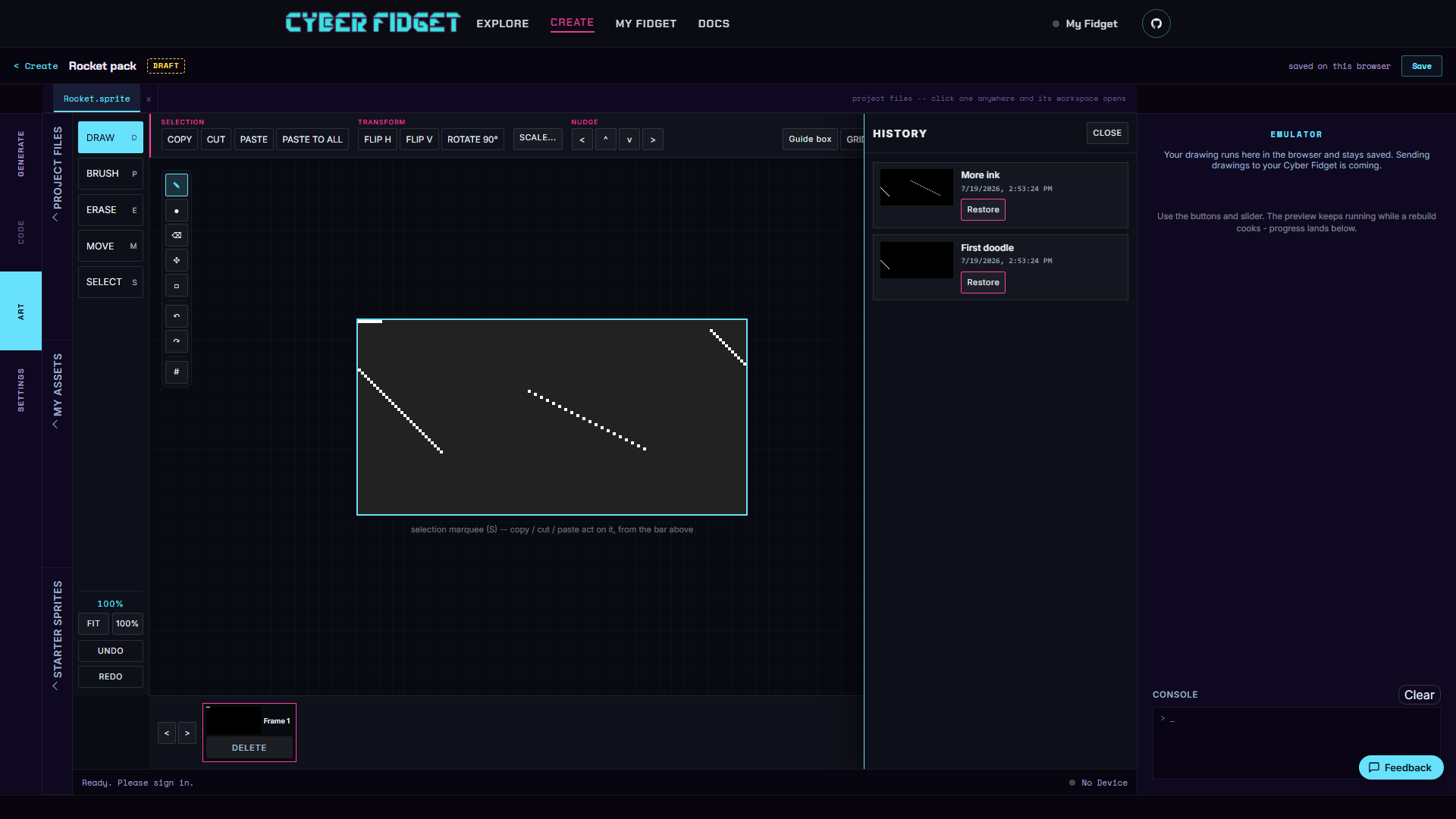
Restore an earlier version
Choose Restore on the version you want. Studio makes that art current without deleting the version you were working on or any other history.
A new entry appears at the top of the list with a restored badge. This gives you a record of the restore and lets you keep working from that point.
If the version already matches your current art, Studio leaves the drawing unchanged and tells you: "That version is already current."
Restoring is non-destructive
Restoring adds to your history. It does not rewind the list or erase newer work.
The 20-version limit
Each drawing keeps up to 20 versions. When the limit is reached, Studio removes the oldest versions and shows a note explaining what happened.
If a version matters for a future edit, give it a clear label so it is easy to recognize while it remains in the history.