Your Sprite Library
The 2D panel's library rail helps you reuse sprites without tying the copies together. A sprite is an image or animation used by an app, often for a character, object, or effect.
The library has three scopes: Project Files, My Assets, and Starter Sprites.
On desktop and laptop, expand the library disclosures in the left sidebar. On a phone, expand them above the tools. Tap an entry to use it; library actions have no dedicated keyboard shortcuts. Save to My Assets is in the desktop right-panel footer and below Layers on a phone.
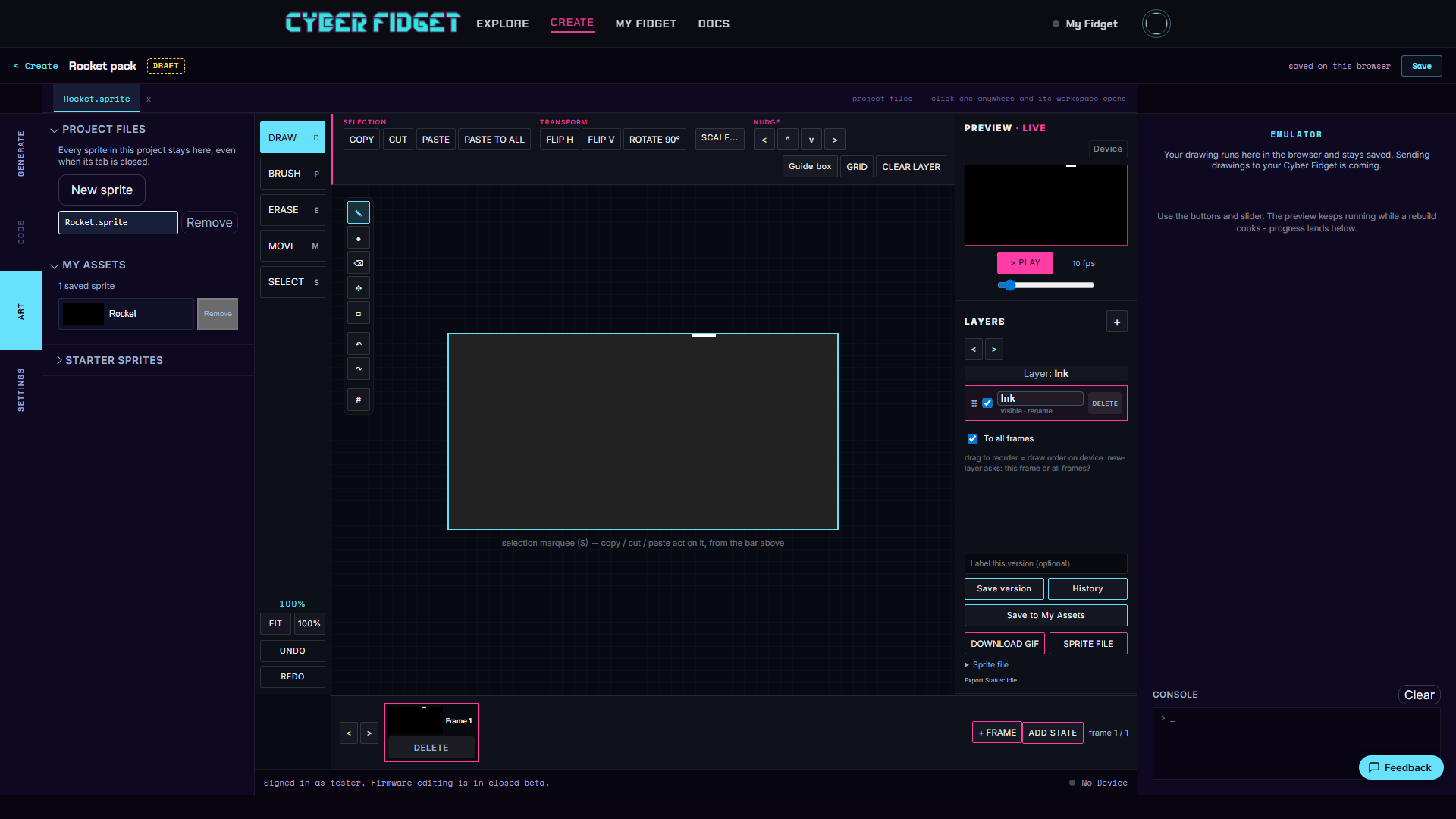
Project Files
Project Files lists every sprite in the project, including sprites whose editor tabs are closed.
Closing a tab only closes that editor view. It never deletes the sprite from your project.
Choose New sprite to add a blank sprite to the project, or Add from file to bring one in from a saved file. When the project has no sprites, the editor shows No sprite open with a New sprite button.
My Assets
My Assets is your account's sprite library. You must be signed in to use it.
To add a sprite:
- Choose Save to My Assets.
- Review or change the prefilled name in the in-page dialog.
- Save the sprite.
Your account can hold up to 50 sprites. Saving another sprite with the same name does not overwrite the earlier one. It adds a new version under that name.
To rename a saved sprite:
- Find the sprite in the My Assets list.
- Choose Rename on its row.
- Enter the new name and confirm.
To take a sprite out of the library:
- Find the sprite in the My Assets list.
- Choose Remove on its row.
- Confirm in the dialog.
Removing deletes the sprite from My Assets, including its saved versions, and cannot be undone. Projects that already used the sprite keep their copies.
Renaming changes the library entry only. Its saved versions are kept, and any project that already used the sprite is untouched -- that project keeps the copy, and the name, it took at the time. To rename the copy inside a project, rename it from that project's file list instead.
If another saved asset already uses the name you type, the rename is refused and nothing changes. Names are compared without regard to capitalization, so you can still correct a name's capitalization on its own.
Starter Sprites
Starter Sprites is the built-in Creative Commons Zero (CC0) collection. CC0 content can be reused without the usual copyright restrictions.
You can use a starter sprite in three ways:
- Add to open sprite combines the starter art with your current drawing as a new layer.
- Copy to Project adds the starter sprite to the project as its own sprite file.
- Copy as C++ copies the sprite to your clipboard as C++ code you can paste into an app you write by hand. The code holds the sprite's pixels as a 1-bit bitmap (every visible pixel is on), its width and height, a credit line naming its author and license, and a ready-to-use drawing line,
display.drawXbm(x, y, width, height, bitmap). See Bitmaps for how the device draws it. The button briefly shows how many bytes were copied.
Copies stay independent
Using a sprite from any library copies it into your project. Editing the project copy never changes the library original.
A small note on the copy records where it came from. This helps you recognize reused art without creating a live link back to the source.
Sprites travel with your app
Sprite files are part of the app project. When you build the app (Studio's step that turns your project into a runnable app), Studio compiles your art into the app automatically. When you install the app on your device, its sprites go with it.
The complete sequence is:
- Author your app.
- Draw its art in Studio.
- Build the app.
- Install the app on the device.
No sprite export or import is required between drawing, building, and installing. To back up a sprite or take it elsewhere, see Keeping and sharing your work.
For sprites with multiple actions, continue with Animation names. For backups and downloads, see Files and versions.