3D Models
The 3D tab is Studio's tool for building wireframe models -- simple 3D shapes your app can spin and display on the Cyber Fidget's OLED screen, drawn as glowing line art like a classic vector arcade game.
The 3D tab is available to everyone, alongside Code and 2D.
What is a wireframe model?
A wireframe model is a 3D shape made of points (also called nodes, positioned in space) connected by lines (also called struts, straight lines between two points). There are no solid surfaces -- only the points and the lines between them. That's what lets the shape spin cleanly on a monochrome display: the device draws the lines as it would any other line, from whatever angle the model faces.
Opening the 3D tab
Click 3D in Studio's tab strip (alongside Generate, Code, and 2D) to open the model workspace. On a desktop or laptop, models use the same two buttons above the workspace as sprites do: All files and Add art. See Your Sprite Library for how they work. For models:
- Add art > Build a 3D model opens a New model dialog that asks for a Model name (it suggests one such as
Model 1). Create starts a new model: two points joined by one line. Add art > Import from a file brings in a.cfmesh.json,.objor.stlfile. - All files > In this project lists every model already in this project, under the heading 3D models.
- All files > My library holds your account's saved models, under the heading My Assets. Sign in to use this; it's shared with your sprite library, holding up to 50 assets total between the two.
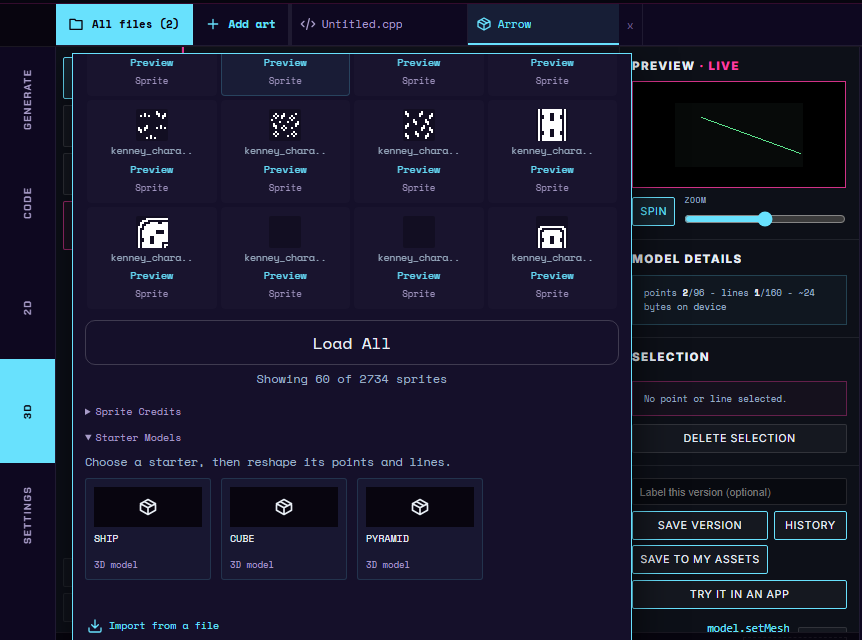
- All files > Free starters has a Starter Models section with three ready-made shapes (SHIP, CUBE, PYRAMID) to reshape instead of starting from nothing. Click one to add it to the project. The section is below the starter sprites, so scroll down inside the window to reach it.
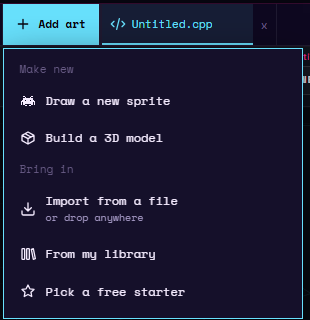
Opening the 3D tab, then Add art > Build a 3D model, naming the model Arrow and choosing Create.
Editing a model
The model stage in the middle of the workspace is an interactive 3D view. Three tools sit in the tool column to its left:
- Move -- drag the model to spin it; drag a point to reshape it; scroll to zoom the view in or out; click a line to select it.
- Connect -- click one point, then another, to draw a line between them (or remove one that's already there). Press Esc to cancel a pending connection.
- Add point -- click empty space to place a new point; click an existing line to split it, inserting a fresh point at its midpoint. A new point lands on the flat slice through the middle of the model that faces you, so turn the view first to place a point nearer or farther.
The hint under the stage repeats what the current tool does.
Add point with Mirror on (each point off the middle line gets a twin), then Connect to join the points into an arrow, then Move to turn the view.
A Mirror toggle (it reads Mirror: on or Mirror: off) keeps the model symmetric left-to-right. With Mirror on, editing a point or line on one side updates its mirrored twin on the other side of the center line automatically -- handy for anything meant to look the same from both sides, like a ship or a face.
The SHIP starter with the Move tool: turning and zooming the view, dragging a point (its twin follows), selecting a line, then Mirror off so a drag moves one point only, and Undo.
Undo and Redo buttons step back and forward through your edits (also available as Ctrl+Z, Ctrl+Shift+Z, and Ctrl+Y). Delete or Backspace, or the Delete selection button, removes the selected point or line.
A model can hold up to 96 points and 160 lines. The Model details panel shows your current counts against those limits, along with the model's approximate size in bytes once installed on the device.
The live preview
Next to the editor, the Preview panel (marked live) renders your model using the same math the device itself uses to draw it, so what you see in Studio is what your Cyber Fidget will show. A Spin toggle turns continuous rotation on or off, and a Zoom slider adjusts how large the preview appears.
Importing a model file
If you already have a 3D model from another program, you can bring it in instead of rebuilding it by hand. Studio reads two common 3D file types, in addition to its own .cfmesh.json files:
- OBJ (
.obj) -- a Wavefront OBJ file, a plain-text format that lists a model's vertices and then the faces or lines that join them. - STL (
.stl, stereolithography) -- a triangle-list file, the format most 3D printing programs use. Both the binary and the text versions of STL work.
A vertex is a corner point of a 3D model; it becomes a node in Studio. A mesh is the whole network of vertices and faces. Most 3D programs build faces out of triangles, three-cornered flat patches.
How to import
- Open the 3D tab.
- Choose Add art > Import from a file above the workspace.
- Pick your
.objor.stlfile.
Studio adds the model to the open project and selects it. Your other models are left alone. The model is named after the file, without the .obj or .stl ending.
What happens to the model
A wireframe model has no solid surfaces, so Studio keeps the outline and throws the rest away:
- Faces become lines. Each edge of each face becomes a strut, and the face itself is dropped. OBJ line (
l) entries come in as struts directly. Colours, textures, and surface-smoothing data are ignored. - Hidden diagonals are removed. Triangle-built models split every flat face into triangles, which would draw a diagonal across each one. Where two triangles lie in the same flat plane, Studio removes the line between them, so a cube made of 12 triangles comes in as the 12 lines of a cube rather than 18. A dot that you placed on purpose along a straight run is kept.
- Duplicate points are merged. Points at the same position, or within a tiny rounding tolerance, are joined into one node. STL files store each triangle's corners separately, so shared corners become one point.
- The model is centred and scaled to fit. Studio centres it and resizes its longest direction to span -20 to 20 grid units, with every node snapped to a whole-number grid position. The original size is not kept. Nodes that land on the same grid spot after snapping are merged.
Limits
The device can hold up to 96 nodes and 160 struts per model. Studio checks those limits after merging duplicate points and removing hidden diagonals, before scaling and snapping to the grid. Files must also stay within the import detail limits below. Studio refuses files that exceed a limit or cannot be read, with one of these messages:
| Message | What it means |
|---|---|
| This model has N dots - Cyber Fidget models max out at 96. Try a low-poly version. | After cleanup the model still has more than 96 nodes. |
| This model has N lines - Cyber Fidget models max out at 160. Try a low-poly version. | After cleanup the model still has more than 160 struts. |
| This file is N MB - Studio can only open model files up to 25 MB. Try a low-poly version. | The file is larger than 25 MB. Studio refuses it before reading it. |
| This model has N triangles - too detailed to bring in. Try a low-poly version. | The file has more than 20,000 triangles. This applies to OBJ and STL; an OBJ face with N corners counts as N - 2 triangles. |
| This model has N corners - too detailed to bring in. Try a low-poly version. | The file references more than 60,000 corner points before duplicate points are merged. OBJ files are also refused if they declare more than 240,000 vertices, including unused ones. |
| This model has N lines - too detailed to bring in. Try a low-poly version. | OBJ line entries describe more than 60,000 line segments before cleanup. |
| This model has an unreadable part on line N. Try saving it again. | (OBJ only) A line of the file is malformed or points at a vertex that does not exist. Re-export it from your 3D program. |
| This file looks damaged. Try saving it again. | (STL only) The file is truncated or its contents are invalid. |
| This file is empty. Choose a model file. | (STL only) The file has no content. |
| This file is not a model Studio can open. | (STL only) The file is text but is not an STL file. |
| This model has no lines to import. Try a model with connected dots. | The file has points but nothing joining them, so there is nothing to draw. |
Tips
- Start low-poly. Aim for a few dozen vertices. Most 3D programs have a way to reduce detail. In Blender, add a Decimate modifier (decimate means to cut a mesh down to fewer triangles while keeping its overall shape), or choose a low-poly version of the model when you export.
- Use simple shapes. Models with flat faces, such as boxes, ships, and buildings, come out cleanest. Smooth curved models need many triangles to look round, so they usually go over the limit.
- Combine meshes first. If your scene has several separate objects, join them into one mesh before exporting, or export just the part you want.
- If you're over the limit, simplify in your 3D program and import again, or import a simpler version and add detail by hand with the Add point and Connect tools. You can also edit an imported model like any other.
- Keep the original. Importing makes a copy in Studio; your OBJ or STL file is not changed.
Saving and reusing models
Like drawings in the 2D panel, models keep their own version history:
- Save version stores a checkpoint, with an optional label.
- History opens the list of saved versions, each with a Restore option.
To reuse a model in other projects, choose Save to My Assets and give it a name. From then on, that model appears in All files > My library in any project -- clicking it there copies the model in, leaving the saved original untouched.
Rename on a saved model's card changes its name in the library. Its saved versions are kept, and projects that already copied it are unaffected. See Your Sprite Library for the full rules, which apply to models and sprites alike.
Using a model in an app
Once you have a model you like, select Try it in an app (in the right-hand column, under Save to My Assets):
- If your project has no app code, Studio starts you from a small viewer app named after the model (for example
Arrow Viewer) that shows the model spinning, switches you to the Code tab, and builds it so you can run it. In the emulator, the slider makes the model bigger or smaller. - If your project already has app code, Studio switches to the Generate tab with a request already filled in, asking to add this model to your existing app.
Try it in an app in a project with no code: the viewer app opens in the Code tab and builds; then the emulator spins the model and the slider zooms it.
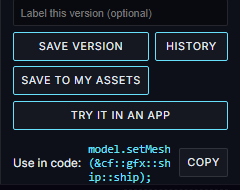
While a model is open, Studio also shows a one-line Use in code reference with a Copy button under Try it in an app, for pasting into app code you're writing by hand. Scroll the right-hand column down if you don't see it.
For a step-by-step walk from a new model to a running app, and how the model becomes code, see Draw a wireframe model in the Studio.
For what to ask the App Builder for when generating an app around a 3D model, see App Builder: generating apps with 3D models.