Sprites & Animation
This page has two parts.
- Part 1 puts your first sprite on the screen. It is a short tutorial with three ways to do it: draw it in the studio, copy a free starter, or write it in code. Pick one.
- Part 2 explains each sprite feature with its own small example: drawing, pivots, animation, actors, loop modes and collision. Read it in order, or jump to what you need.
After this page you can show pictures in your app, animate them, move them with the buttons and the slider, and check when two of them touch.
The emulator running the Moving an actor example from Part 2: a small face that the slider moves up and down and the middle buttons move sideways.
What is this?
A sprite is a small picture your app draws on the screen: a character, a ball, a coin, a spark. On the Cyber Fidget every sprite is a 1-bit bitmap. A bitmap is a picture stored as a grid of pixels, and 1-bit means each pixel is either on (lit) or off. There are no colors or grays, which matches the screen.
Like a rubber stamp
You make the stamp once. Then you can press it anywhere on the page, as often as you like. An animation is a stack of stamps you swap quickly, like a flip book.
The words on this page:
| Word | Meaning |
|---|---|
| Sprite | One small 1-bit picture, plus its size and its pivot. |
| Bitmap | A picture stored as a grid of on/off pixels. |
| XBM | X BitMap: the way the bytes of a bitmap are laid out (see Drawing a sprite). |
| Pivot | The point on a sprite that lands on the screen position you give. |
| Frame | One picture in an animation. |
| Animation | A named list of frames, how long each one shows, and what happens at the end. |
| Sprite sheet | A named group of animations that belong to one character or object. |
| Actor | A thing on the screen: a position plus an animation that is playing. |
| Collision | Two sprites touching, meaning a lit pixel of one sits on a lit pixel of the other. |
Every example on this page goes into a fresh blank template and works on its own. The first line of each part of an example says where to insert it. The first build of a new app uses REBUILD & RUN; after that, use REBUILD.
Part 1: your first sprite on the screen
There are three ways to get a picture into your app. They are alternatives, not steps. Pick the one that suits you; each one ends with a working app.
| Option | Choose it when | You need |
|---|---|---|
| A. Draw it in the studio | You want to draw your own picture, and maybe animate it. | A mouse, trackpad or finger. |
| B. Copy a free starter | You want ready-made art: hearts, characters, icons. | Nothing. |
| C. Write it in code | The picture is tiny, or you want to see how sprites work inside. | Nothing. |
Option A: draw it in the studio
The studio turns every sprite you draw into code and adds it to your app when you build. There is nothing to export.
-
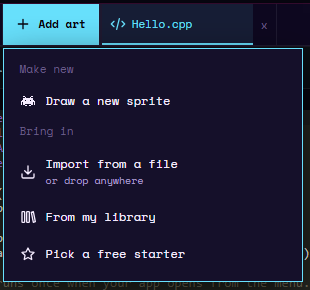
Open your app in the studio. Press Add art at the top of the workspace, then Draw a new sprite. (In the 2D tab of a project with no art yet, DRAW A SPRITE does the same.)
-
The New sprite box opens. Type
Ballas the Sprite name and press Create.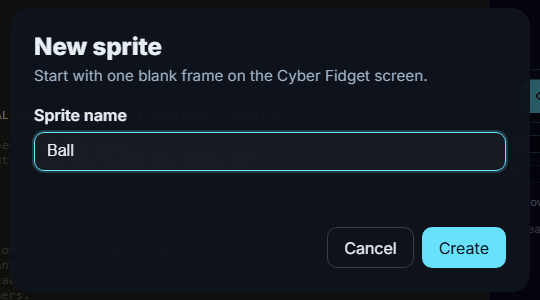
-
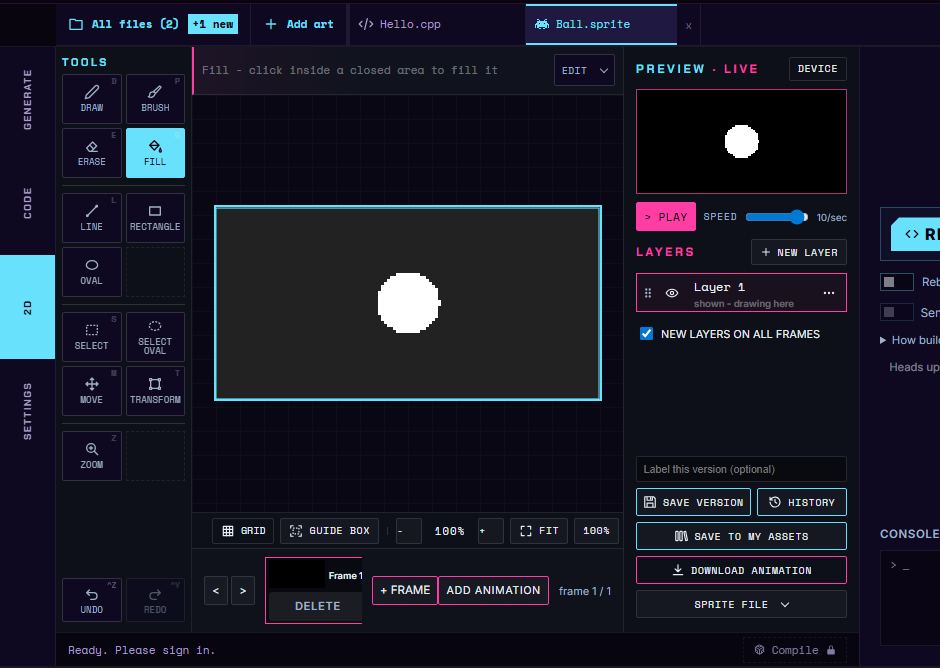
The 2D tab opens a tab called
Ball.spritewith a blank canvas the size of the screen (128 x 64 pixels). Draw your ball. The clip below draws a circle and fills it with FILL.Add art, Draw a new sprite, name it Ball, Create, then draw a circle and fill it.
-
Go back to the CODE tab and open your
.cppfile. Insert these lines where their first lines say:
// Insert at the top of the file, below the #include lines
#include "cf_gfx.h"
using namespace cf::gfx;
// The thing on the screen that shows your Ball sprite.
static Actor ballActor;

// Insert inside begin(), below setColorsOff();
// Use the sprite sheet the studio made from your Ball drawing.
ballActor.setSheet(&ball::sheet);
// (64, 64) is the middle of the bottom edge of the screen.
ballActor.setPos(64, 64);
ballActor.play("idle", millis());

// Insert inside update(), just above display.display();
display.clear();
ballActor.update(millis());
ballActor.draw(display);
Full code for Option A
This is the complete MyApp.cpp for code name MyApp (App Name "My App") with a sprite named Ball in the project. Keep the starter's MyApp.h. If your app has another code name, change MyApp and myApp to yours. The studio supplies the ball::sheet art when it builds.
#include "MyApp.h"
#include "globals.h"
#include "HAL.h"
#include "MenuManager.h"

#include "cf_gfx.h"
using namespace cf::gfx;
// The thing on the screen that shows your Ball sprite.
static Actor ballActor;
MyApp myApp(HAL::buttonManager());
MyApp* MyApp::instance = nullptr;

MyApp::MyApp(ButtonManager& btnMgr) :
    buttonManager(btnMgr), display(HAL::displayProxy()) { instance = this; }

// begin() runs once when your app opens from the menu.
// Set things up here: hook up the buttons and start with the lights off.
void MyApp::begin() {
    registerButtonCallbacks();
    setColorsOff();
    // Use the sprite sheet the studio made from your Ball drawing.
    ballActor.setSheet(&ball::sheet);
    // (64, 64) is the middle of the bottom edge of the screen.
    ballActor.setPos(64, 64);
    ballActor.play("idle", millis());
}

// update() runs about 50 times a second while your app is open.
// Clear the screen, draw what you want, then show it.
// The case hides about 8 pixels at each screen corner, so keep text and
// important pixels out of those corners.
void MyApp::update() {
    display.clear();
    display.setTextAlignment(TEXT_ALIGN_CENTER);
    display.setFont(ArialMT_Plain_16);
    display.drawString(64, 24, "MyApp");
    display.clear();
    ballActor.update(millis());
    ballActor.draw(display);
    display.display();
}

// end() runs when your app closes. Let go of the buttons and turn the
// lights off (if your app plays sounds, call stopTone() here too).
void MyApp::end() {
    unregisterButtonCallbacks();
    setColorsOff();
}

// The bottom-left button closes your app and goes back to the menu.
void MyApp::onButtonBackPressed(const ButtonEvent& event) {
    if (event.eventType == ButtonEvent_Released) {
        instance->end();
        MenuManager::instance().returnToMenu();
    }
}

void MyApp::registerButtonCallbacks() {
    buttonManager.registerCallback(button_BottomLeftIndex, onButtonBackPressed);
}

void MyApp::unregisterButtonCallbacks() {
    buttonManager.unregisterCallback(button_BottomLeftIndex);
}
Press REBUILD. You see your ball exactly where you drew it on the canvas. Actors explains each line.
Give your actor its own name
Call the actor ballActor, not ball. The studio already uses your sprite's name, ball, for the art it makes, and after using namespace cf::gfx; two things called ball make the build stop with "reference to 'ball' is ambiguous". Adding Actor (or any other word) to the end keeps the names apart.
How your sprite's name becomes a name in code. The studio makes the name lowercase, turns each run of other characters (spaces, punctuation, accented letters) into one _, and trims _ from both ends:
| Sprite name you type | Name in code | Why |
|---|---|---|
Ball |
ball |
Lowercase. |
Big Ball |
big_ball |
The space becomes _. |
1UP |
_1up |
A name in code cannot start with a digit, so _ goes in front. |
Ball (a second sprite with the same name) |
ball_2 |
Each sprite needs its own name. |
!!! (no letters or digits) |
sprite |
Nothing usable is left, so the studio picks one. |
Simple names (English letters and digits, starting with a letter) are the easiest to use.
What the studio makes from your sprite. Each name below belongs to your sprite's name in code (here ball), and each comes from one part of the 2D tab:
| Name in code | What it is | Where it comes from in the 2D tab |
|---|---|---|
ball::sheet |
The sprite sheet: all of the sprite's animations. | The whole sprite file: the Ball.sprite tab. |
ball::anim_run |
The animation called run, if the sprite has one. |
An animation in the frame strip at the bottom, made with ADD ANIMATION and named run. |
ball::cel_0 |
The first frame as a single sprite (cel_1 is the second, and so on). |
Frame 1 in the frame strip (frames are numbered from 1 there, and from 0 in code). |
"Cel" is an animator's word for one picture of an animation. A sprite with no animations gets one called idle, which loops through all its frames. Animations drawn in the studio loop. Each frame is trimmed to its lit pixels, and its pivot is the middle of the bottom edge of the canvas. Draw a new sprite starts with a canvas the size of the screen, so a position of (64, 64) puts the drawing exactly where you drew it.
Keep this, make it your own
Keep: setSheet(), play(), update() and draw(), in those places. They are what makes an actor show and animate.
Change: the sprite and its drawing, the actor's name, and the position in setPos(). A different sprite name means a different name in code (&big_ball::sheet for Big Ball).
What a change affects: adding frames does nothing on its own. The idle animation plays every frame only while the sprite has no animations of its own. Once you add an animation in the frame strip, idle is gone, so play your animation by its name instead, for example ballActor.play("run", millis());.
Want to bring in art from another tool?
If you drew your picture in Aseprite or another editor, the studio can bring it in: Add art > Import from a file, or Upload your own in the free starters (an image up to 64 x 64 pixels, turned into black and white). Open Bring in art from Aseprite or Your Sprite Library in a new tab, follow it, then come back here for step 4.
Option B: copy a free starter
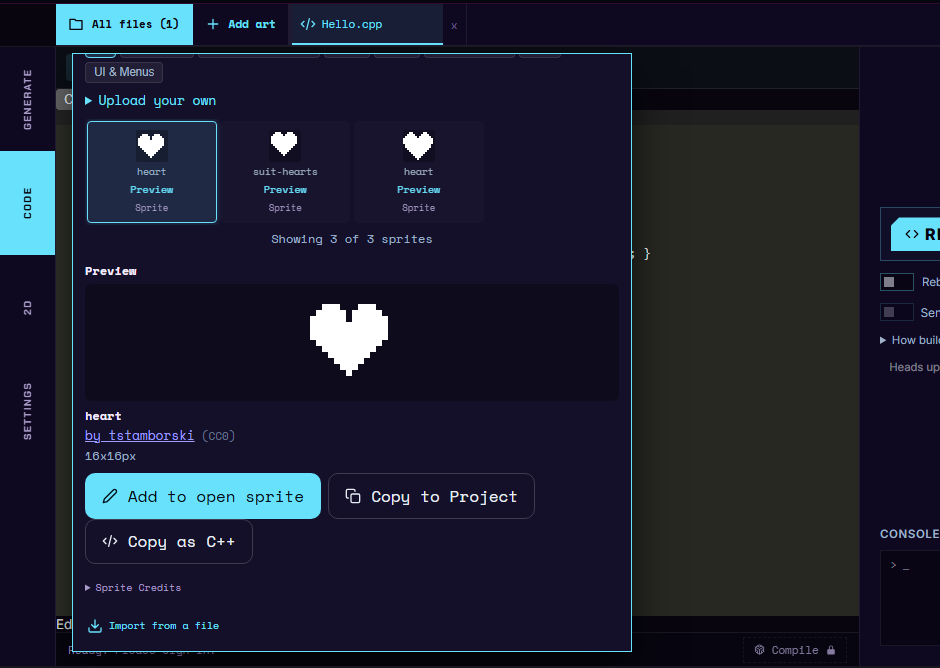
The studio has a library of free starter sprites that anyone may reuse. Copy as C++ puts one on your clipboard as code.
-
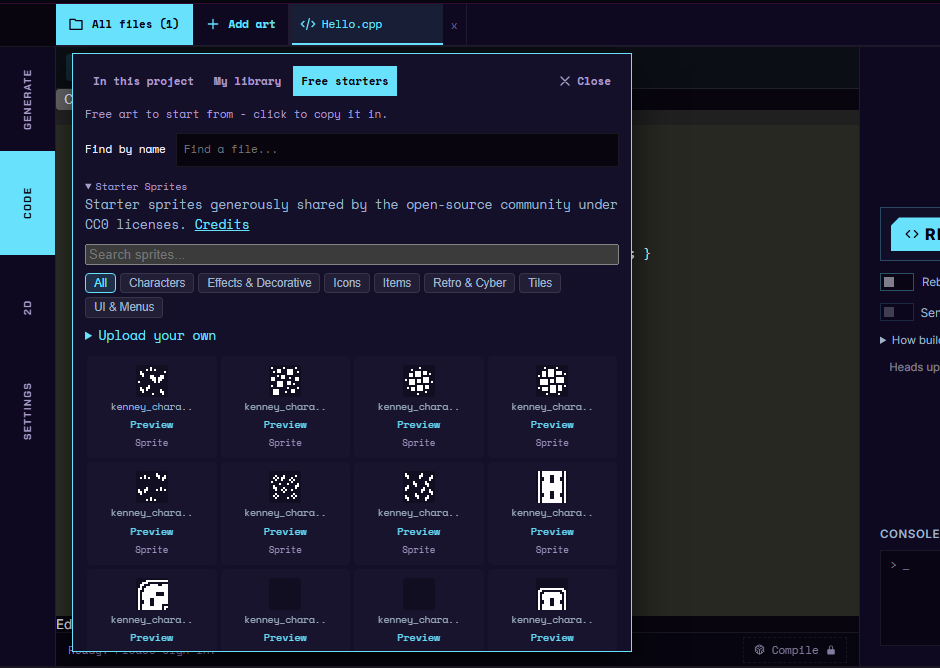
Press All files at the top left of the workspace, then the Free starters tab. (Add art > Pick a free starter opens the same place.) Inside it, the Starter Sprites heading opens and closes the collection.
-
Type
heartin Search sprites... and press Preview on the first heart. -
A preview opens with three buttons. They sit below the visible part of the panel, so scroll down inside the panel to see them. Press Copy as C++.
-
Close the panel. In your
.cppfile, click at the start of the line just below the four#includelines and paste (Ctrl+V, or Cmd+V on a Mac).All files, Free starters, search for heart, Preview, scroll down, Copy as C++, then paste below the #include lines.
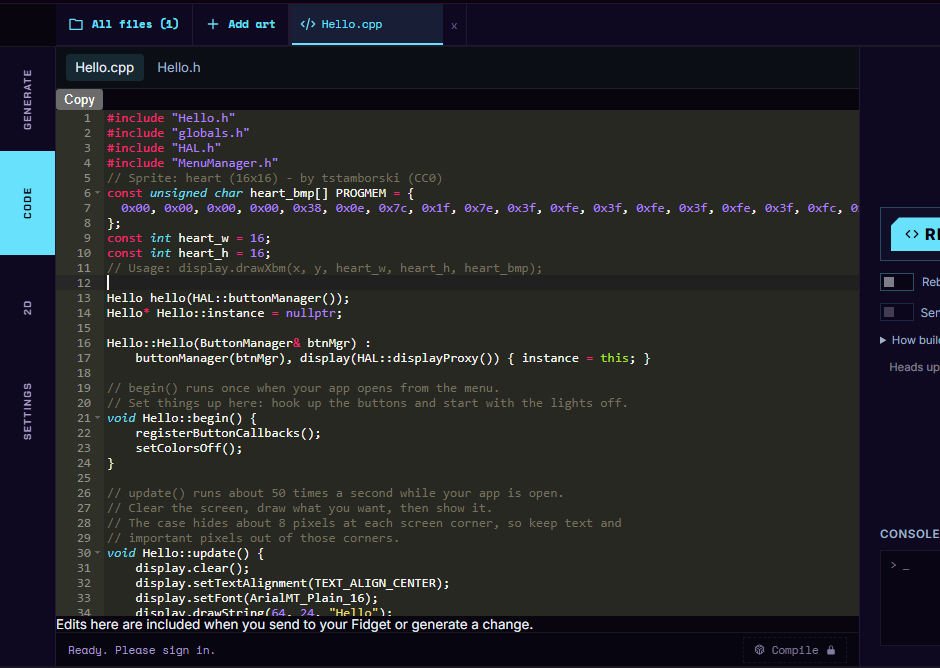
The copied code has four parts: a credit line, the picture as a list of bytes (heart_bmp), its width (heart_w) and height (heart_h), and a comment showing one way to draw it. Those declarations are already at the top of your file. To use the sprite functions, wrap the picture in a Sprite and draw it.
Replace the copied lines with the top-of-file section below, rather than adding a second copy. It includes the same picture declarations followed by the wrapper. Keep each of heart_bmp, heart_w and heart_h exactly once. (Copied a different starter? Keep your copied lines, and below them add only the using namespace cf::gfx; line and the static const Sprite ... line from the block, with your sprite's names in place of heart_bmp, heart_w and heart_h. If you give the Sprite a different name than heartSprite, use that name in drawSprite() too.) Then insert the update() section just above display.display();.

// Insert at the top of the file, below the #include lines
// Sprite: heart (16x16) - by tstamborski (CC0)
const unsigned char heart_bmp[] PROGMEM = {
  0x00, 0x00, 0x00, 0x00, 0x38, 0x0e, 0x7c, 0x1f, 0x7e, 0x3f, 0xfe, 0x3f, 0xfe, 0x3f, 0xfe, 0x3f,
  0xfc, 0x1f, 0xf8, 0x0f, 0xf0, 0x07, 0xe0, 0x03, 0xc0, 0x01, 0x80, 0x00, 0x00, 0x00, 0x00, 0x00
};
const int heart_w = 16;
const int heart_h = 16;
// Usage: display.drawXbm(x, y, heart_w, heart_h, heart_bmp);

// Your lines: wrap the copied picture in a Sprite.
#include "cf_gfx.h"
using namespace cf::gfx;
// bytes, width, height, pivot x, pivot y, bit order
static const Sprite heartSprite = {heart_bmp, heart_w, heart_h, 0, 0, BO_LSB_FIRST};

// Insert inside update(), just above display.display();
display.clear();
// The top-left corner of the heart lands on (56, 24).
drawSprite(display, heartSprite, 56, 24);
Full code for this step
This full code is for code name MyApp (create it with App Name "My App"); if your app has another code name, change MyApp and myApp to yours.
In the starter, nullptr means a pointer has no object. * in a declaration marks a pointer (an address), and before a pointer reads its object. & in a type refers to an existing object; before a value it gives its address. const means the code cannot change the value through that declaration.
#include "MyApp.h"
#include "globals.h"
#include "HAL.h"
#include "MenuManager.h"

// Sprite: heart (16x16) - by tstamborski (CC0)
const unsigned char heart_bmp[] PROGMEM = {
  0x00, 0x00, 0x00, 0x00, 0x38, 0x0e, 0x7c, 0x1f, 0x7e, 0x3f, 0xfe, 0x3f, 0xfe, 0x3f, 0xfe, 0x3f,
  0xfc, 0x1f, 0xf8, 0x0f, 0xf0, 0x07, 0xe0, 0x03, 0xc0, 0x01, 0x80, 0x00, 0x00, 0x00, 0x00, 0x00
};
const int heart_w = 16;
const int heart_h = 16;
// Usage: display.drawXbm(x, y, heart_w, heart_h, heart_bmp);

// Your lines: wrap the copied picture in a Sprite.
#include "cf_gfx.h"
using namespace cf::gfx;
// bytes, width, height, pivot x, pivot y, bit order
static const Sprite heartSprite = {heart_bmp, heart_w, heart_h, 0, 0, BO_LSB_FIRST};
MyApp myApp(HAL::buttonManager());
MyApp* MyApp::instance = nullptr;

MyApp::MyApp(ButtonManager& btnMgr) :
    buttonManager(btnMgr), display(HAL::displayProxy()) { instance = this; }

// begin() runs once when your app opens from the menu.
// Set things up here: hook up the buttons and start with the lights off.
void MyApp::begin() {
    registerButtonCallbacks();
    setColorsOff();
}

// update() runs about 50 times a second while your app is open.
// Clear the screen, draw what you want, then show it.
// The case hides about 8 pixels at each screen corner, so keep text and
// important pixels out of those corners.
void MyApp::update() {
    display.clear();
    display.setTextAlignment(TEXT_ALIGN_CENTER);
    display.setFont(ArialMT_Plain_16);
    display.drawString(64, 24, "MyApp");
    display.clear();
    // The top-left corner of the heart lands on (56, 24).
    drawSprite(display, heartSprite, 56, 24);
    display.display();
}

// end() runs when your app closes. Let go of the buttons and turn the
// lights off (if your app plays sounds, call stopTone() here too).
void MyApp::end() {
    unregisterButtonCallbacks();
    setColorsOff();
}

// The bottom-left button closes your app and goes back to the menu.
void MyApp::onButtonBackPressed(const ButtonEvent& event) {
    if (event.eventType == ButtonEvent_Released) {
        instance->end();
        MenuManager::instance().returnToMenu();
    }
}

void MyApp::registerButtonCallbacks() {
    buttonManager.registerCallback(button_BottomLeftIndex, onButtonBackPressed);
}

void MyApp::unregisterButtonCallbacks() {
    buttonManager.unregisterCallback(button_BottomLeftIndex);
}
Press REBUILD. You see a heart in the middle of the screen.
PROGMEM marks constant picture data for storage with the program on small boards. Keep it when copying sprite code. Drawing a sprite explains the six values inside the Sprite.
Keep this, make it your own
Keep: the copied lines as they are, including the credit line. Free starters are free to reuse, and the credit says who made them.
Change: which starter you copy, the Sprite's name, and where you draw it. Another starter has its own names: a sprite called coin gives you coin_bmp, coin_w and coin_h, so use those in the Sprite line.
Why heartSprite and not heart: if you later add the same art to the project with Copy to Project, the studio names it heart in code. A different name for your Sprite keeps the two apart.
Option C: write it in code
For a tiny picture, you can write the bytes yourself. This is an 8 x 8 smiley face:

// Insert at the top of the file, below the #include lines
#include "cf_gfx.h"
using namespace cf::gfx;
// An 8 x 8 smiley face. Each byte is one row, top to bottom.
static const uint8_t smileBits[] = {
    0x3c, 0x42, 0xa5, 0x81, 0xa5, 0x99, 0x42, 0x3c
};
// bytes, width, height, pivot x, pivot y, bit order
static const Sprite smile = {smileBits, 8, 8, 0, 0, BO_LSB_FIRST};

// Insert inside update(), just above display.display();
display.clear();
// The top-left corner of the face lands on (60, 28).
drawSprite(display, smile, 60, 28);
Full code for this step
This full code is for code name MyApp (create it with App Name "My App"); if your app has another code name, change MyApp and myApp to yours.
#include "MyApp.h"
#include "globals.h"
#include "HAL.h"
#include "MenuManager.h"

#include "cf_gfx.h"
using namespace cf::gfx;
// An 8 x 8 smiley face. Each byte is one row, top to bottom.
static const uint8_t smileBits[] = {
    0x3c, 0x42, 0xa5, 0x81, 0xa5, 0x99, 0x42, 0x3c
};
// bytes, width, height, pivot x, pivot y, bit order
static const Sprite smile = {smileBits, 8, 8, 0, 0, BO_LSB_FIRST};
MyApp myApp(HAL::buttonManager());
MyApp* MyApp::instance = nullptr;

MyApp::MyApp(ButtonManager& btnMgr) :
    buttonManager(btnMgr), display(HAL::displayProxy()) { instance = this; }

// begin() runs once when your app opens from the menu.
// Set things up here: hook up the buttons and start with the lights off.
void MyApp::begin() {
    registerButtonCallbacks();
    setColorsOff();
}

// update() runs about 50 times a second while your app is open.
// Clear the screen, draw what you want, then show it.
// The case hides about 8 pixels at each screen corner, so keep text and
// important pixels out of those corners.
void MyApp::update() {
    display.clear();
    display.setTextAlignment(TEXT_ALIGN_CENTER);
    display.setFont(ArialMT_Plain_16);
    display.drawString(64, 24, "MyApp");
    display.clear();
    // The top-left corner of the face lands on (60, 28).
    drawSprite(display, smile, 60, 28);
    display.display();
}

// end() runs when your app closes. Let go of the buttons and turn the
// lights off (if your app plays sounds, call stopTone() here too).
void MyApp::end() {
    unregisterButtonCallbacks();
    setColorsOff();
}

// The bottom-left button closes your app and goes back to the menu.
void MyApp::onButtonBackPressed(const ButtonEvent& event) {
    if (event.eventType == ButtonEvent_Released) {
        instance->end();
        MenuManager::instance().returnToMenu();
    }
}

void MyApp::registerButtonCallbacks() {
    buttonManager.registerCallback(button_BottomLeftIndex, onButtonBackPressed);
}

void MyApp::unregisterButtonCallbacks() {
    buttonManager.unregisterCallback(button_BottomLeftIndex);
}
Press REBUILD. You see an 8 x 8 smiley face in the middle of the screen.
Drawing a sprite explains how the bytes make the face. The rest of Part 2 uses small sprites like this one, so every example works without drawing anything first.
Keep this, make it your own
Keep: the Sprite line's shape: bytes, width, height, pivot x, pivot y, BO_LSB_FIRST.
Change: the bytes, to draw a different picture. If you change the size, change the width and height to match, and give each row enough bytes (one byte for every 8 pixels of width).
Short names for the sprite functions
The sprite functions live in cf_gfx.h. Their full names start with cf::gfx::, as in cf::gfx::drawSprite, which is how the function reference lists them. cf::gfx is a namespace: a family name that keeps these functions apart from other code that might use the same names.
The line using namespace cf::gfx; lets you write the short names (drawSprite, Sprite, Actor). Always add it in studio apps. A project with no sprites of its own refuses any build whose code writes out a cf::gfx:: name, with the message "The generated art couldn't be used, and the app's code depends on it - so this app won't build. Try generating again."
Part 2: how sprites work
Each section below has its own example. Every example goes into a fresh blank template on its own.
Which one do I need?
Three tools draw sprites. Start with the simplest one that does what you need:
| You want | Use | What it does for you |
|---|---|---|
| A picture that never changes (a wall, an icon, a heart) | drawSprite() or drawSpritePivoted() |
Draws one sprite where you say. Nothing else. |
| A picture that animates, at a place your own code works out | An AnimationPlayer, then drawSpritePivoted() |
Picks which frame to show at each moment. You draw it. |
| A character that moves around, switches between animations (idle, run, jump) or bumps into things | An Actor |
Keeps the position, the animations and the player together, plays animations by name, and works with pixelCollides(). |
flowchart TD
    Q1{"Does the picture<br/>change over time?"} -- No --> D["drawSprite()"]
    Q1 -- Yes --> Q2{"Does it move around,<br/>switch animations<br/>or collide?"}
    Q2 -- No --> P["AnimationPlayer<br/>+ drawSpritePivoted()"]
    Q2 -- Yes --> A["Actor"]
Drawing a sprite
A Sprite holds six things, in this order:
| Value | In the smiley | Meaning |
|---|---|---|
| Bytes | smileBits |
The picture (see below). |
| Width | 8 |
Width in pixels. |
| Height | 8 |
Height in pixels. |
| Pivot x | 0 |
Where the pivot sits, counted from the left edge. |
| Pivot y | 0 |
Where the pivot sits, counted from the top edge. |
| Bit order | BO_LSB_FIRST |
Always BO_LSB_FIRST. |
drawSprite(display, smile, 60, 28) draws the sprite with its top-left corner at x 60, y 28. The screen is 128 pixels wide and 64 tall, and y counts down from the top.
The smiley example in Option C uses a few C++ words for the first time:
uint8_tis a whole number from 0 to 255: exactly one byte.smileBits[]is an array: a numbered list of values. The[]tells C++ to count the values in{ }for you.constmeans the value never changes after it is made. Pictures don't change, so sprites areconst.staticin front of something at the top of the file keeps it to this file, so it can't clash with names elsewhere in the firmware.
How the bytes make the picture
The bytes are in XBM order. Each row of the picture uses one byte for every 8 pixels of width, from top to bottom. Inside a byte, the lowest bit is the leftmost pixel. So write a byte in binary, then read it from right to left:
| Row | Byte | Binary | Pixels, left to right (# is lit) |
|---|---|---|---|
| 0 | 0x3c |
00111100 |
..####.. |
| 1 | 0x42 |
01000010 |
.#....#. |
| 2 | 0xa5 |
10100101 |
#.#..#.# |
| 3 | 0x81 |
10000001 |
#......# |
| 4 | 0xa5 |
10100101 |
#.#..#.# |
| 5 | 0x99 |
10011001 |
#..##..# |
| 6 | 0x42 |
01000010 |
.#....#. |
| 7 | 0x3c |
00111100 |
..####.. |
A sprite 10 pixels wide needs 2 bytes per row, and the unused bits are ignored. Drawing your sprite in the studio and letting it make the bytes is much easier for anything bigger than this.
drawSprite() uses the same drawing as display.drawXbm() (see Bitmaps). The difference is that a Sprite keeps its size and pivot with its bytes, so the other functions on this page can use it.
Pivots
The pivot is the point on a sprite that lands on the screen position you give. With the pivot at the middle of the bottom edge, a character "stands" on the y you give, wherever its feet are. drawSpritePivoted() uses the pivot; drawSprite() ignores it.
// Insert at the top of the file, below the #include lines
#include "cf_gfx.h"
using namespace cf::gfx;
static const uint8_t smileBits[] = {
    0x3c, 0x42, 0xa5, 0x81, 0xa5, 0x99, 0x42, 0x3c
};
// The pivot is (4, 8): the middle of the bottom edge.
static const Sprite smile = {smileBits, 8, 8, 4, 8, BO_LSB_FIRST};

// Insert inside update(), just above display.display();
display.clear();
display.drawHorizontalLine(16, 40, 96);
// The pivot lands on (40, 40), so the face sits on the line.
drawSpritePivoted(display, smile, 40, 40);
// drawSprite ignores the pivot: the top-left corner lands on (80, 40).
drawSprite(display, smile, 80, 40);
Full code for this step
This full code is for code name MyApp (create it with App Name "My App"); if your app has another code name, change MyApp and myApp to yours.
#include "MyApp.h"
#include "globals.h"
#include "HAL.h"
#include "MenuManager.h"

#include "cf_gfx.h"
using namespace cf::gfx;
static const uint8_t smileBits[] = {
    0x3c, 0x42, 0xa5, 0x81, 0xa5, 0x99, 0x42, 0x3c
};
// The pivot is (4, 8): the middle of the bottom edge.
static const Sprite smile = {smileBits, 8, 8, 4, 8, BO_LSB_FIRST};
MyApp myApp(HAL::buttonManager());
MyApp* MyApp::instance = nullptr;

MyApp::MyApp(ButtonManager& btnMgr) :
    buttonManager(btnMgr), display(HAL::displayProxy()) { instance = this; }

// begin() runs once when your app opens from the menu.
// Set things up here: hook up the buttons and start with the lights off.
void MyApp::begin() {
    registerButtonCallbacks();
    setColorsOff();
}

// update() runs about 50 times a second while your app is open.
// Clear the screen, draw what you want, then show it.
// The case hides about 8 pixels at each screen corner, so keep text and
// important pixels out of those corners.
void MyApp::update() {
    display.clear();
    display.setTextAlignment(TEXT_ALIGN_CENTER);
    display.setFont(ArialMT_Plain_16);
    display.drawString(64, 24, "MyApp");
    display.clear();
    display.drawHorizontalLine(16, 40, 96);
    // The pivot lands on (40, 40), so the face sits on the line.
    drawSpritePivoted(display, smile, 40, 40);
    // drawSprite ignores the pivot: the top-left corner lands on (80, 40).
    drawSprite(display, smile, 80, 40);
    display.display();
}

// end() runs when your app closes. Let go of the buttons and turn the
// lights off (if your app plays sounds, call stopTone() here too).
void MyApp::end() {
    unregisterButtonCallbacks();
    setColorsOff();
}

// The bottom-left button closes your app and goes back to the menu.
void MyApp::onButtonBackPressed(const ButtonEvent& event) {
    if (event.eventType == ButtonEvent_Released) {
        instance->end();
        MenuManager::instance().returnToMenu();
    }
}

void MyApp::registerButtonCallbacks() {
    buttonManager.registerCallback(button_BottomLeftIndex, onButtonBackPressed);
}

void MyApp::unregisterButtonCallbacks() {
    buttonManager.unregisterCallback(button_BottomLeftIndex);
}
Press REBUILD. You see two faces and a horizontal line. The left face sits on the line. The right face hangs below it. Pivots can also sit outside the picture, and they can be negative.
Animations and sprite sheets
Animation is the biggest step on this page, so it comes in small pieces, one new idea each:
- Frames and timing: what an animation is.
- Pointing at a sprite: the C++ symbols
&,*andnullptr. - Play an animation: the first example.
- Several animations in a sprite sheet: choosing an animation by name.
If you drew your sprite in the studio, the studio writes all of this for you, and an actor plays it. Read on to understand what it made, or to build an animation by hand.
Frames and timing
An animation is a list of frames (sprites), how long each one shows in milliseconds (thousandths of a second), and what happens after the last one (its loop mode). An animation player keeps track of time and tells you which frame to show right now.
The example below blinks a face: eyes open for 1500 milliseconds (1.5 seconds), then shut for 150 milliseconds, then open again, forever.


Frame 0 (eyes open) and frame 1 (eyes shut), enlarged.
Time since play() |
Frame showing |
|---|---|
| 0 to 1499 ms | Frame 0, eyes open |
| 1500 to 1649 ms | Frame 1, eyes shut |
| 1650 to 3149 ms | Frame 0 again (the animation loops) |
| 3150 to 3299 ms | Frame 1 |
| ... | and so on |
Each frame starts when the one before it has shown for its full time. One full blink cycle takes 1500 + 150 = 1650 ms.
Pointing at a sprite
An animation doesn't copy its frames' pictures. It keeps a note of where each sprite is stored in memory, its address. Three small symbols do this:
| You write | Say it as | Means |
|---|---|---|
&eyesOpen |
"the address of eyesOpen" |
Where the sprite eyesOpen is stored. |
const Sprite* |
"a pointer to a sprite" | A value that holds the address of a sprite. The * makes it a pointer. const means the sprite can't be changed through it. |
*frame |
"the sprite frame points at" |
Follows a pointer back to the sprite itself. |
nullptr |
"points at nothing" | A pointer with no address in it. |
So a list of frames is an array of pointers: {&eyesOpen, &eyesShut}. Its type, const Sprite* const, has two consts: the first keeps the pictures unchanged, and the second keeps the list itself unchanged.
Play an animation
// Insert at the top of the file, below the #include lines
#include "cf_gfx.h"
using namespace cf::gfx;
// Two 8 x 8 faces: eyes open, and eyes shut.
static const uint8_t openBits[] = {0x3c, 0x42, 0xa5, 0xa5, 0x81, 0xbd, 0x42, 0x3c};
static const uint8_t shutBits[] = {0x3c, 0x42, 0x81, 0xa5, 0x81, 0xbd, 0x42, 0x3c};
// The pivot (4, 8) is the middle of the bottom edge.
static const Sprite eyesOpen = {openBits, 8, 8, 4, 8, BO_LSB_FIRST};
static const Sprite eyesShut = {shutBits, 8, 8, 4, 8, BO_LSB_FIRST};

// The frames, in order: the address of each sprite.
static const Sprite* const blinkFrames[] = {&eyesOpen, &eyesShut};
// How long each frame shows, in milliseconds.
static const uint16_t blinkTimes[] = {1500, 150};

// name, frames, frame times, time for every frame, frame count, loop mode
static const Animation blink = {"blink", blinkFrames, blinkTimes, 0, 2, LOOP_LOOP};

// The player works out which frame to show.
static AnimationPlayer blinker;

// Insert inside begin(), below setColorsOff();
// Start the animation from its first frame, now.
blinker.play(&blink, millis());

// Insert inside update(), just above display.display();
display.clear();
// Tell the player the time, so it can move to the next frame when it's due.
blinker.update(millis());
// Ask the player which frame to show.
const Sprite* frame = blinker.sprite();
// nullptr means there is nothing to draw.
if (frame != nullptr) {
    drawSpritePivoted(display, *frame, 64, 40);
}
Full code for this step
This full code is for code name MyApp (create it with App Name "My App"); if your app has another code name, change MyApp and myApp to yours.
#include "MyApp.h"
#include "globals.h"
#include "HAL.h"
#include "MenuManager.h"

#include "cf_gfx.h"
using namespace cf::gfx;
// Two 8 x 8 faces: eyes open, and eyes shut.
static const uint8_t openBits[] = {0x3c, 0x42, 0xa5, 0xa5, 0x81, 0xbd, 0x42, 0x3c};
static const uint8_t shutBits[] = {0x3c, 0x42, 0x81, 0xa5, 0x81, 0xbd, 0x42, 0x3c};
// The pivot (4, 8) is the middle of the bottom edge.
static const Sprite eyesOpen = {openBits, 8, 8, 4, 8, BO_LSB_FIRST};
static const Sprite eyesShut = {shutBits, 8, 8, 4, 8, BO_LSB_FIRST};

// The frames, in order: the address of each sprite.
static const Sprite* const blinkFrames[] = {&eyesOpen, &eyesShut};
// How long each frame shows, in milliseconds.
static const uint16_t blinkTimes[] = {1500, 150};

// name, frames, frame times, time for every frame, frame count, loop mode
static const Animation blink = {"blink", blinkFrames, blinkTimes, 0, 2, LOOP_LOOP};

// The player works out which frame to show.
static AnimationPlayer blinker;
MyApp myApp(HAL::buttonManager());
MyApp* MyApp::instance = nullptr;

MyApp::MyApp(ButtonManager& btnMgr) :
    buttonManager(btnMgr), display(HAL::displayProxy()) { instance = this; }

// begin() runs once when your app opens from the menu.
// Set things up here: hook up the buttons and start with the lights off.
void MyApp::begin() {
    registerButtonCallbacks();
    setColorsOff();
    // Start the animation from its first frame, now.
    blinker.play(&blink, millis());
}

// update() runs about 50 times a second while your app is open.
// Clear the screen, draw what you want, then show it.
// The case hides about 8 pixels at each screen corner, so keep text and
// important pixels out of those corners.
void MyApp::update() {
    display.clear();
    display.setTextAlignment(TEXT_ALIGN_CENTER);
    display.setFont(ArialMT_Plain_16);
    display.drawString(64, 24, "MyApp");
    display.clear();
    // Tell the player the time, so it can move to the next frame when it's due.
    blinker.update(millis());
    // Ask the player which frame to show.
    const Sprite* frame = blinker.sprite();
    // nullptr means there is nothing to draw.
    if (frame != nullptr) {
        drawSpritePivoted(display, *frame, 64, 40);
    }
    display.display();
}

// end() runs when your app closes. Let go of the buttons and turn the
// lights off (if your app plays sounds, call stopTone() here too).
void MyApp::end() {
    unregisterButtonCallbacks();
    setColorsOff();
}

// The bottom-left button closes your app and goes back to the menu.
void MyApp::onButtonBackPressed(const ButtonEvent& event) {
    if (event.eventType == ButtonEvent_Released) {
        instance->end();
        MenuManager::instance().returnToMenu();
    }
}

void MyApp::registerButtonCallbacks() {
    buttonManager.registerCallback(button_BottomLeftIndex, onButtonBackPressed);
}

void MyApp::unregisterButtonCallbacks() {
    buttonManager.unregisterCallback(button_BottomLeftIndex);
}
Press REBUILD. You see a face that blinks every 1.65 seconds.
The six values of an Animation, in order:
| Value | In blink |
Meaning |
|---|---|---|
| Name | "blink" |
Used to find the animation by name. |
| Frames | blinkFrames |
The list of frames. |
| Frame times | blinkTimes |
How long each frame shows. Write nullptr when every frame shows for the same time. |
| Time for every frame | 0 |
Used only when frame times is nullptr, for example 300 for 300 ms each. |
| Frame count | 2 |
How many frames are in the list. |
| Loop mode | LOOP_LOOP |
What happens after the last frame (see Loop modes). |
millis() is the time in milliseconds since the device started. uint16_t is a whole number from 0 to 65,535. play(&blink, ...) passes the address of the animation, so the player follows the original instead of a copy.
The player hands back a pointer, const Sprite*, because sometimes there is no frame to show (for example after a LOOP_ONCE animation ends). The if checks for that, and *frame gives drawSpritePivoted() the sprite itself.
Several animations in a sprite sheet
A sprite sheet groups the animations of one character, so you can pick one by name. This example adds a second animation, stare, with a single frame.
// Insert at the top of the file, below the #include lines
#include "cf_gfx.h"
using namespace cf::gfx;
static const uint8_t openBits[] = {0x3c, 0x42, 0xa5, 0xa5, 0x81, 0xbd, 0x42, 0x3c};
static const uint8_t shutBits[] = {0x3c, 0x42, 0x81, 0xa5, 0x81, 0xbd, 0x42, 0x3c};
static const Sprite eyesOpen = {openBits, 8, 8, 4, 8, BO_LSB_FIRST};
static const Sprite eyesShut = {shutBits, 8, 8, 4, 8, BO_LSB_FIRST};

// "blink": eyes open for 1.5 seconds, then shut for 0.15 seconds.
static const Sprite* const blinkFrames[] = {&eyesOpen, &eyesShut};
static const uint16_t blinkTimes[] = {1500, 150};
// "stare": one frame. A time of 0 holds the frame forever.
static const Sprite* const stareFrames[] = {&eyesOpen};

// Both animations, in one array.
static const Animation faceAnimations[] = {
    {"blink", blinkFrames, blinkTimes, 0, 2, LOOP_LOOP},
    {"stare", stareFrames, nullptr, 0, 1, LOOP_LOOP},
};
// name, animations, how many animations, kind
static const SpriteSheet face = {"face", faceAnimations, 2, "sprite"};
static AnimationPlayer blinker;

// Insert inside begin(), below setColorsOff();
// Look up the animation called "blink" in the sheet.
const Animation* chosen = findAnimation(face, "blink");
blinker.play(chosen, millis());

// Insert inside update(), just above display.display();
display.clear();
blinker.update(millis());
const Sprite* frame = blinker.sprite();
if (frame != nullptr) {
    drawSpritePivoted(display, *frame, 64, 40);
}
Full code for this step
This full code is for code name MyApp (create it with App Name "My App"); if your app has another code name, change MyApp and myApp to yours.
#include "MyApp.h"
#include "globals.h"
#include "HAL.h"
#include "MenuManager.h"

#include "cf_gfx.h"
using namespace cf::gfx;
static const uint8_t openBits[] = {0x3c, 0x42, 0xa5, 0xa5, 0x81, 0xbd, 0x42, 0x3c};
static const uint8_t shutBits[] = {0x3c, 0x42, 0x81, 0xa5, 0x81, 0xbd, 0x42, 0x3c};
static const Sprite eyesOpen = {openBits, 8, 8, 4, 8, BO_LSB_FIRST};
static const Sprite eyesShut = {shutBits, 8, 8, 4, 8, BO_LSB_FIRST};

// "blink": eyes open for 1.5 seconds, then shut for 0.15 seconds.
static const Sprite* const blinkFrames[] = {&eyesOpen, &eyesShut};
static const uint16_t blinkTimes[] = {1500, 150};
// "stare": one frame. A time of 0 holds the frame forever.
static const Sprite* const stareFrames[] = {&eyesOpen};

// Both animations, in one array.
static const Animation faceAnimations[] = {
    {"blink", blinkFrames, blinkTimes, 0, 2, LOOP_LOOP},
    {"stare", stareFrames, nullptr, 0, 1, LOOP_LOOP},
};
// name, animations, how many animations, kind
static const SpriteSheet face = {"face", faceAnimations, 2, "sprite"};
static AnimationPlayer blinker;
MyApp myApp(HAL::buttonManager());
MyApp* MyApp::instance = nullptr;

MyApp::MyApp(ButtonManager& btnMgr) :
    buttonManager(btnMgr), display(HAL::displayProxy()) { instance = this; }

// begin() runs once when your app opens from the menu.
// Set things up here: hook up the buttons and start with the lights off.
void MyApp::begin() {
    registerButtonCallbacks();
    setColorsOff();
    // Look up the animation called "blink" in the sheet.
    const Animation* chosen = findAnimation(face, "blink");
    blinker.play(chosen, millis());
}

// update() runs about 50 times a second while your app is open.
// Clear the screen, draw what you want, then show it.
// The case hides about 8 pixels at each screen corner, so keep text and
// important pixels out of those corners.
void MyApp::update() {
    display.clear();
    display.setTextAlignment(TEXT_ALIGN_CENTER);
    display.setFont(ArialMT_Plain_16);
    display.drawString(64, 24, "MyApp");
    display.clear();
    blinker.update(millis());
    const Sprite* frame = blinker.sprite();
    if (frame != nullptr) {
        drawSpritePivoted(display, *frame, 64, 40);
    }
    display.display();
}

// end() runs when your app closes. Let go of the buttons and turn the
// lights off (if your app plays sounds, call stopTone() here too).
void MyApp::end() {
    unregisterButtonCallbacks();
    setColorsOff();
}

// The bottom-left button closes your app and goes back to the menu.
void MyApp::onButtonBackPressed(const ButtonEvent& event) {
    if (event.eventType == ButtonEvent_Released) {
        instance->end();
        MenuManager::instance().returnToMenu();
    }
}

void MyApp::registerButtonCallbacks() {
    buttonManager.registerCallback(button_BottomLeftIndex, onButtonBackPressed);
}

void MyApp::unregisterButtonCallbacks() {
    buttonManager.unregisterCallback(button_BottomLeftIndex);
}
Press REBUILD. You see the same blinking face. Change "blink" to "stare" and rebuild: the face stops blinking.
A SpriteSheet holds four values: its name, its array of animations, how many there are, and a kind ("sprite" is fine; the device doesn't use it).
findAnimation() looks up an animation in a sheet by name. It returns nullptr when there is no animation with that name, and play(nullptr, ...) stops the player, so a typo shows nothing at all.
What else the player can do
play()always starts again from the first frame.setIfChanged()starts only when you pass a different animation, so it is safe to call every frame.frameIndex()tells you which frame is showing, starting at 0.finished()is true when aLOOP_ONCEorLOOP_ONCE_HOLDanimation has played to its end.stop()clears the player, sosprite()returnsnullptr.
Keep this, make it your own
Keep: the order of the values in Sprite, Animation and SpriteSheet, and calling update() before sprite() every frame. Without update(), the animation never moves on.
Change: the pictures, the frame times, the names, and the loop mode.
What a change affects: a frame you add to the frame list only shows if you raise the frame count to match. With a list of individual frame times, also add a time for it. With nullptr frame times, every frame uses uniformMs, so no extra time entry is needed. Frames that no animation lists never show.
Actors
An actor is a sprite sheet, an animation player and a screen position in one object. Most game characters are actors. Its position is where its pivot lands.
// Insert at the top of the file, below the #include lines
#include "cf_gfx.h"
using namespace cf::gfx;
static const uint8_t openBits[] = {0x3c, 0x42, 0xa5, 0xa5, 0x81, 0xbd, 0x42, 0x3c};
static const uint8_t shutBits[] = {0x3c, 0x42, 0x81, 0xa5, 0x81, 0xbd, 0x42, 0x3c};
static const Sprite eyesOpen = {openBits, 8, 8, 4, 8, BO_LSB_FIRST};
static const Sprite eyesShut = {shutBits, 8, 8, 4, 8, BO_LSB_FIRST};
static const Sprite* const blinkFrames[] = {&eyesOpen, &eyesShut};
static const uint16_t blinkTimes[] = {1500, 150};
static const Animation faceAnimations[] = {
    {"blink", blinkFrames, blinkTimes, 0, 2, LOOP_LOOP},
};
static const SpriteSheet face = {"face", faceAnimations, 1, "sprite"};
static Actor faceActor;

// Insert inside begin(), below setColorsOff();
// Give the actor its sprite sheet: pass the sheet's address.
faceActor.setSheet(&face);
faceActor.setPos(64, 40);
faceActor.play("blink", millis());

// Insert inside update(), just above display.display();
display.clear();
faceActor.update(millis());
faceActor.draw(display);
Full code for this step
This full code is for code name MyApp (create it with App Name "My App"); if your app has another code name, change MyApp and myApp to yours.
#include "MyApp.h"
#include "globals.h"
#include "HAL.h"
#include "MenuManager.h"

#include "cf_gfx.h"
using namespace cf::gfx;
static const uint8_t openBits[] = {0x3c, 0x42, 0xa5, 0xa5, 0x81, 0xbd, 0x42, 0x3c};
static const uint8_t shutBits[] = {0x3c, 0x42, 0x81, 0xa5, 0x81, 0xbd, 0x42, 0x3c};
static const Sprite eyesOpen = {openBits, 8, 8, 4, 8, BO_LSB_FIRST};
static const Sprite eyesShut = {shutBits, 8, 8, 4, 8, BO_LSB_FIRST};
static const Sprite* const blinkFrames[] = {&eyesOpen, &eyesShut};
static const uint16_t blinkTimes[] = {1500, 150};
static const Animation faceAnimations[] = {
    {"blink", blinkFrames, blinkTimes, 0, 2, LOOP_LOOP},
};
static const SpriteSheet face = {"face", faceAnimations, 1, "sprite"};
static Actor faceActor;
MyApp myApp(HAL::buttonManager());
MyApp* MyApp::instance = nullptr;

MyApp::MyApp(ButtonManager& btnMgr) :
    buttonManager(btnMgr), display(HAL::displayProxy()) { instance = this; }

// begin() runs once when your app opens from the menu.
// Set things up here: hook up the buttons and start with the lights off.
void MyApp::begin() {
    registerButtonCallbacks();
    setColorsOff();
    // Give the actor its sprite sheet: pass the sheet's address.
    faceActor.setSheet(&face);
    faceActor.setPos(64, 40);
    faceActor.play("blink", millis());
}

// update() runs about 50 times a second while your app is open.
// Clear the screen, draw what you want, then show it.
// The case hides about 8 pixels at each screen corner, so keep text and
// important pixels out of those corners.
void MyApp::update() {
    display.clear();
    display.setTextAlignment(TEXT_ALIGN_CENTER);
    display.setFont(ArialMT_Plain_16);
    display.drawString(64, 24, "MyApp");
    display.clear();
    faceActor.update(millis());
    faceActor.draw(display);
    display.display();
}

// end() runs when your app closes. Let go of the buttons and turn the
// lights off (if your app plays sounds, call stopTone() here too).
void MyApp::end() {
    unregisterButtonCallbacks();
    setColorsOff();
}

// The bottom-left button closes your app and goes back to the menu.
void MyApp::onButtonBackPressed(const ButtonEvent& event) {
    if (event.eventType == ButtonEvent_Released) {
        instance->end();
        MenuManager::instance().returnToMenu();
    }
}

void MyApp::registerButtonCallbacks() {
    buttonManager.registerCallback(button_BottomLeftIndex, onButtonBackPressed);
}

void MyApp::unregisterButtonCallbacks() {
    buttonManager.unregisterCallback(button_BottomLeftIndex);
}
Press REBUILD. You see a blinking face standing at (64, 40).
setSheet()gives the actor its sprite sheet, soplay()can find animations by name.play()returnsfalseand changes nothing when the name is not in the sheet.play()on an actor does not restart an animation that is already playing, so you can call it every frame. For example, play"run"while a button is held and"idle"otherwise, with anifand anelse. You can also pass an animation itself instead of a name:faceActor.play(&faceAnimations[0], millis());.update()moves the animation on.draw()draws the current frame with its pivot at the actor's position.x()andy()read the position.sprite(),animation()andfinished()tell you what is showing.
Name actors so they can't clash with the names the studio makes for your art: faceActor, ballActor or player rather than face or ball (see Option A).
Moving an actor
Change the position each frame and the actor moves. setPos() takes whole pixels. For smooth, slow movement, setPosQ8() takes fractions of a pixel: 256 units are one pixel, so adding 128 each frame moves half a pixel per frame. xQ8() and yQ8() read the position in the same units. (Counting in fractions like this is called fixed-point.)
This example moves a face up and down with the slider and left and right with the middle buttons. It is the example in the clip at the top of this page.
// Insert at the top of the file, below the #include lines
#include "cf_gfx.h"
using namespace cf::gfx;
static const uint8_t smileBits[] = {
    0x3c, 0x42, 0xa5, 0x81, 0xa5, 0x99, 0x42, 0x3c
};
static const Sprite smile = {smileBits, 8, 8, 4, 8, BO_LSB_FIRST};
// An animation with one frame, so an actor can show the smile.
static const Sprite* const stillFrames[] = {&smile};
static const Animation still = {"still", stillFrames, nullptr, 0, 1, LOOP_LOOP};
static Actor heroActor;

// Insert inside begin(), below setColorsOff();
heroActor.setPos(64, 40);
heroActor.play(&still, millis());

// Insert inside update(), just above display.display();
// Up and down: the slider at the top puts the face at the top (y 16).
int32_t y = map(sliderPosition_8Bits_Inverted_Filtered, 0, 255, 56, 16);

// Left and right: start from where the face is now, in 256ths of a pixel.
int32_t x = heroActor.xQ8();
if (buttonManager.isPressed(button_MiddleLeftIndex)) {
    // 128 is half a pixel.
    x = x - 128;
}
if (buttonManager.isPressed(button_MiddleRightIndex)) {
    x = x + 128;
}

// Keep the face between x 12 and x 116.
int32_t leftLimit = 12 * 256;
int32_t rightLimit = 116 * 256;
x = constrain(x, leftLimit, rightLimit);

heroActor.setPosQ8(x, y * 256);
heroActor.update(millis());
display.clear();
heroActor.draw(display);
Full code for this step
This full code is for code name MyApp (create it with App Name "My App"); if your app has another code name, change MyApp and myApp to yours.
#include "MyApp.h"
#include "globals.h"
#include "HAL.h"
#include "MenuManager.h"

#include "cf_gfx.h"
using namespace cf::gfx;
static const uint8_t smileBits[] = {
    0x3c, 0x42, 0xa5, 0x81, 0xa5, 0x99, 0x42, 0x3c
};
static const Sprite smile = {smileBits, 8, 8, 4, 8, BO_LSB_FIRST};
// An animation with one frame, so an actor can show the smile.
static const Sprite* const stillFrames[] = {&smile};
static const Animation still = {"still", stillFrames, nullptr, 0, 1, LOOP_LOOP};
static Actor heroActor;
MyApp myApp(HAL::buttonManager());
MyApp* MyApp::instance = nullptr;

MyApp::MyApp(ButtonManager& btnMgr) :
    buttonManager(btnMgr), display(HAL::displayProxy()) { instance = this; }

// begin() runs once when your app opens from the menu.
// Set things up here: hook up the buttons and start with the lights off.
void MyApp::begin() {
    registerButtonCallbacks();
    setColorsOff();
    heroActor.setPos(64, 40);
    heroActor.play(&still, millis());
}

// update() runs about 50 times a second while your app is open.
// Clear the screen, draw what you want, then show it.
// The case hides about 8 pixels at each screen corner, so keep text and
// important pixels out of those corners.
void MyApp::update() {
    display.clear();
    display.setTextAlignment(TEXT_ALIGN_CENTER);
    display.setFont(ArialMT_Plain_16);
    display.drawString(64, 24, "MyApp");
    // Up and down: the slider at the top puts the face at the top (y 16).
    int32_t y = map(sliderPosition_8Bits_Inverted_Filtered, 0, 255, 56, 16);

    // Left and right: start from where the face is now, in 256ths of a pixel.
    int32_t x = heroActor.xQ8();
    if (buttonManager.isPressed(button_MiddleLeftIndex)) {
        // 128 is half a pixel.
        x = x - 128;
    }
    if (buttonManager.isPressed(button_MiddleRightIndex)) {
        x = x + 128;
    }

    // Keep the face between x 12 and x 116.
    int32_t leftLimit = 12 * 256;
    int32_t rightLimit = 116 * 256;
    x = constrain(x, leftLimit, rightLimit);

    heroActor.setPosQ8(x, y * 256);
    heroActor.update(millis());
    display.clear();
    heroActor.draw(display);
    display.display();
}

// end() runs when your app closes. Let go of the buttons and turn the
// lights off (if your app plays sounds, call stopTone() here too).
void MyApp::end() {
    unregisterButtonCallbacks();
    setColorsOff();
}

// The bottom-left button closes your app and goes back to the menu.
void MyApp::onButtonBackPressed(const ButtonEvent& event) {
    if (event.eventType == ButtonEvent_Released) {
        instance->end();
        MenuManager::instance().returnToMenu();
    }
}

void MyApp::registerButtonCallbacks() {
    buttonManager.registerCallback(button_BottomLeftIndex, onButtonBackPressed);
}

void MyApp::unregisterButtonCallbacks() {
    buttonManager.unregisterCallback(button_BottomLeftIndex);
}
Press REBUILD. The slider moves the face up and down. Hold a middle button to move it sideways.
int32_t is a whole number that can be negative and is big enough for positions in 256ths of a pixel. map() turns the slider's 0 to 255 into a screen height from 56 (low) to 16 (high). buttonManager.isPressed() is true while a button is held down, which suits movement. For one action per press, use a callback instead (see Buttons & Events). constrain() keeps a number between two limits, so the face stays away from the screen edges.
Keep this, make it your own
Keep: update() then draw() every frame, after you set the position.
Change: the speed (128), the limits (12 and 116), the slider's range (56 and 16), and which buttons move the face. Doubling 128 to 256 moves a whole pixel per frame: twice as fast.
Loop modes
An animation's loop mode says what happens after its last frame.
| Loop mode | What happens after the last frame |
|---|---|
LOOP_LOOP |
Starts again from the first frame, forever. |
LOOP_PINGPONG |
Plays backward to the first frame, then forward again, forever. |
LOOP_ONCE_HOLD |
Stops and keeps showing the last frame. finished() becomes true. |
LOOP_ONCE |
Stops and shows nothing: sprite() returns nullptr. finished() becomes true. |
A frame time of 0 holds that frame forever, whatever the loop mode.
This example grows a square once and holds it. Press the middle-right button to play it again. Change LOOP_ONCE_HOLD to each of the other modes and rebuild to compare them.


// Insert at the top of the file, below the #include lines
#include "cf_gfx.h"
using namespace cf::gfx;
static const uint8_t smallBits[] = {0x00, 0x00, 0x00, 0x18, 0x18, 0x00, 0x00, 0x00};
static const uint8_t middleBits[] = {0x00, 0x00, 0x3c, 0x3c, 0x3c, 0x3c, 0x00, 0x00};
static const uint8_t bigBits[] = {0x00, 0x7e, 0x7e, 0x7e, 0x7e, 0x7e, 0x7e, 0x00};
// The pivot (4, 4) is the middle, so the square grows from its center.
static const Sprite growSmall = {smallBits, 8, 8, 4, 4, BO_LSB_FIRST};
static const Sprite growMiddle = {middleBits, 8, 8, 4, 4, BO_LSB_FIRST};
static const Sprite growBig = {bigBits, 8, 8, 4, 4, BO_LSB_FIRST};
static const Sprite* const growFrames[] = {&growSmall, &growMiddle, &growBig};
// Every frame shows for 300 ms, so the frame times are nullptr.
static const Animation grow = {"grow", growFrames, nullptr, 300, 3, LOOP_ONCE_HOLD};
static AnimationPlayer grower;

// Runs when the middle-right button changes.
static void onReplay(const ButtonEvent& e) {
    if (e.eventType == ButtonEvent_Pressed) {
        grower.play(&grow, millis());
    }
}

// Insert inside begin(), below setColorsOff();
grower.play(&grow, millis());
buttonManager.registerCallback(button_MiddleRightIndex, onReplay);

// Insert inside update(), just above display.display();
grower.update(millis());
display.clear();
const Sprite* frame = grower.sprite();
if (frame != nullptr) {
    drawSpritePivoted(display, *frame, 64, 28);
}
display.setFont(ArialMT_Plain_10);
if (grower.finished()) {
    display.drawString(64, 44, "Finished");
} else {
    display.drawString(64, 44, "Playing");
}

// Insert inside end(), above unregisterButtonCallbacks();
buttonManager.unregisterCallback(button_MiddleRightIndex);
Full code for this step
This full code is for code name MyApp (create it with App Name "My App"); if your app has another code name, change MyApp and myApp to yours.
#include "MyApp.h"
#include "globals.h"
#include "HAL.h"
#include "MenuManager.h"

#include "cf_gfx.h"
using namespace cf::gfx;
static const uint8_t smallBits[] = {0x00, 0x00, 0x00, 0x18, 0x18, 0x00, 0x00, 0x00};
static const uint8_t middleBits[] = {0x00, 0x00, 0x3c, 0x3c, 0x3c, 0x3c, 0x00, 0x00};
static const uint8_t bigBits[] = {0x00, 0x7e, 0x7e, 0x7e, 0x7e, 0x7e, 0x7e, 0x00};
// The pivot (4, 4) is the middle, so the square grows from its center.
static const Sprite growSmall = {smallBits, 8, 8, 4, 4, BO_LSB_FIRST};
static const Sprite growMiddle = {middleBits, 8, 8, 4, 4, BO_LSB_FIRST};
static const Sprite growBig = {bigBits, 8, 8, 4, 4, BO_LSB_FIRST};
static const Sprite* const growFrames[] = {&growSmall, &growMiddle, &growBig};
// Every frame shows for 300 ms, so the frame times are nullptr.
static const Animation grow = {"grow", growFrames, nullptr, 300, 3, LOOP_ONCE_HOLD};
static AnimationPlayer grower;

// Runs when the middle-right button changes.
static void onReplay(const ButtonEvent& e) {
    if (e.eventType == ButtonEvent_Pressed) {
        grower.play(&grow, millis());
    }
}
MyApp myApp(HAL::buttonManager());
MyApp* MyApp::instance = nullptr;

MyApp::MyApp(ButtonManager& btnMgr) :
    buttonManager(btnMgr), display(HAL::displayProxy()) { instance = this; }

// begin() runs once when your app opens from the menu.
// Set things up here: hook up the buttons and start with the lights off.
void MyApp::begin() {
    registerButtonCallbacks();
    setColorsOff();
    grower.play(&grow, millis());
    buttonManager.registerCallback(button_MiddleRightIndex, onReplay);
}

// update() runs about 50 times a second while your app is open.
// Clear the screen, draw what you want, then show it.
// The case hides about 8 pixels at each screen corner, so keep text and
// important pixels out of those corners.
void MyApp::update() {
    display.clear();
    display.setTextAlignment(TEXT_ALIGN_CENTER);
    display.setFont(ArialMT_Plain_16);
    display.drawString(64, 24, "MyApp");
    grower.update(millis());
    display.clear();
    const Sprite* frame = grower.sprite();
    if (frame != nullptr) {
        drawSpritePivoted(display, *frame, 64, 28);
    }
    display.setFont(ArialMT_Plain_10);
    if (grower.finished()) {
        display.drawString(64, 44, "Finished");
    } else {
        display.drawString(64, 44, "Playing");
    }
    display.display();
}

// end() runs when your app closes. Let go of the buttons and turn the
// lights off (if your app plays sounds, call stopTone() here too).
void MyApp::end() {
    buttonManager.unregisterCallback(button_MiddleRightIndex);
    unregisterButtonCallbacks();
    setColorsOff();
}

// The bottom-left button closes your app and goes back to the menu.
void MyApp::onButtonBackPressed(const ButtonEvent& event) {
    if (event.eventType == ButtonEvent_Released) {
        instance->end();
        MenuManager::instance().returnToMenu();
    }
}

void MyApp::registerButtonCallbacks() {
    buttonManager.registerCallback(button_BottomLeftIndex, onButtonBackPressed);
}

void MyApp::unregisterButtonCallbacks() {
    buttonManager.unregisterCallback(button_BottomLeftIndex);
}
Press REBUILD. A square grows, then stays large with "Finished" below it. Press the middle-right button to replay it.
onReplay is a callback: a function the device calls for you when the button changes. registerCallback() in begin() hooks it up, and unregisterCallback() in end() lets go of it when the app closes. Its const ButtonEvent& e is the button event: the & here means the function reads the device's own event rather than a copy, and const means it only reads it.
Collision
A collision is two sprites touching. pixelCollides() answers "do any lit pixels of these two sprites overlap?". Blank corners of a sprite do not count, so a round ball only hits what touches its round edge.
There are two forms:
pixelCollides(spriteA, ax, ay, spriteB, bx, by)takes two sprites and the top-left corner of each, the same positions you givedrawSprite().pixelCollides(actorA, actorB)takes two actors and uses their positions and pivots for you.
Don't mix them: if you draw with pivots, give the sprite form top-left positions, or use the actor form.

// Insert at the top of the file, below the #include lines
#include "cf_gfx.h"
using namespace cf::gfx;
static const uint8_t smileBits[] = {
    0x3c, 0x42, 0xa5, 0x81, 0xa5, 0x99, 0x42, 0x3c
};
static const Sprite smile = {smileBits, 8, 8, 0, 0, BO_LSB_FIRST};
// A small 3 x 2 block.
static const uint8_t blockBits[] = {0x07, 0x07};
static const Sprite block = {blockBits, 3, 2, 0, 0, BO_LSB_FIRST};

// Insert inside update(), just above display.display();
display.clear();
// The slider moves the block from left to right, across the top of the face.
int blockX = map(sliderPosition_8Bits_Inverted_Filtered, 0, 255, 40, 80);
drawSprite(display, smile, 60, 28);
drawSprite(display, block, blockX, 28);
if (pixelCollides(smile, 60, 28, block, blockX, 28)) {
    HAL::setRgbLed(pixel_Front_Middle, 255, 0, 0, 0);
    display.drawString(64, 44, "Touching");
} else {
    HAL::setRgbLed(pixel_Front_Middle, 0, 0, 0, 0);
}
Full code for this step
This full code is for code name MyApp (create it with App Name "My App"); if your app has another code name, change MyApp and myApp to yours.
#include "MyApp.h"
#include "globals.h"
#include "HAL.h"
#include "MenuManager.h"

#include "cf_gfx.h"
using namespace cf::gfx;
static const uint8_t smileBits[] = {
    0x3c, 0x42, 0xa5, 0x81, 0xa5, 0x99, 0x42, 0x3c
};
static const Sprite smile = {smileBits, 8, 8, 0, 0, BO_LSB_FIRST};
// A small 3 x 2 block.
static const uint8_t blockBits[] = {0x07, 0x07};
static const Sprite block = {blockBits, 3, 2, 0, 0, BO_LSB_FIRST};
MyApp myApp(HAL::buttonManager());
MyApp* MyApp::instance = nullptr;

MyApp::MyApp(ButtonManager& btnMgr) :
    buttonManager(btnMgr), display(HAL::displayProxy()) { instance = this; }

// begin() runs once when your app opens from the menu.
// Set things up here: hook up the buttons and start with the lights off.
void MyApp::begin() {
    registerButtonCallbacks();
    setColorsOff();
}

// update() runs about 50 times a second while your app is open.
// Clear the screen, draw what you want, then show it.
// The case hides about 8 pixels at each screen corner, so keep text and
// important pixels out of those corners.
void MyApp::update() {
    display.clear();
    display.setTextAlignment(TEXT_ALIGN_CENTER);
    display.setFont(ArialMT_Plain_16);
    display.drawString(64, 24, "MyApp");
    display.clear();
    // The slider moves the block from left to right, across the top of the face.
    int blockX = map(sliderPosition_8Bits_Inverted_Filtered, 0, 255, 40, 80);
    drawSprite(display, smile, 60, 28);
    drawSprite(display, block, blockX, 28);
    if (pixelCollides(smile, 60, 28, block, blockX, 28)) {
        HAL::setRgbLed(pixel_Front_Middle, 255, 0, 0, 0);
        display.drawString(64, 44, "Touching");
    } else {
        HAL::setRgbLed(pixel_Front_Middle, 0, 0, 0, 0);
    }
    display.display();
}

// end() runs when your app closes. Let go of the buttons and turn the
// lights off (if your app plays sounds, call stopTone() here too).
void MyApp::end() {
    unregisterButtonCallbacks();
    setColorsOff();
}

// The bottom-left button closes your app and goes back to the menu.
void MyApp::onButtonBackPressed(const ButtonEvent& event) {
    if (event.eventType == ButtonEvent_Released) {
        instance->end();
        MenuManager::instance().returnToMenu();
    }
}

void MyApp::registerButtonCallbacks() {
    buttonManager.registerCallback(button_BottomLeftIndex, onButtonBackPressed);
}

void MyApp::unregisterButtonCallbacks() {
    buttonManager.unregisterCallback(button_BottomLeftIndex);
}
Press REBUILD. You see a face and a small block. Slide slowly to move the block. The two sprites' boxes overlap a little before "Touching" appears, because the face's top corners are blank. The front middle LED lights red while they touch. The starter's end() turns the LED off when the app closes.
Reading single pixels
sampleSprite(sprite, x, y) tells you whether one pixel of a sprite is lit. The x and y count from the sprite's own top-left corner, and anything outside the sprite reads as off. This example uses it to draw the face four times bigger.
// Insert at the top of the file, below the #include lines
#include "cf_gfx.h"
using namespace cf::gfx;
static const uint8_t smileBits[] = {
    0x3c, 0x42, 0xa5, 0x81, 0xa5, 0x99, 0x42, 0x3c
};
static const Sprite smile = {smileBits, 8, 8, 0, 0, BO_LSB_FIRST};

// Insert inside update(), just above display.display();
display.clear();
// Visit every pixel of the 8 x 8 sprite, row by row.
for (int y = 0; y < 8; y++) {
    for (int x = 0; x < 8; x++) {
        if (sampleSprite(smile, x, y)) {
            // Draw a 4 x 4 square for each lit pixel.
            display.fillRect(48 + x * 4, 16 + y * 4, 4, 4);
        }
    }
}
Full code for this step
This full code is for code name MyApp (create it with App Name "My App"); if your app has another code name, change MyApp and myApp to yours.
#include "MyApp.h"
#include "globals.h"
#include "HAL.h"
#include "MenuManager.h"

#include "cf_gfx.h"
using namespace cf::gfx;
static const uint8_t smileBits[] = {
    0x3c, 0x42, 0xa5, 0x81, 0xa5, 0x99, 0x42, 0x3c
};
static const Sprite smile = {smileBits, 8, 8, 0, 0, BO_LSB_FIRST};
MyApp myApp(HAL::buttonManager());
MyApp* MyApp::instance = nullptr;

MyApp::MyApp(ButtonManager& btnMgr) :
    buttonManager(btnMgr), display(HAL::displayProxy()) { instance = this; }

// begin() runs once when your app opens from the menu.
// Set things up here: hook up the buttons and start with the lights off.
void MyApp::begin() {
    registerButtonCallbacks();
    setColorsOff();
}

// update() runs about 50 times a second while your app is open.
// Clear the screen, draw what you want, then show it.
// The case hides about 8 pixels at each screen corner, so keep text and
// important pixels out of those corners.
void MyApp::update() {
    display.clear();
    display.setTextAlignment(TEXT_ALIGN_CENTER);
    display.setFont(ArialMT_Plain_16);
    display.drawString(64, 24, "MyApp");
    display.clear();
    // Visit every pixel of the 8 x 8 sprite, row by row.
    for (int y = 0; y < 8; y++) {
        for (int x = 0; x < 8; x++) {
            if (sampleSprite(smile, x, y)) {
                // Draw a 4 x 4 square for each lit pixel.
                display.fillRect(48 + x * 4, 16 + y * 4, 4, 4);
            }
        }
    }
    display.display();
}

// end() runs when your app closes. Let go of the buttons and turn the
// lights off (if your app plays sounds, call stopTone() here too).
void MyApp::end() {
    unregisterButtonCallbacks();
    setColorsOff();
}

// The bottom-left button closes your app and goes back to the menu.
void MyApp::onButtonBackPressed(const ButtonEvent& event) {
    if (event.eventType == ButtonEvent_Released) {
        instance->end();
        MenuManager::instance().returnToMenu();
    }
}

void MyApp::registerButtonCallbacks() {
    buttonManager.registerCallback(button_BottomLeftIndex, onButtonBackPressed);
}

void MyApp::unregisterButtonCallbacks() {
    buttonManager.unregisterCallback(button_BottomLeftIndex);
}
Press REBUILD. You see the smiley face enlarged to 32 x 32 pixels.
What you can make now
The Moving an actor example running in the emulator.
With these pieces you can put your own art on the screen, animate it, move it and check when it touches something. To put them together into a game, follow Make a game, step by step and swap its dot for one of your sprites.
Advanced: sprites in apps built into the firmware
Studio apps don't need this section.
- Studio apps already have
cf_gfx.hand their project art available. The examples includecf_gfx.hanyway, so they also work in apps built into the firmware by hand. Those apps also need the generated header for each sprite they use. - An actor's position is stored as a fixed-point number with 8 bits of fraction (256 units per pixel).
setPos()andx()/y()convert to and from whole pixels for you. - Playing an animation by name searches the sheet's names one by one. That's fine when an animation changes, but in code that runs every frame, passing the
Animationitself (for example the studio'sanim_run, which is already a pointer) skips the search. - On the device,
PROGMEMkeeps constant data with the program instead of copying it into working memory. Each sprite stores its own pivot as a small number from -128 to 127.
Functions on this page
| Call | What it does |
|---|---|
void drawSprite(DisplayProxy& d, const Sprite& s, int16_t x, int16_t y)Example: drawSprite(display, sprite, 0, 0); |
Draw a sprite with its top-left at x, y; ignores its pivot. |
void drawSpritePivoted(DisplayProxy& d, const Sprite& s, int16_t x, int16_t y)Example: drawSpritePivoted(display, sprite, 64, 32); |
Draw a sprite with its pivot at x, y. |
const Animation* findAnimation(const SpriteSheet& sheet, const char* name)Example: findAnimation(sheet, "run"); |
Find a named animation in a sheet; returns nullptr if missing. |
bool sampleSprite(const Sprite& s, int16_t x, int16_t y)Example: sampleSprite(sprite, 0, 0); |
Read one on/off pixel in sprite-local coordinates; outside is false. |
bool pixelCollides(const Sprite& a, int16_t ax, int16_t ay, const Sprite& b, int16_t bx, int16_t by)bool pixelCollides(const Actor& a, const Actor& b)Example: pixelCollides(player, enemy); |
Check overlapping lit pixels; Actor form applies pivots, Sprite form takes top-left positions. |
Actor()Example: Actor player; |
Create an actor with a position and an animation player. |
void player.setSheet(const SpriteSheet* sheet)Example: player.setSheet(&sheet); |
Bind a sprite sheet for looking up animations by name. |
const SpriteSheet* player.sheet() constExample: player.sheet(); |
Read the bound sheet pointer, or nullptr if none. |
bool player.play(const char* animName, uint32_t nowMs)bool player.play(const Animation* anim, uint32_t nowMs)Example: player.play("run", millis()); |
Play by name or animation pointer; same animation keeps running; false if missing. |
bool player.update(uint32_t nowMs)Example: player.update(millis()); |
Advance animation using time in ms; true if the visible sprite changed. |
void player.draw(DisplayProxy& d) constExample: player.draw(display); |
Draw the current sprite with its pivot at the actor's position. |
void player.setPos(int16_t x, int16_t y)Example: player.setPos(64, 32); |
Place the actor's pivot at x, y in screen pixels. |
void player.setPosQ8(int32_t xQ8, int32_t yQ8)Example: player.setPosQ8(64 * 256, 32 * 256); |
Place the pivot in fractional pixels; 256 units equal one pixel. |
int16_t player.x() constExample: player.x(); |
Read horizontal position in pixels, rounded down. |
int16_t player.y() constExample: player.y(); |
Read vertical position in pixels, rounded down. |
int32_t player.xQ8() constExample: player.xQ8(); |
Read horizontal position in units of 1/256 pixel. |
int32_t player.yQ8() constExample: player.yQ8(); |
Read vertical position in units of 1/256 pixel. |
const Sprite* player.sprite() constExample: player.sprite(); |
Read the current sprite pointer; nullptr means nothing to draw. |
const Animation* player.animation() constExample: player.animation(); |
Read the selected animation pointer, or nullptr if none. |
bool player.finished() constExample: player.finished(); |
Check whether playback has finished or stopped. |
AnimationPlayer()Example: AnimationPlayer clock; |
Create an animation clock without a screen position. |
void clock.play(const Animation* anim, uint32_t nowMs)Example: clock.play(&animation, millis()); |
Start or restart at frame 0 using time in ms; nullptr stops. |
void clock.setIfChanged(const Animation* anim, uint32_t nowMs)Example: clock.setIfChanged(&animation, millis()); |
Start only if the animation pointer differs; safe every update. |
bool clock.update(uint32_t nowMs)Example: clock.update(millis()); |
Advance by elapsed ms; true if the sprite changed; 0 ms frames hold indefinitely. |
void clock.stop()Example: clock.stop(); |
Clear playback; sprite and animation pointers become nullptr. |
const Sprite* clock.sprite() constExample: clock.sprite(); |
Read the current sprite pointer; nullptr means nothing to draw. |
const Animation* clock.animation() constExample: clock.animation(); |
Read the selected animation pointer, including after it finishes. |
uint8_t clock.frameIndex() constExample: clock.frameIndex(); |
Read the current frame number, starting at 0. |
bool clock.finished() constExample: clock.finished(); |
Check whether playback has finished or stopped. |
LoopMode LOOP_ONCE = 0Example: LOOP_ONCE |
Play once then draw nothing. |
LoopMode LOOP_ONCE_HOLD = 1Example: LOOP_ONCE_HOLD |
Play once and keep the last frame. |
LoopMode LOOP_LOOP = 2Example: LOOP_LOOP |
Repeat from the first frame. |
LoopMode LOOP_PINGPONG = 3Example: LOOP_PINGPONG |
Play forward then backward, repeating. |
BitOrder BO_LSB_FIRST = 0Example: BO_LSB_FIRST |
Lowest bit first per byte; required for drawing sprites correctly. |
BitOrder BO_MSB_FIRST = 1Example: BO_MSB_FIRST |
Highest bit first; collision can read it but drawing mirrors each byte. |
Where to go next
- Make a game, step by step: a whole game built up in small steps.
- Drawing to the Screen: text, shapes and
drawXbm(). - The Update Loop: timing with
millis(). - Animations and frames: drawing frames and animations in the 2D tab.
- Function reference: every sprite and animation call.