Home Remote
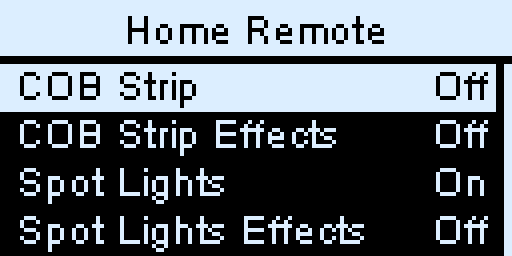
After this page you can control your Home Assistant lights and speakers from your Cyber Fidget. Turn a light on with one long press, set its brightness with the slider, pick a colour, or pause the music.
Home Remote is a built-in app (Tools > Home Remote). It talks to Home Assistant, the home-automation software many people run at home, over your home WiFi. It controls lights, speakers (Home Assistant calls them media players), scenes and scripts. In Home Assistant, a scene recalls saved settings for several devices at once, and a script runs a list of actions.
What you need
- Home Assistant on your home network, at an address that starts with
http://, such ashttp://homeassistant.local:8123(the usual one) orhttp://192.168.1.20:8123. - Your Fidget on the same WiFi. Save your home network first with Settings > Setup WiFi (see Setting up WiFi).
- An access key from Home Assistant (Home Assistant calls it a long-lived access token). The steps below make one.
Set it up
1. Make an access key in Home Assistant
- Open Home Assistant and select your name at the bottom left to open your profile.
- Open the Security tab, scroll to Long-lived access tokens and select Create token.
- Name it
Cyber Fidget, then copy the key. Home Assistant shows it only once.
Treat the key like a password: anyone who has it can control your Home Assistant.
2. Give it to your Fidget
- On the Fidget, open Tools > CyberFidget Portal and open the portal on your phone or computer (see Web Portal).
- In the portal, open Settings, then Network, and scroll to the Home Remote card.
- Check the Home Assistant address. It starts as
http://homeassistant.local:8123; change it if your Home Assistant uses another address. - Paste the key into Access key.
- Select Test connection. Connected to Home Assistant. means it works.
- Select Save. The card says Saved. Open Home Remote on your Cyber Fidget to use it.
- On the Fidget, press Back, then Enter to confirm Exit portal?. After it restarts, open Tools > Home Remote.
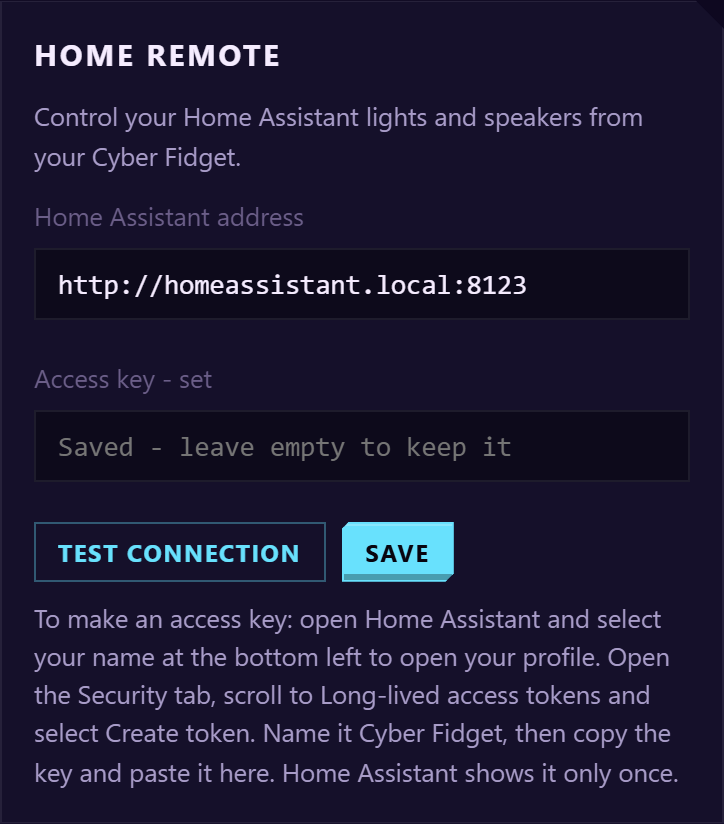
To change the address later without retyping the key, leave Access key empty and select Save: the saved key is kept.
| Test connection says | What to do |
|---|---|
| Connected to Home Assistant. | All set. Select Save. |
| Home Assistant didn't accept that access key. | Make a new key in Home Assistant and paste it again. |
| Couldn't reach Home Assistant at that address. | Check the address, and that your Fidget can reach Home Assistant on your home network. (Home Assistant itself can be on a cable.) |
| Connect your Cyber Fidget to your home WiFi first (above). | Choose your home network under Available Networks, enter its password and select Connect. WiFi Connection shows the result. |
| Use an address that starts with http://, like http://homeassistant.local:8123. | Home Remote only uses plain http:// addresses on your home network. |
| That access key doesn't look right. Copy it again from Home Assistant. | The pasted text wasn't accepted. Copy it again, without extra spaces or line breaks. |
| Couldn't check. Try again. | The check couldn't finish. Check that the portal page is still connected, and try again. |
3. Choose what shows on the Fidget
Home Remote shows two things from Home Assistant:
- Favorites are the lights, speakers, scenes and scripts you give the label
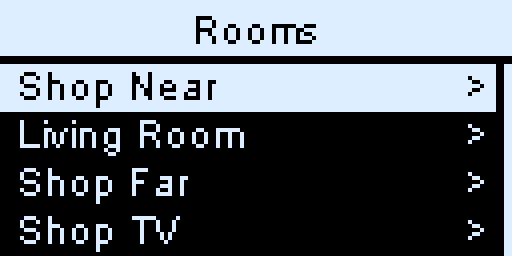
cyber_fidgetin Home Assistant. Put the label on the entity itself (the light or speaker), not on its device or area: labels on a device or area don't count. - Rooms are your Home Assistant areas. Every area with at least one light, speaker, scene or script appears, and opening it lists them.
To add the label in Home Assistant, open the entity's settings, add a label named cyber_fidget (create it the first time), and save. Favorites and each room show up to 32 items, sorted by name. Rooms shows up to 32 areas, in Home Assistant's order.
Use it
The buttons
| Button | What it does |
|---|---|
| Up / Down (top left / top right) | Move through the list. |
| Left / Right (middle left / middle right) | Change the selected setting. Hold to change faster. |
| Enter (bottom right) | Open or act on the selected row. Hold about a second on a list for a quick action. |
| Back (bottom left) | Go up one level. From the top screen, leave the app. |
The top screen
Your favorites come first, each with its state on the right: On or Off for a light, Playing, Paused, Idle or Off for a speaker, and Run for a scene or script. A light or speaker that Home Assistant says isn't available shows --; trying an unavailable scene or script shows Not available. Below them are Rooms and Status.
- Enter on a light or speaker opens its screen. On a scene it runs the scene (Scene on); on a script it starts the script (Script started).
- Hold Enter for the quick action without opening anything: a light turns on or off, a speaker plays or pauses, a scene or script runs. This works on the top screen and inside a room.
A light
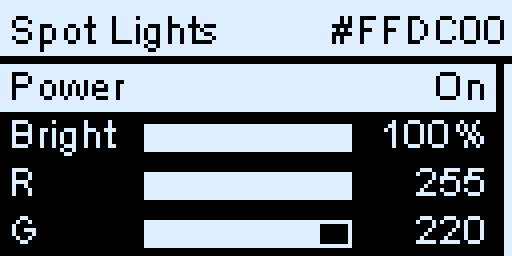
| Row | What it does |
|---|---|
| Power | Left turns it off, Right turns it on, Enter switches it. |
| Bright | Left / Right change the brightness. Only for lights that dim. |
| R, G, B | Left / Right adjust red (R), green (G) and blue (B), from 0 to 255 each. Only for colour lights. |
| Color | Left / Right step through the presets (Warm white, Red, Orange, Yellow, Green, Cyan, Blue, Magenta) and apply each one straight away; Enter applies the shown preset again. |
| Effect | Enter opens the light's effects; pick one with Enter. Only for lights with effects. |
The slider sets the brightness. When you open a light, moving the slider changes nothing until it reaches the light's current brightness, so the light doesn't jump. A small marker on the bar shows where the slider is until then. Changing anything except turning it off also turns the light on.
A speaker
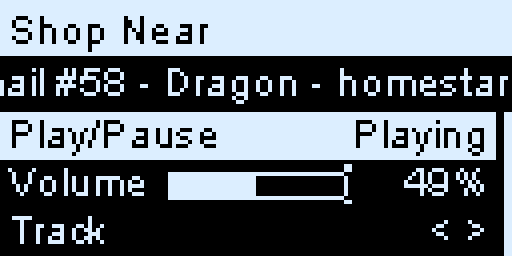
The second line shows what's playing. The rows appear only when the speaker supports them:
| Row | What it does |
|---|---|
| Play/Pause | Enter plays or pauses. |
| Volume | Left / Right change it a step at a time. The slider sets it too, after it reaches the current volume. |
| Track | Left goes to the previous track, Right to the next. |
| Mute | Enter mutes or unmutes. |
Status
Status shows whether Home Assistant answered, the Mirror on LEDs switch, the address, and the WiFi network the Fidget is on. To check the connection again, select the first row, marked Check, and press Enter.
Mirror on LEDs
With Mirror on LEDs on, the Fidget's three front lights show the colour of the light you have open, dimmed, so you can see what you're picking. It also works in the light's Effect list. A light without colour shows warm white. The front lights go dark when the light is off or unavailable, after five minutes without use, or when you go back to another screen or leave the app. It's on to start with; switch it in Status (Enter on Mirror on LEDs).
If something goes wrong
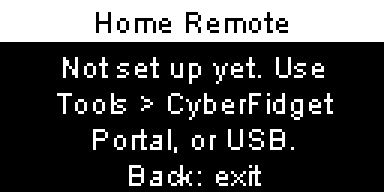
| The Fidget says | What it means |
|---|---|
| Not set up yet. Use Tools > CyberFidget Portal, or USB. | There's no address or key yet. Set it up. |
| Set up WiFi first in Settings. | No WiFi network is saved. Use Settings > Setup WiFi. |
| Couldn't join WiFi. | The saved network didn't answer. Enter tries again. |
| Can't reach Home Assistant. | The Fidget is on WiFi but Home Assistant didn't answer at the saved address. Check the address and that Home Assistant is running. Enter tries again. |
| Home Assistant did not accept the access key. | The key was deleted or mistyped. Make a new one and save it in the portal. |
| Unexpected answer from Home Assistant. | The server at that address gave an unexpected reply. Check the address and that Home Assistant is working. Enter tries again. |
| WiFi is busy. Try again soon. | Another part of the Fidget is using WiFi. Try again in a moment. |
| Not enough memory. Restart and try again. | Switch the Fidget off and on, then open Home Remote again. |
Once the lists have loaded, a connection problem or an unexpected reply shows as a short message at the bottom instead, such as Can't reach Home Assistant, and the app keeps going. A rejected access key still opens its full error screen.
Good to know
- Same home network only. Home Remote reaches Home Assistant at an
http://address on your home WiFi. Addresses that start withhttps://, including remote-access addresses, aren't used. - WiFi only while it's open. The Fidget turns WiFi on when you open Home Remote and off when you leave. If Bluetooth is in use (for example after the Music Player), it says Opening Home Remote... and restarts straight into the app.
- It stays awake while you use it. On a light or speaker screen it stays awake for five minutes after you last touch it, then sleeps as usual.
- The key stays private. The Fidget doesn't show the access key on its screen, in the portal or over USB.
Advanced: set it up over USB instead
You don't need this if you used the portal.
The Fidget's USB serial commands can set the address and key from a computer. A key is longer than one command line, so it goes in pieces: hr token with the first part, then hr token+ with the rest. The reply only says how many characters are saved.
| Command | What it does |
|---|---|
hr url http://homeassistant.local:8123 |
Saves the address. |
hr token <first part> then hr token+ <next part> |
Saves the key in pieces: up to 150 characters with hr token, then up to 149 per hr token+. |
hr mirror on / hr mirror off |
Switches Mirror on LEDs. |
hr show |
Shows the address, whether a key is saved (set / unset) and the mirror setting. |
hr clear |
Removes the address and key. |
See Serial commands for the replies.
See also
- Web Portal - opening the portal and saving WiFi
- Built-in apps - every app on the Fidget
- Home Assistant: long-lived access tokens - Home Assistant's own help