Sprite assets in built-in apps
After this page you can add a sprite to a built-in app, put it where the build expects it, and keep the generated code in step with the drawing.
This page is for firmware contributors. If you are making an app in the studio, the studio does all of this for you: see Sprites & Animation.
What is this?
A built-in app draws its pictures from generated headers. A generated header is a C++ file that a tool writes for you from a sprite drawing, so you never type the bitmap bytes by hand.
Each sprite has two files:
| File | Folder | You edit it? |
|---|---|---|
The sprite drawing, <name>.cfsprite.json |
lib/<App>/assets/ |
Yes. This is the source. |
The generated header, <name>.h |
lib/<App>/generated/ |
No. The tool writes it, and both files are committed. |
The Dino game is a real example. lib/DinoGame/assets/ holds cactus.cfsprite.json, dino.cfsprite.json, ground.cfsprite.json and pterodactyl.cfsprite.json. lib/DinoGame/generated/ holds the matching cactus.h, dino.h, ground.h and pterodactyl.h.
The first lines of every generated header say so: "Generated from .cfsprite.json. Edit the source asset, not this header."
Step 1: author the sprite
Draw the sprite in the studio's 2D tab. In a project, choose Add art > Draw a new sprite, type a name and choose Create (see Sprites & Animation for the drawing tools).
When the drawing is done, open the Sprite file menu at the bottom of the right panel and choose Save to file. Your browser downloads the sprite as a .cfsprite.json file. You give it its final name in Step 2.
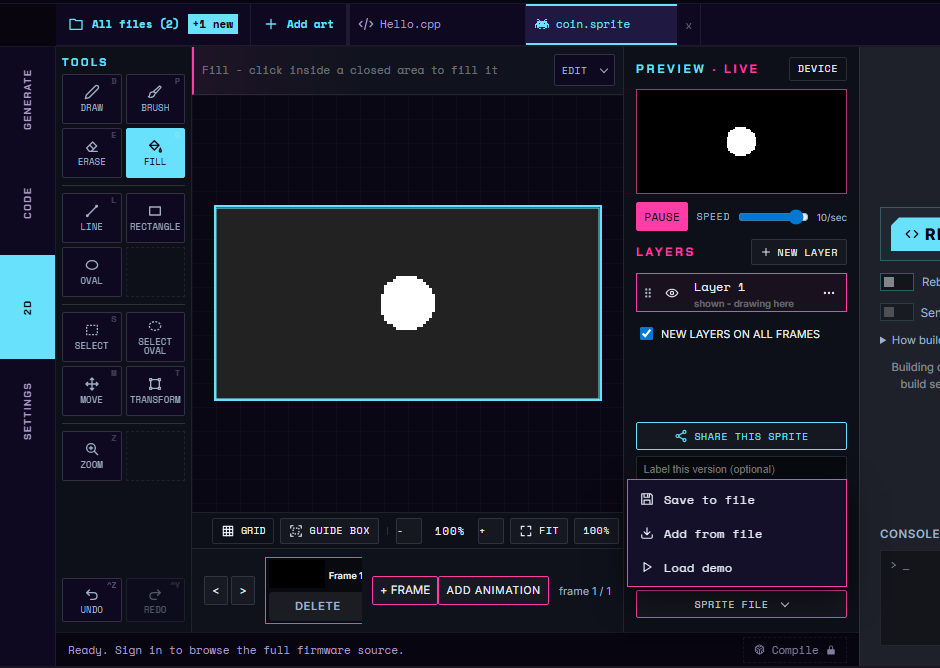
Add art, Draw a new sprite, name it coin, draw and fill a circle, then Sprite file > Save to file.
A .cfsprite.json file records the sprite's size, its pivot (the point placed at the screen position), its frames and its named animations. The Dino cactus is a good small file to read: one 8 by 16 frame and one looping animation called idle.
Step 2: put it in the app's assets folder
Save the file as lib/<App>/assets/<name>.cfsprite.json. The build finds sprites with the pattern lib/*/assets/*.cfsprite.json, so the folder name and the ending both matter.
For an app called MyApp and a sprite called coin:
lib/MyApp/assets/coin.cfsprite.json     <- you add this
lib/MyApp/generated/coin.h              <- the tool writes this
The part of the file name before .cfsprite.json is the symbol prefix. It becomes the C++ namespace the header defines. The compiler turns each run of characters other than letters, digits and _ into one _, drops _ from the start and the end, lowercases the result and puts _ in front of a leading digit, so Big Cactus 2 becomes big_cactus_2. A short lowercase name made of letters, digits and underscores keeps the namespace the same as the file name. The cactus file gives cf::gfx::cactus.
If two sprites would write to the same generated/ file, the build stops with an "Asset header collision" error.
Step 3: make the header
The header is written by the sprite compiler, the program that turns a drawing into C++. The compiler is part of the Cyber Fidget website. It is not in the firmware repository, and the studio doesn't save generated headers to a file. So how you make the header depends on whether you have the compiler.
If you don't have the sprite compiler
Most contributors don't. Include the .cfsprite.json from Step 2 in your pull request, and say in its description that the sprite's header still needs generating. Until the header exists, the build can't compile code that includes it.
You can still check the sprite before you send it: in a studio project, choose Sprite file > Add from file (the menu in Step 1) and draw the sprite from a test app, as Sprites & Animation shows. A studio app turns the drawing into code with the same compiler, so the sprite looks and animates there as it will in the firmware.
A still picture without the compiler
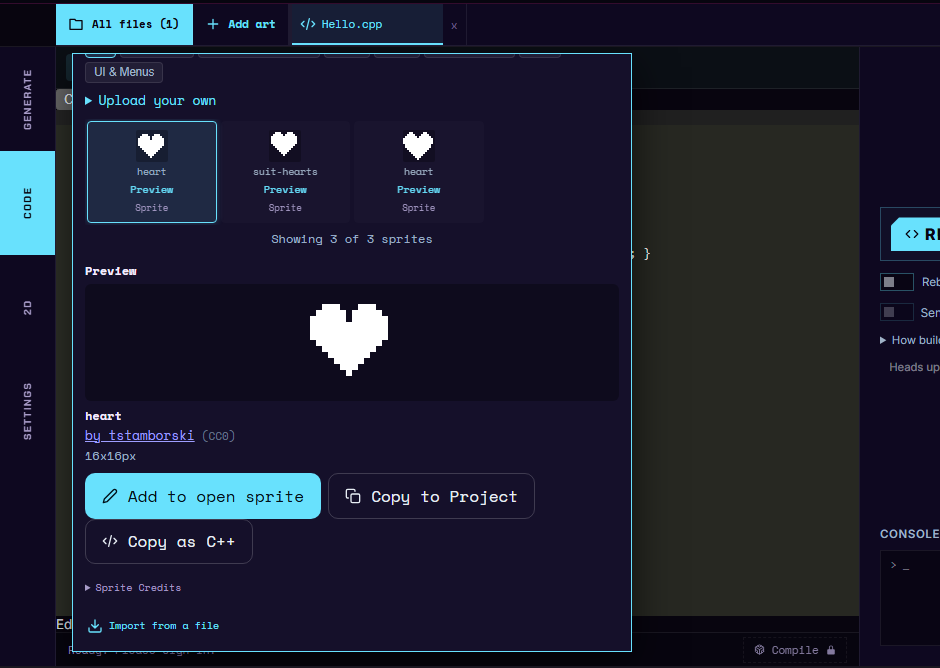
A built-in app can also draw a still picture from an XBM bitmap, a plain array of bytes, with display.drawXbm() (see Bitmaps). The studio's Copy as C++ button copies a free starter sprite in that form: open All files > Free starters, choose Preview on a sprite, then Copy as C++ (see Option B on the Sprites page). It only covers the free starters, the picture has no animation, and the drift check below doesn't cover it.
If you have the sprite compiler
This is for firmware developers who also have the Cyber Fidget website source. Run the cfsprite-regen target from the firmware folder. A PlatformIO target is a named extra job you run with -t. This one rewrites every generated header from its drawing:
pio run -t cfsprite-regen
It prints one line per file, for example Generated lib/DinoGame/generated/cactus.h (on Windows the path uses backslashes). Commit the new or changed .h next to the .cfsprite.json.
The target needs two things on your computer:
- Node.js, the JavaScript runtime that runs the tool. Without it the target stops with "Node.js is required to compile .cfsprite assets".
- The sprite compiler. The tool looks for it in a folder named
cyberfidget_websitenext to the firmware folder (assets/js/cfsprite_compile.mjs). If yours is somewhere else, set theCF_CFSPRITE_COMPILERenvironment variable to its full path.
If the compiler cannot be found, regeneration fails on purpose rather than skipping, with "Could not find the .cfsprite compiler".
Step 4: use the sprite in your app
Include the header and point an actor at the sheet. The Dino game does this in lib/DinoGame/DinoGame.h with #include "generated/dino.h", and in lib/DinoGame/DinoGame.cpp with:
dinoActor.setSheet(&cf::gfx::dino::sheet);
dinoActor.play(cf::gfx::dino::anim_run, millis());
sheet is the whole set of animations. Each animation also gets a name of the form anim_<animation name>.
The drift check
Drift means a generated header no longer matches the drawing it came from, usually because someone edited the drawing and forgot to regenerate. The drift check catches this.
It runs automatically near the end of every firmware build (pio run, including pio run -e local), after the code has compiled. For each sprite it asks the compiler to produce the header again and compares the result with the committed file. Line endings are ignored, so a Windows checkout does not cause false alarms.
If a header has drifted, the build fails with:
cfsprite_compile_cli: Generated header drift: lib/DinoGame/generated/cactus.h
Regenerate target: pio run -t cfsprite-regen
Run the regenerate step above, then commit the updated header.
With the compiler, you can also run the check by hand for one sprite, from the firmware folder. It prints Checked lib/DinoGame/generated/cactus.h when the header matches:
node tools/cfsprite_compile_cli.mjs --check-only --symbol-prefix cactus lib/DinoGame/assets/cactus.cfsprite.json lib/DinoGame/generated/cactus.h
The check can be skipped
If Node.js or the sprite compiler is missing, the build prints cfsprite_assets: WARNING - asset drift check SKIPPED and carries on, because the committed headers already compile. The automated build on GitHub does not have the compiler, so it skips the check. If you have the compiler, run the build on your own computer before you commit sprite changes.
Framework details
Advanced: 3D models and the files behind the build step
You do not need these details to add a sprite. They cover the other kind of asset and the files that run the steps above.
- The same build hook also handles 3D models:
.cfmesh.jsonfiles inlib/<App>/assets/become headers inlib/<App>/generated/, regenerated withpio run -t cfmesh-regen. It uses the model compiler,cfmesh_compile.mjs, from the same website folder, or the path in theCF_CFMESH_COMPILERenvironment variable. See 3D Models and the 3D model file format. tools/legacy_xbm_to_cfsprite.mjsconverted the Dino game's older hand-written XBM bitmap arrays inlib/DinoGame/DinoSprites.hinto its.cfsprite.jsonfiles. It reads only that file, so treat it as an example to adapt rather than a general converter.- The hook is
scripts/cfsprite_assets.py, listed underextra_scriptsinplatformio.ini. The command-line compiler wrappers aretools/cfsprite_compile_cli.mjsandtools/cfmesh_compile_cli.mjs.node tools/cfsprite_compile_cli.mjs --helpprints its usage:[--check-only] [--symbol-prefix NAME] INPUT OUTPUT.
See also: Firmware development and How an App Works.