Music Player
The Music Player on a Cyber Fidget, playing a song through its own speaker with the spectrum visualizer on: 16 bars that jump with the music, low notes on the left and high notes on the right.
After this page you can play your own music on your Cyber Fidget, through its built-in speaker or a Bluetooth speaker or headphones. You will know how to add songs, skip and pause, change the volume with the slider, and make the screen and lights move with the music.
Music Player is a built-in app. You'll find it in the menu under Media > Music Player. It plays MP3 files from the memory card. It needs no internet connection and no account.
What you need
- A memory card in your Fidget (microSD). See Storage & SD for which cards work and how to swap one safely.
- Some MP3 files. MP3 is the most common music file type: files whose names end in
.mp3. Other types, such as.m4a,.wavor.flac, don't show up in the list. - Optional: a Bluetooth speaker or headphones. The Fidget's own speaker works without one.
Add songs
Songs go in the media folder on the memory card. Folders inside media work too, so you can sort songs by artist or album.
There are two ways to get them there:
- Over WiFi, from your phone or computer. Add songs with the Web Portal. No cable needed.
- With a card reader. Take the card out (see Inserting and removing cards safely), copy your MP3 files into its
mediafolder on a computer, and put it back.
The list shows each song as Artist - Title, read from the song details stored inside the file (its ID3 tags). A song with a title but no artist shows just the title; a song with neither shows its file name. Songs are sorted A to Z.
The Fidget looks up the card's songs the first time you open Browse Songs after it starts, and keeps that list until it restarts. If you add or remove songs with a card reader, restart your Fidget afterwards (switch it off and on again, with no USB cable plugged in). Songs added with the Web Portal need no extra step: leaving the portal restarts the Fidget.
The buttons
| Button | In the menus | On Now Playing |
|---|---|---|
| Up (top left) | Move up | Change the visualizer |
| Down (top right) | Move down | Change the visualizer (the other way) |
| Left (middle left) | -- | Previous song. Hold to rewind |
| Right (middle right) | -- | Next song. Hold to fast-forward |
| Enter (bottom right) | Choose | Pause or play |
| Back (bottom left) | Go back. From the Music Player menu, leave the app | Back to the Music Player menu; the song keeps playing |
| Slider | -- | Volume: up is louder |
Play your first song
Opening Music Player on a Cyber Fidget: Onboard Speaker, then Browse Songs, then the first song, which starts playing.
-
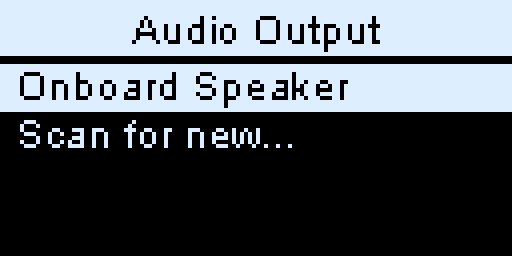
Open Media > Music Player. The first screen, Audio Output, asks where the sound should go. Choose Onboard Speaker with Enter to use the Fidget's own speaker. (For a Bluetooth speaker, see Play through a Bluetooth speaker.)
-
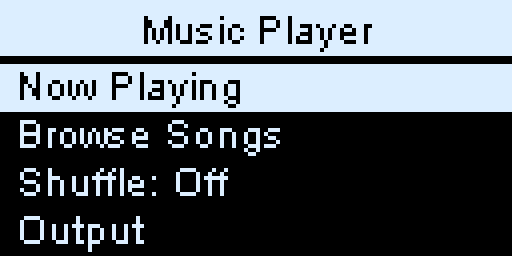
The Music Player menu opens. Move down to Browse Songs and press Enter.
-
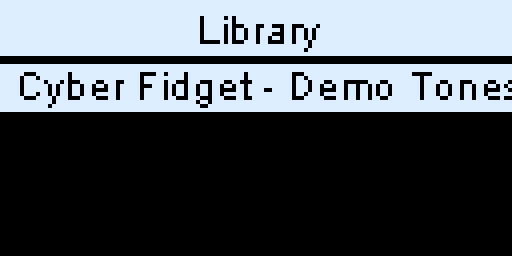
The Library lists your songs. The first time you open it after the Fidget starts, it may read the card first and show Scanning library... with a count. Then pick a song and press Enter.
-
Now Playing opens and the song starts.
Now Playing
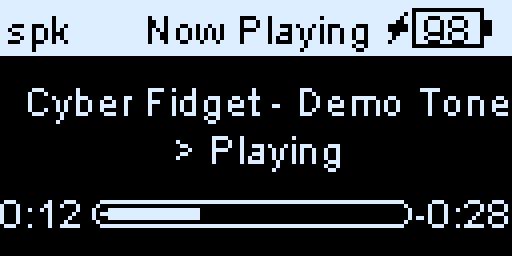
From the top:
- The top bar shows where the sound goes (
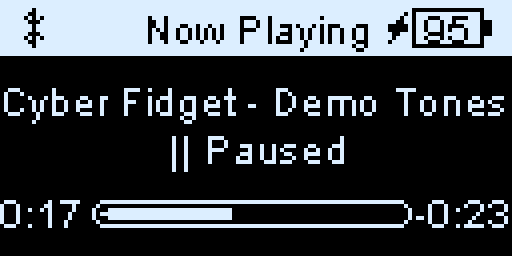
spkfor the speaker, a Bluetooth symbol for a Bluetooth speaker) and the battery level. A small lightning bolt next to the battery means it is charging. - The song: artist and title. A long title scrolls.
> Playingor|| Paused.[S]after it means Shuffle is on.- The bottom row: time played, a progress bar, and time left.
Press Enter to pause, and again to play.
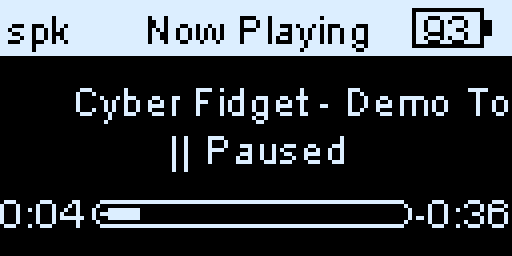
Left and Right go to the previous and next song. Hold either one to rewind or fast-forward through the song, about 5 seconds per step; let go to keep playing from there.
Volume
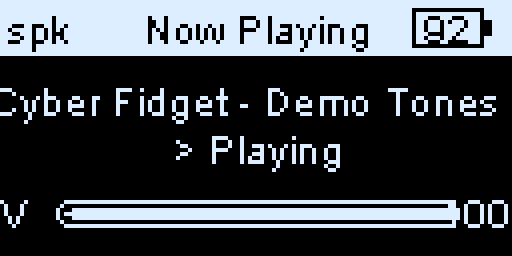
Move the slider: up is louder, down is quieter, and at the very bottom it is silent. When you move it, the bottom row shows the volume for about 2 seconds: V, a bar, and the volume from 0 to 100.
Visualizers
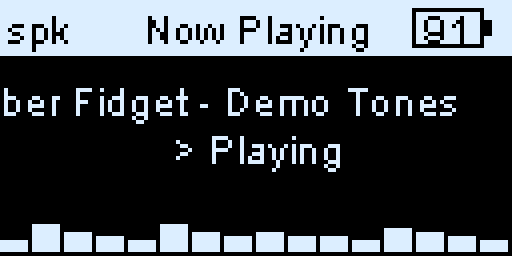
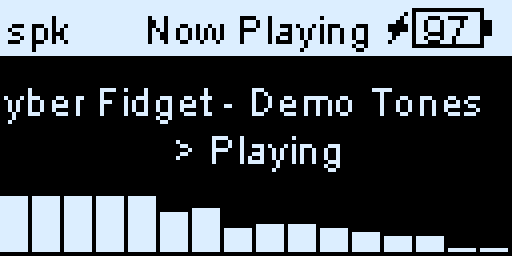
Press Up or Down on Now Playing to swap the bottom row for a visualizer while a song plays. Each press moves to the next one: Up goes Off, Amplitude, Spectrum; Down goes the other way.
| Visualizer | What it shows |
|---|---|
| Off | Time played, progress bar and time left. |
| Amplitude | 16 bars of how loud the music is, the newest on the right, so the row scrolls with the beat. |
| Spectrum | 16 bars, one for each range of notes: deep bass on the left, high notes on the right. The clip at the top of this page shows it. |
Your choice is kept for next time.
Leaving Now Playing
Back goes to the Music Player menu and the song keeps playing, so you can look through the menus or pick another song while you listen. Now Playing in that menu takes you back to it.
While a song plays, your Fidget stays awake. Leaving the app stops the music, and the Fidget remembers the song and where you were. Next time, open Music Player, choose your output and then Now Playing to carry on from there. If that song is no longer on the card, the Library opens instead.
Shuffle and what plays next
When a song ends, the next song in the list plays. After the last song, the music stops.
Choose Shuffle: Off in the Music Player menu to turn it into Shuffle: On. Then Right and the end of each song pick a random song, and with two or more songs the music keeps going. Your choice is kept for next time.
Play through a Bluetooth speaker
Bluetooth speakers and Bluetooth headphones both work.
- Put your speaker or headphones in pairing mode (see their instructions; often you hold the Bluetooth or power button until a light flashes).
- Open Media > Music Player. On Audio Output, choose Scan for new....
-
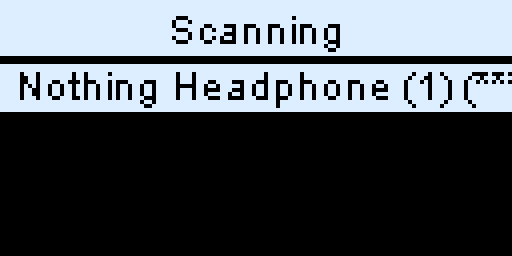
The Fidget searches for about 12 seconds and lists what it finds. Each name has stars after it for signal strength:
(***)is strong,(*)is weak; a long name can push the stars off the edge of the screen. Back stops the search.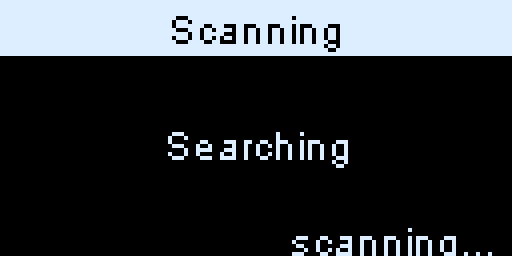
-
Choose your speaker with Enter. The screen shows Connecting... and the speaker's name; this can take up to 15 seconds. Then the Music Player menu opens, with
BTin its bottom-right corner.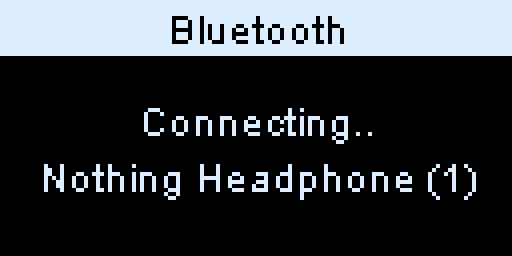
On Now Playing, the top bar shows a Bluetooth symbol instead of spk.
The Fidget remembers up to 8 speakers. Next time, they are listed on Audio Output below Onboard Speaker (the one you used last comes first): choose yours to connect, with no scan.
The volume slider sets the Fidget's volume; your speaker's own volume works too. Many speakers and headphones have play, pause, next and previous buttons. On many of them those buttons control the Fidget too; some speakers don't send them, and then only the Fidget's own buttons work.
The Bluetooth and Output menus
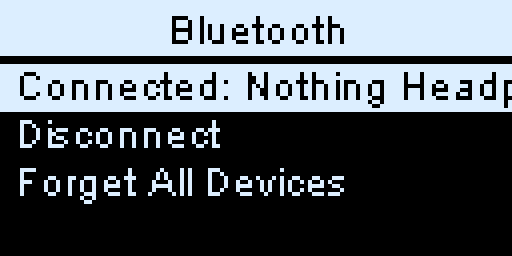
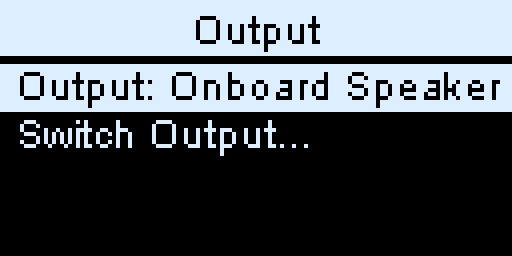
The fourth item in the Music Player menu shows how sound is going out:
| With | Menu item | Inside |
|---|---|---|
| A Bluetooth speaker | Bluetooth | Connected: and the speaker's name; Disconnect (back to Audio Output); Forget All Devices (clears the remembered speakers) |
| The Fidget's speaker | Output | Output: Onboard Speaker; Switch Output... (back to Audio Output, to pick a Bluetooth speaker) |
Light up with the music
The four lights can move with the music. Open LEDs in the Music Player menu.
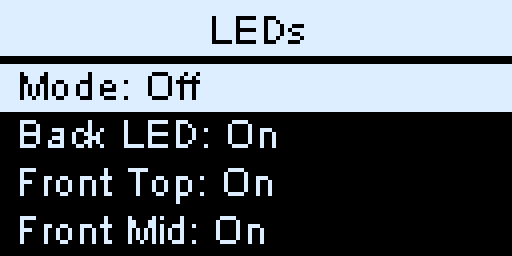
Press Enter on a line to change it:
| Line | What it does |
|---|---|
| Mode | Off (lights off, the starting setting), Reactive (the lights follow the music: a soft blue glow when it's quiet, green as it gets louder, red with a white flash on loud beats) or Pulse (a slow, gentle blue glow, whatever is playing). |
| Back LED, Front Top, Front Mid, Front Bot | Turn each light on or off. The back light glows dimmer than the front ones. |
| Sync | Moves the lights (and the visualizers) earlier or later so they match what you hear, from 0 to 300 ms in steps of 25. Bluetooth speakers play the sound a little late; if the lights flash before the beat, raise it. |
Sync is the last line; move down past Front Bot to reach it.
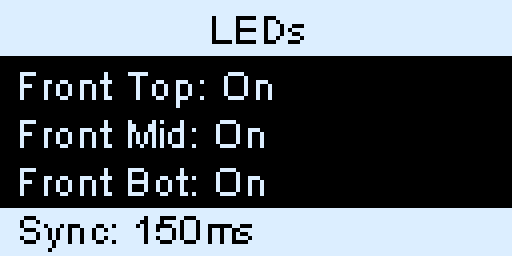
All of these settings are kept for next time.
If something goes wrong
| What you see | What to do |
|---|---|
| No SD card in the Library | Put a memory card in. See Storage & SD. |
| No MP3 files found | Check that your songs end in .mp3 and are inside the media folder (or a folder inside it). If you just copied them with a card reader, restart your Fidget (switch it off and on again, with no USB cable plugged in). |
| A song you added doesn't show up | Check that it ends in .mp3 and is inside the media folder, then restart your Fidget. |
| Connection Failed after Connecting... | The speaker didn't answer within 15 seconds. Press Enter, put the speaker in pairing mode (or turn it off and on), and choose it again. |
| Bluetooth needs a restart | The Fidget's Bluetooth was switched off since it last started, for example by the Web Portal, which uses the same radio for WiFi. Restart the Fidget (switch it off and on again, with no USB cable plugged in), then open Music Player again. |
| No sound from the speaker | Move the slider up: at the very bottom it is silent. |
How it works
For the curious:
- The Fidget's processor decodes each MP3 file itself as it plays, a little at a time, straight from the memory card.
- For the built-in speaker, the sound goes over a digital audio connection (I2S) to a small amplifier. For Bluetooth, it is sent with the standard Bluetooth music profile (A2DP), the one phones use.
- The visualizers and the Reactive lights measure the sound on its way out. Spectrum splits it into 16 ranges of notes with a Fourier transform, a calculation that finds how much of each pitch is in a sound.
- The list of songs, with each song's title and artist, is saved on the card as
music.idx.
For the full design (states, audio pipeline, Bluetooth handling), see Music Player architecture in the Contributors section.